
Introducing comments: feedback right on the slide
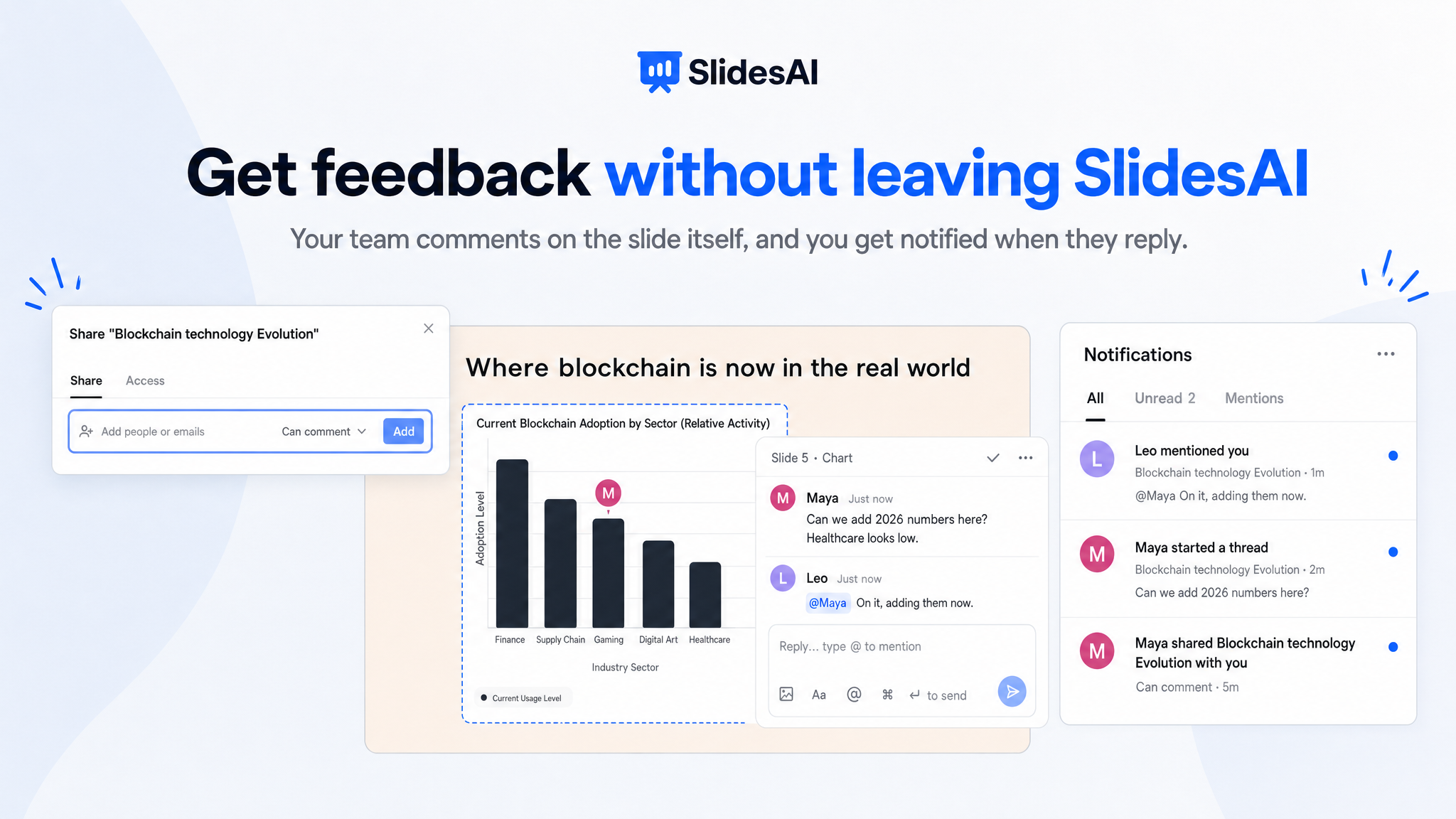
Comments are here. Point at anything on a slide and leave a note for your team. Pin a comment to an image, a chart, a spot, or a whole area, and talk it through in a thread right where the feedback belongs. No more screenshots in chat or "slide 7, the second bullet" emails.
Live for everyone. New comments, replies, and reactions appear on everyone's screen the moment they're posted. Pinned comments follow their element when it moves, and if an element is deleted, its comment stays put so no feedback is lost.
A new Can comment permission. Share a presentation as Can comment to collect feedback from reviewers, clients, or your manager without handing them the keys to your slides. They can add comments, reply, react, and resolve threads, but can't change a thing.
Mentions that reach the right person. Type @ to bring someone into a thread. They get a notification even if they've muted the presentation, and if they don't have access yet, we tell you before you send.
Say it with a picture. Paste a screenshot or drop up to 10 images into a comment. If you can edit, insert any attached image straight into your slide.
Resolve and move on. Resolve a thread when it's handled and its pin clears from the slide. The Comments panel keeps every thread in one list, with filters for Open, For me, and Resolved, so you can reopen anything that comes back.
Read Comment on slides and resolve feedback for the full walkthrough.
A notification inbox
The new Notifications bell collects mentions, replies, new threads, and presentations shared with you in one place. Click any notification to land on the exact slide with the thread open.
Replies in the same thread group into one notification, so a busy discussion doesn't flood your bell.
Choose Everything, Mentions & replies, or Nothing for each presentation, and turn whole kinds of notifications on or off.
Turn on desktop notifications to get a pop-up when someone mentions you while SlidesAI is in a background tab.
Unread counts show on the bell, in your browser tab, and on each presentation's card on your dashboard.
Read Get notified about comments, mentions, and shares to set it up your way.