
Introducing the command palette: press ⌘K to search and run anything
Press ⌘K (Ctrl+K on Windows) anywhere in SlidesAI to search and run any command from one box, without leaving the keyboard.
What's new
One shortcut, everywhere
The command palette opens on your dashboard, in chat and in the editor. You can also click Search or run a command in the sidebar. See Search and run commands with the command palette (⌘K).
Find your presentations and chats
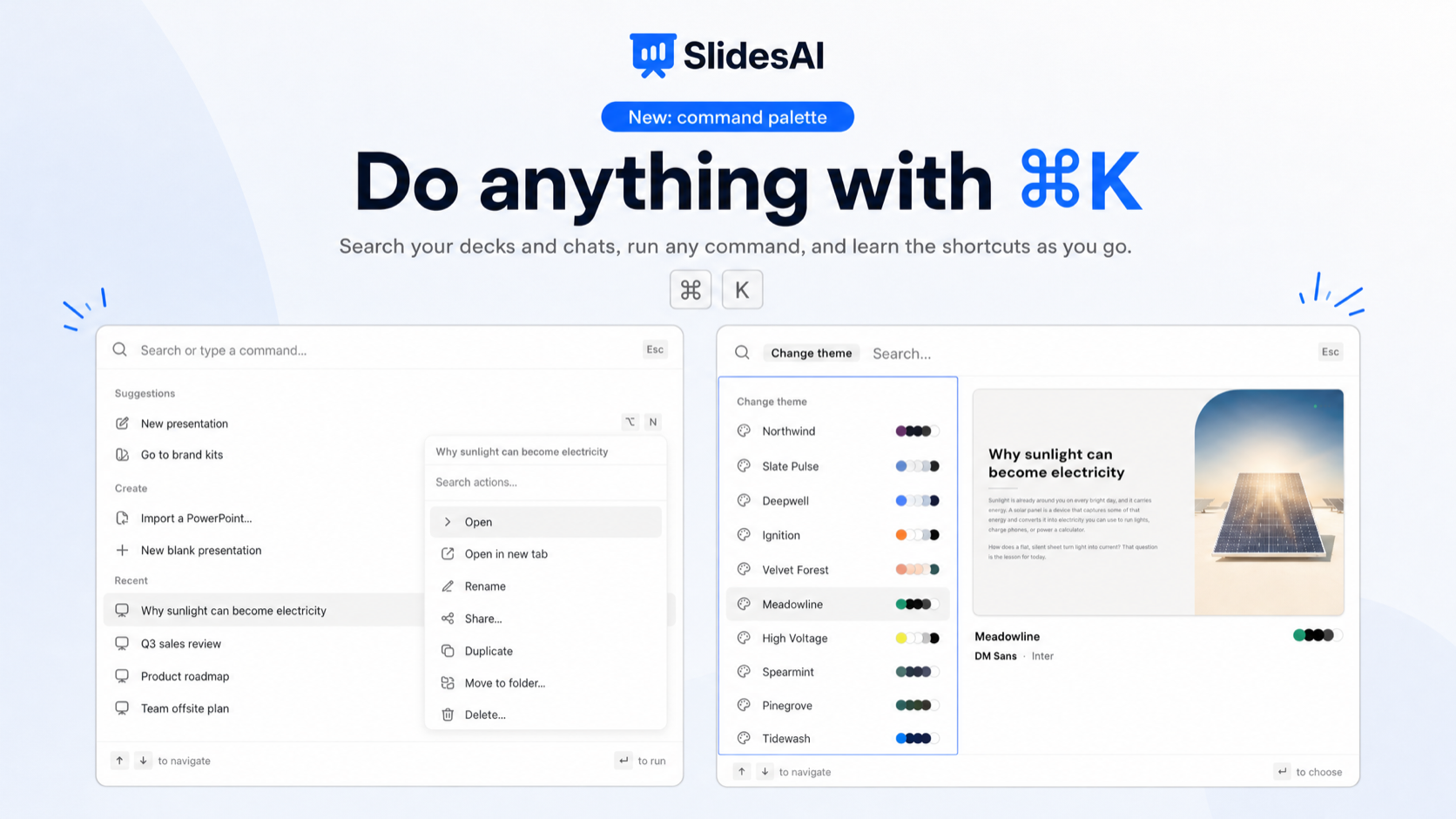
As you type, the palette searches your presentations and chats too, so you can jump straight to the one you want.
Quick actions
Highlight a presentation or chat and press ⌘K again to open it in a new tab, rename, share, duplicate, move or delete it.
Pick from a list, with a preview
Change theme… shows your slide in each theme before you apply it. Export…, Insert shape…, Align…, Go to slide…, Switch team…, Change language… and Go to settings section… open their choices right in the palette.
Improvements
Learn the shortcuts. Every command shows its keyboard shortcut, so the keys you use most become second nature.
Editor suggestions. In the editor, Ask Agent, Share…, Export… and Change theme… sit at the top of the palette before you type.
In your language. The palette works in all 22 languages SlidesAI supports, and English command names always match too.
Corrected shortcut list. The editor's keyboard shortcuts list now shows Scale as S and adds Zoom to fit and Add slide.
⌘K replaces chat search. Find chats from the palette instead. In the editor, ⌘K with an element selected opens the palette; while you type in text, it still adds a link.