
Introducing folders: organize, move and share presentations across your teams
Organizations can now group presentations in folders, move them between teams and Private
What's new
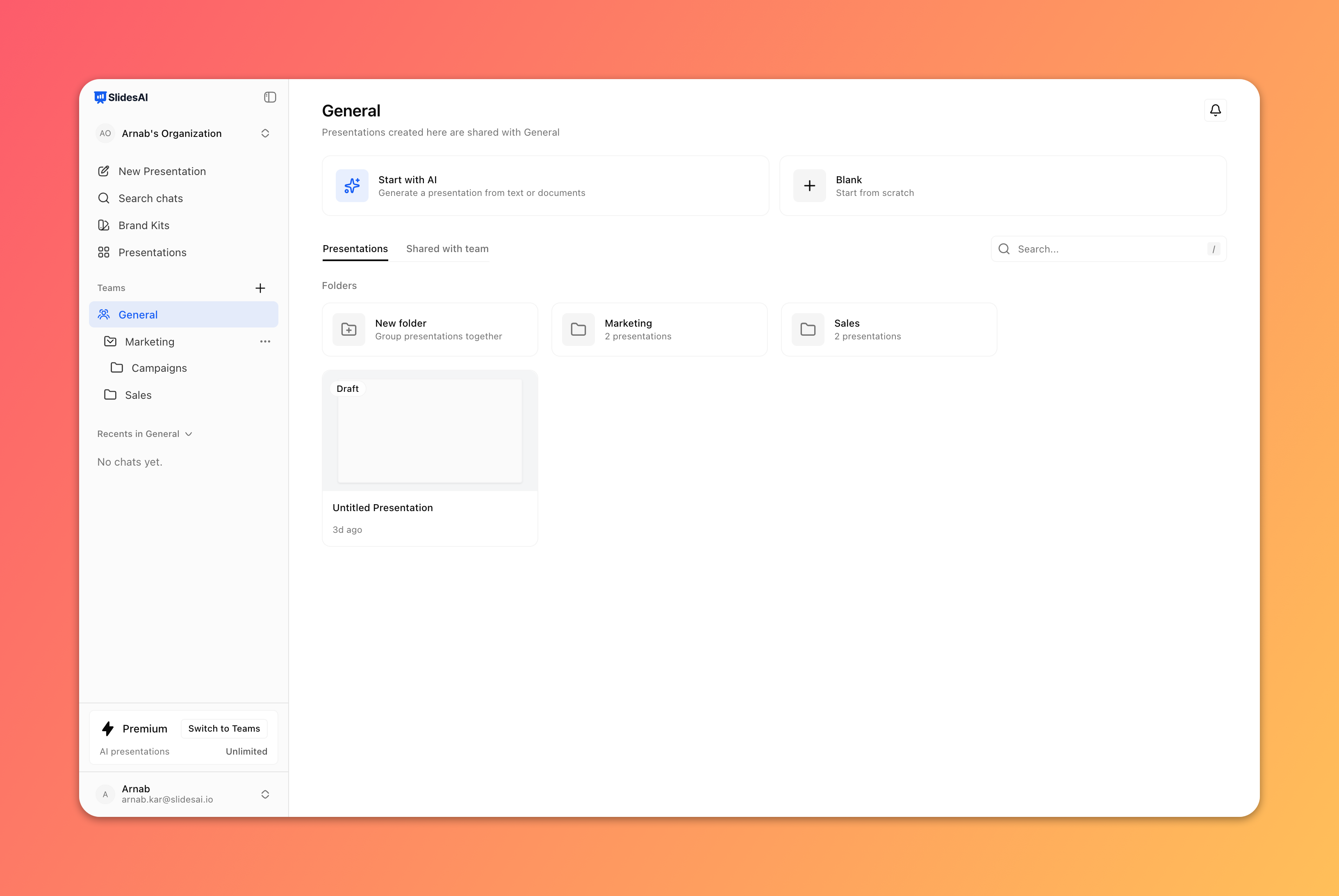
Folders
Create folders on a team page or in your Private space, and nest them up to 10 levels deep. The sidebar shows a folder tree under each team you are on. Deleting a folder never deletes what's inside: its contents move up one level. See Organize presentations in folders.
Share a whole folder
Share a folder with people in your organization, a team or everyone, and they get access to everything in it, including subfolders and presentations added later.
Move presentations
Choose Move… in a presentation's menu, or drag its card onto a team, a folder or Private. The Move dialog tells you who gains or loses access before you confirm. See Move a presentation to another team, folder or Private.
Improvements
Clearer sharing. The Share dialog shows access that comes from a folder, caps access to what each person's role allows, and counts your guests against your plan's limit.
Where it came from. Shared presentations show who or which team shared them. Hover the label for the full sentence.
Right-click menus. Right-click a team, folder or presentation for the same menu as ….
Helpful empty states. An empty team, folder or Private space offers New presentation and New folder.
Fewer emails. Sharing with a team no longer emails every team member.