
Not yet. Folders can only be shared inside your organization. To give a guest access, share the presentation itself.
Organize presentations in folders
Updated today
Folders let you group related presentations in one place, like a folder on your computer. Put a project's presentations in one folder, add subfolders as it grows, and share the whole folder at once instead of one presentation at a time.
Before you start: folders are available in organizations. You need a role that can create presentations: Owner, Admin, Content manager or Member.
Create a folder
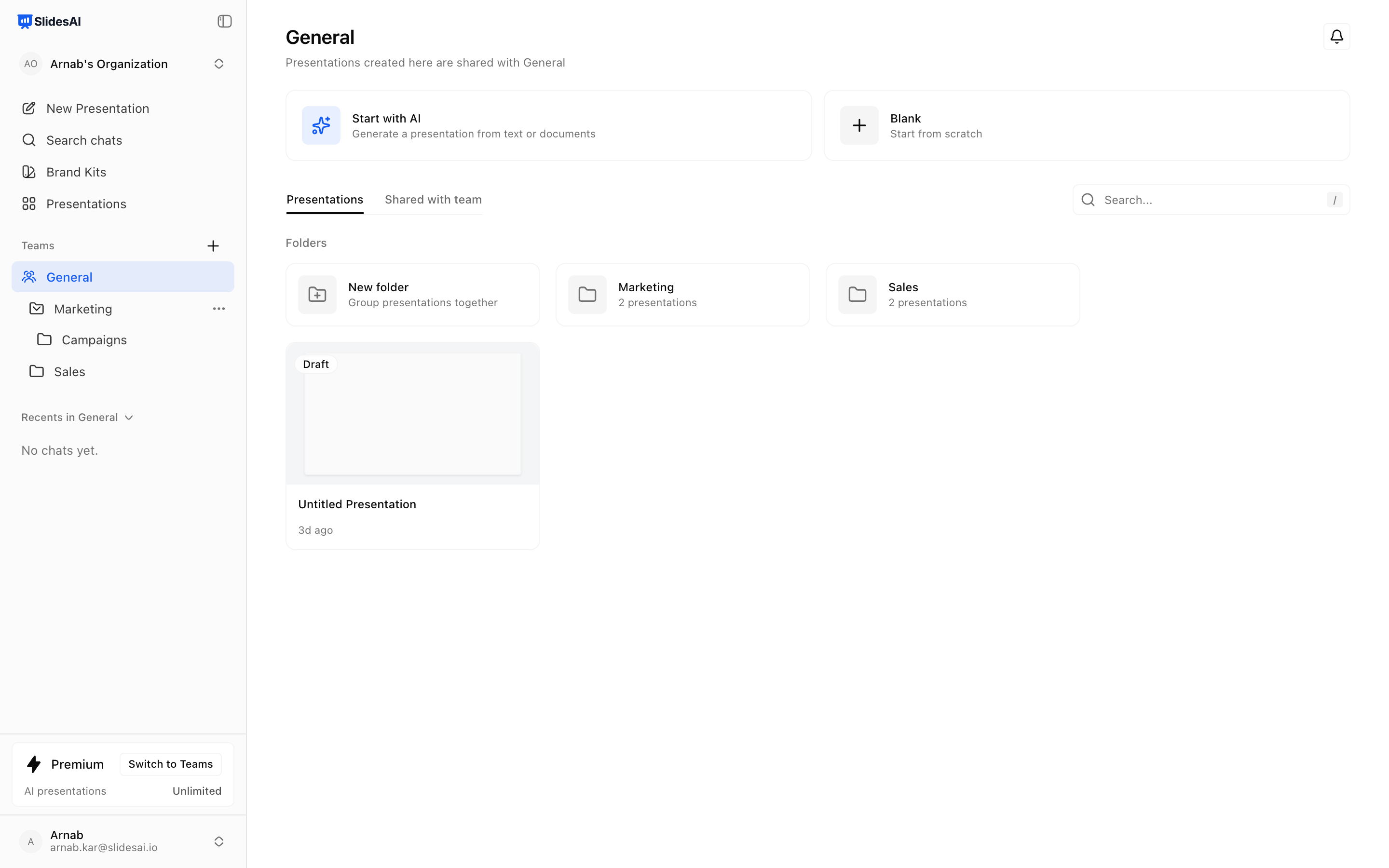
Open a team page, By me, or an existing folder.
In the Folders section, click the New folder card. You can also right-click a team or folder in the sidebar and choose New folder.
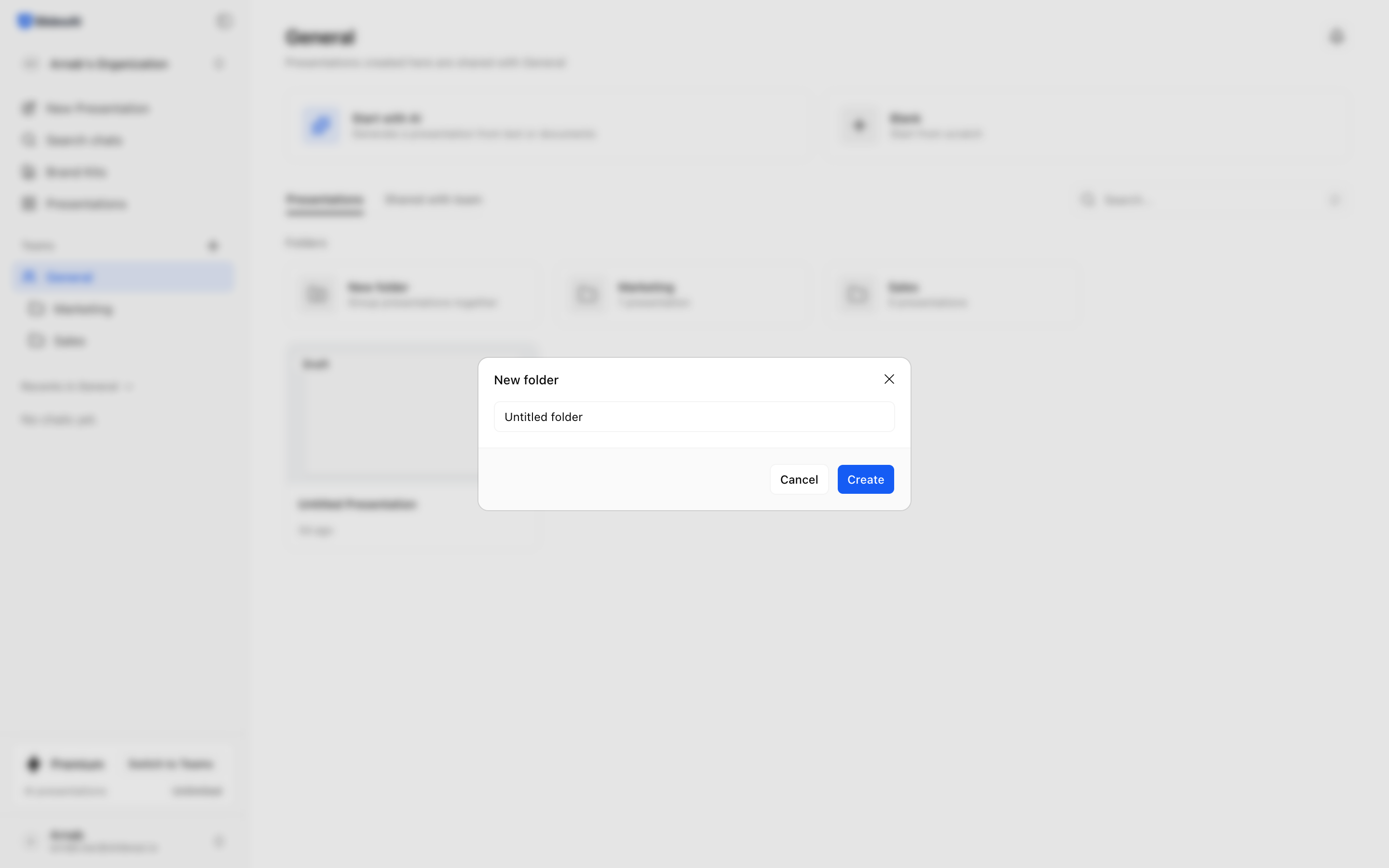
The name starts as "Untitled folder". Type a new name to replace it.
Click Create.
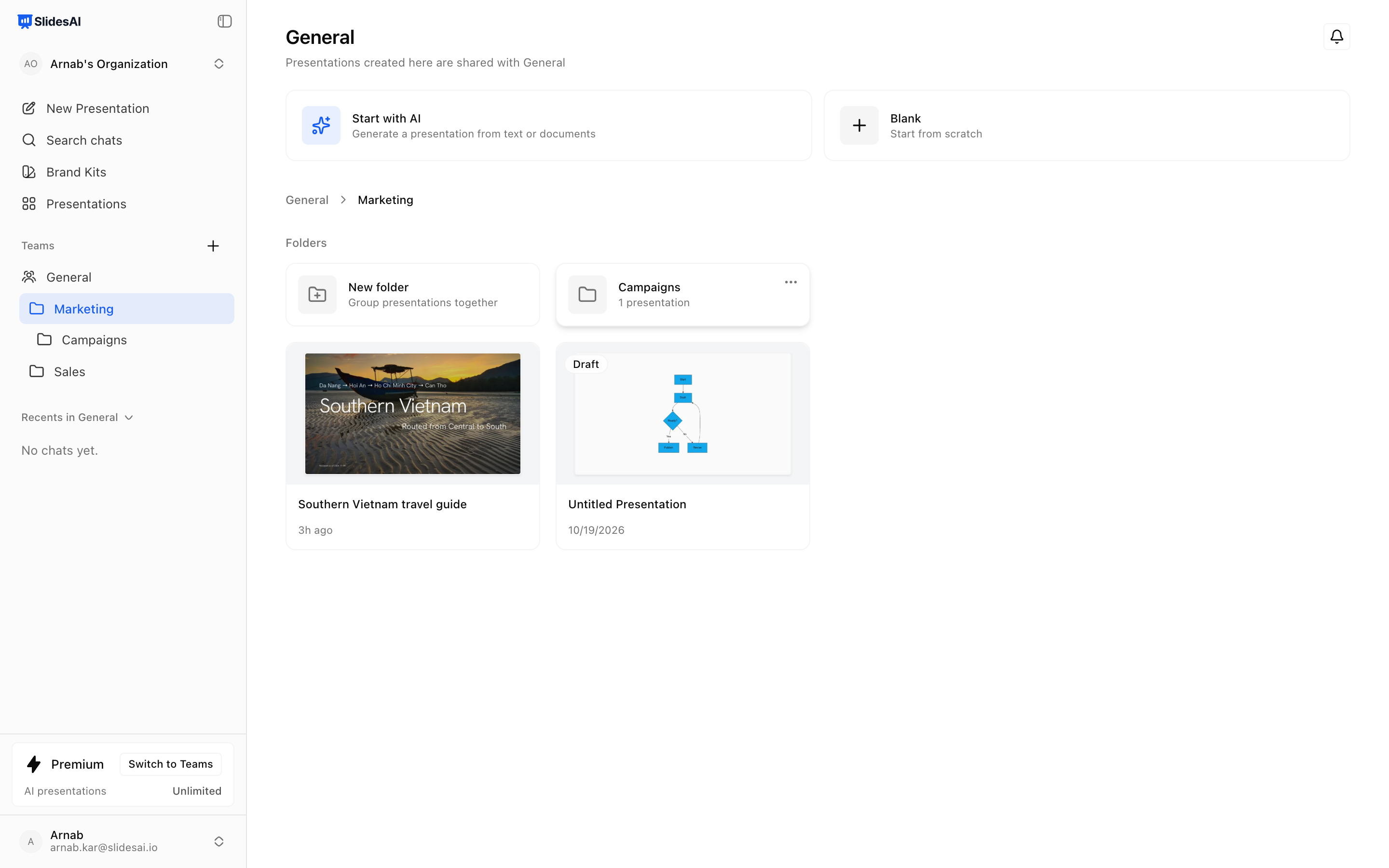
The new folder also shows in the sidebar. You can nest folders up to 10 levels deep.
Add presentations to a folder
Create inside it. Open the folder and create a presentation there.
Move one in. Use Move… in the presentation's menu, or drag its card onto the folder. See Move a presentation to another team, folder or Private.
Rename, move or delete a folder
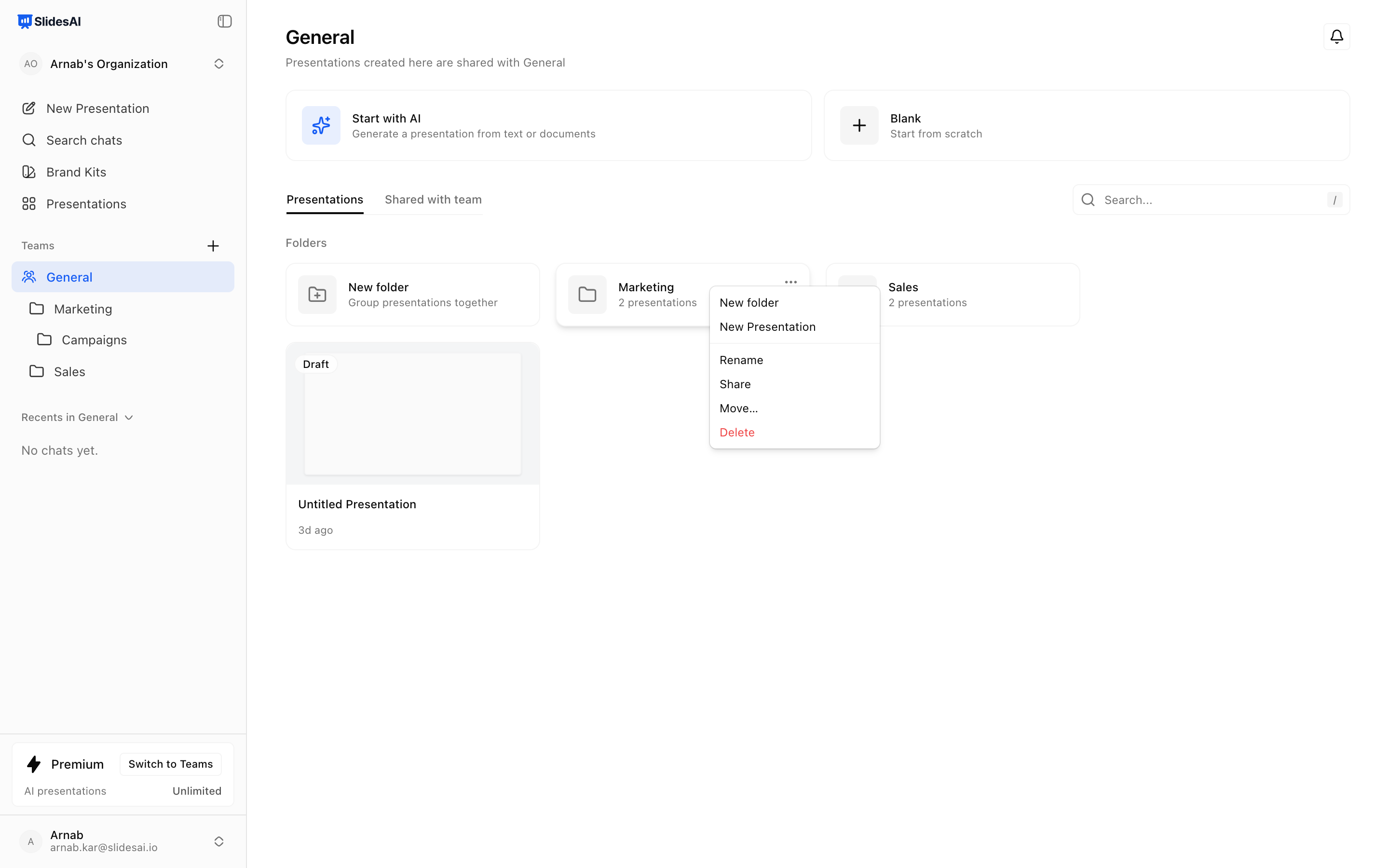
Click … on the folder card, or right-click the folder. You see only the actions you are allowed to take.
Rename changes the name for everyone.
Move… puts the folder, with everything inside it, somewhere else.
Delete removes the folder but keeps what was in it. Its presentations and subfolders move up one level.
Share a folder
Sharing a folder gives people access to everything inside it, including subfolders and presentations you add later.
Click … on the folder and choose Share.
Add people from your organization, a team, or everyone in the organization.
Pick the access level and save.
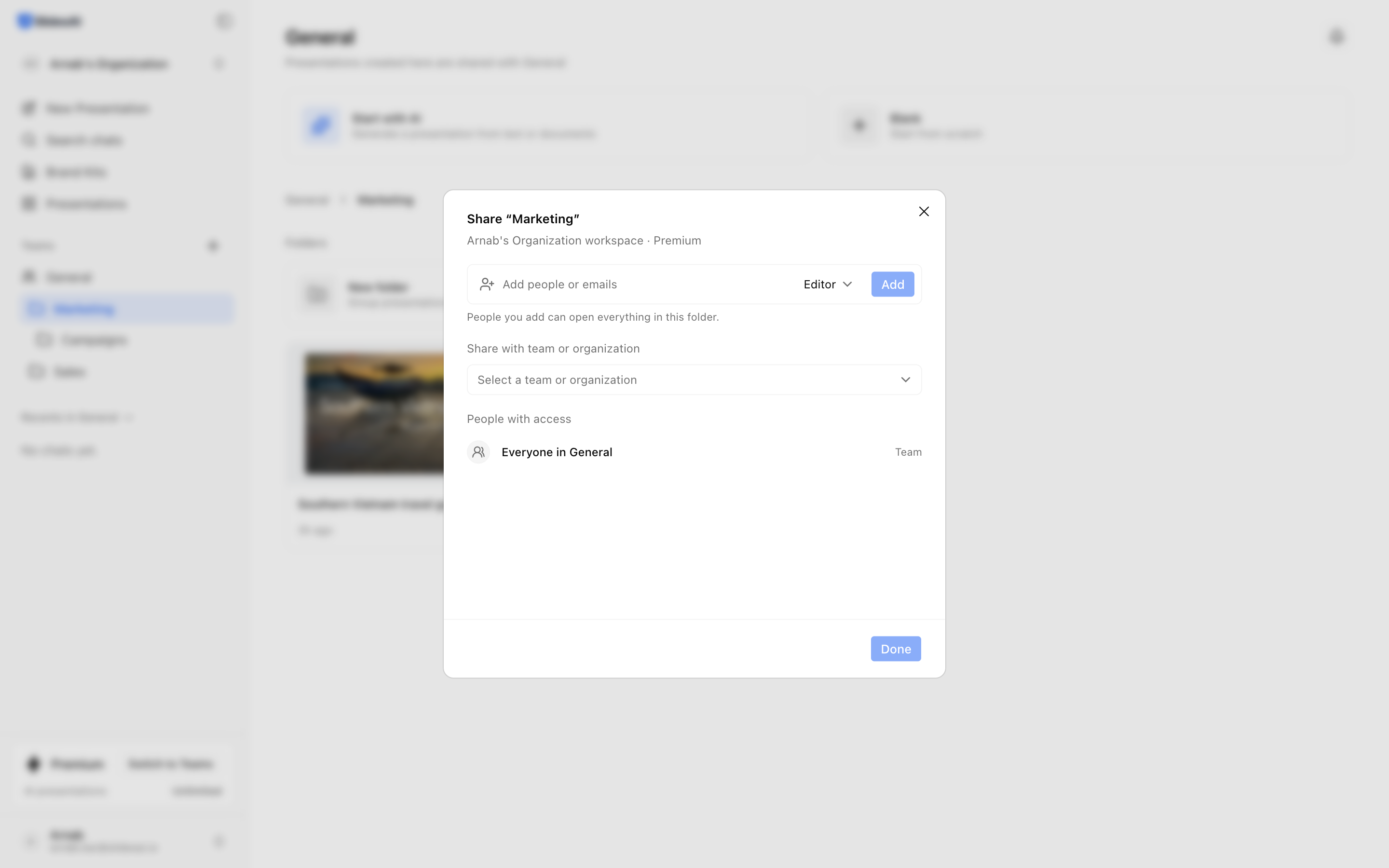
People you add get a notification in the app. If someone has access to a presentation in more than one way, the highest access wins. In a presentation's Share dialog, access that comes from a folder shows as "through" the folder's name.
FAQ
I removed someone from a folder, but they still have the presentation open.
A presentation that is already open can keep the old access for up to 30 seconds. After that, the change applies.
Does search look inside folders?
Yes. Search on a team page or in By me also finds presentations inside folders.
Was this helpful?
Was this helpful?