
Sign in to app.slidesai.io, then click Start with AI on the dashboard to begin.
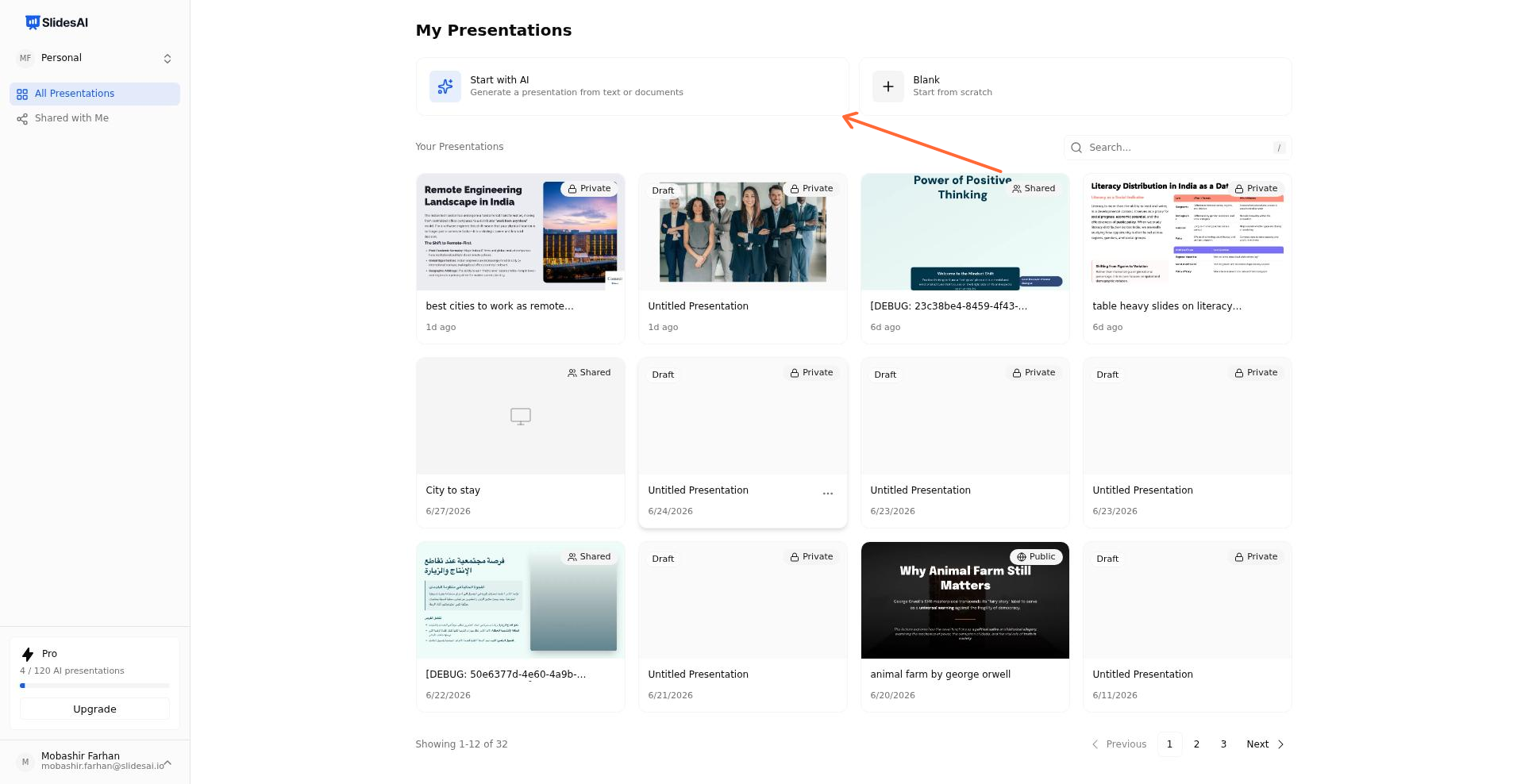
The SlidesAI dashboard with the Start with AI button.
The presentation creation guided steps guides you through the process. For the notes flow, the steps are:
Step 1: Enter Your Topic
Give your presentation a title or topic. Type it into the input field, or choose one of the suggested examples.
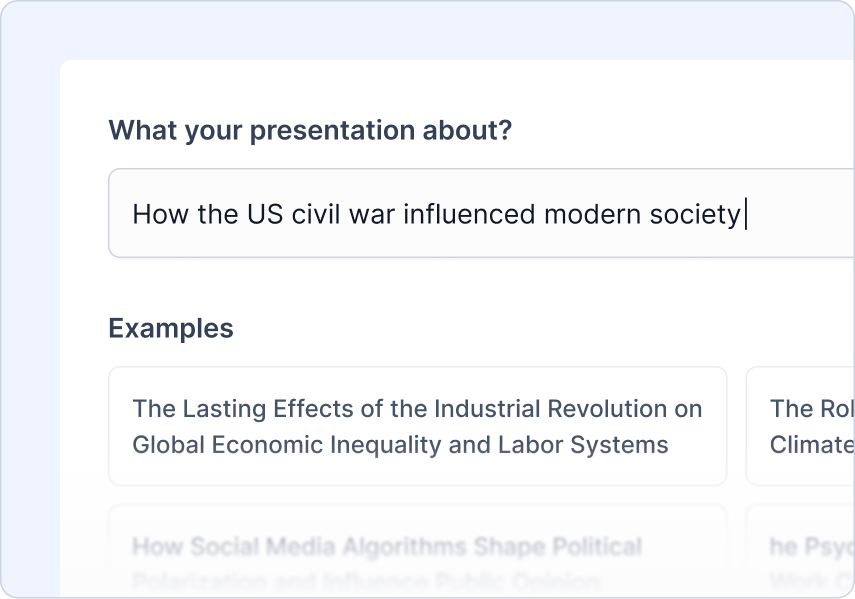
The Enter Your Topic step where you type or choose a presentation topic.
Step 2: Upload Your Notes
Paste or type your notes, bullet points, or rough text into the input field. The character counter shows how much you have entered against your plan limit.
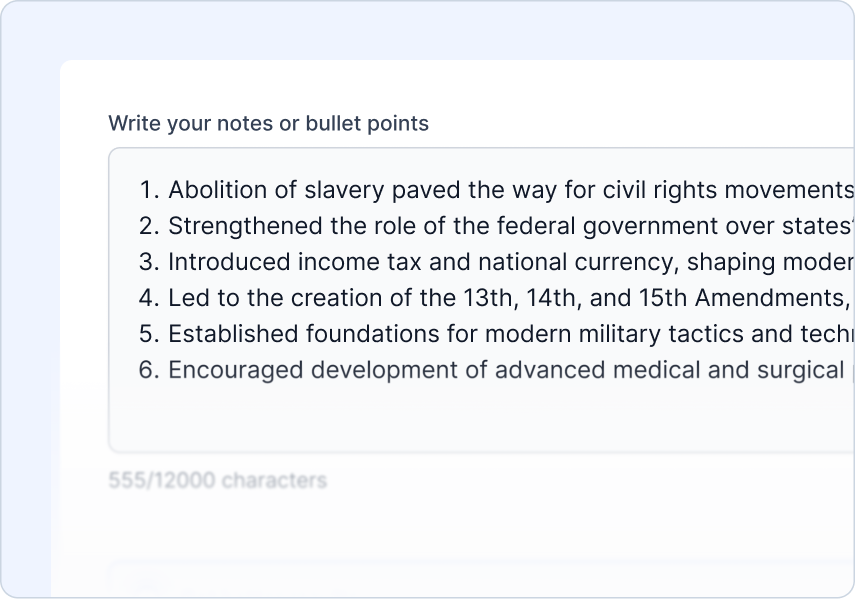
The Upload Your Notes step where you paste rough notes or bullet points.
Step 3: Add Your Instructions
Choose the audience type, pick a presentation type, and set the tone of voice. Use the optional text area to add custom instructions for the AI.
Use Quick Instructions group above the text area to quickly add common instructions:
Keep my wording, More detail, Less text per slide, Simple language, and Bigger fonts.
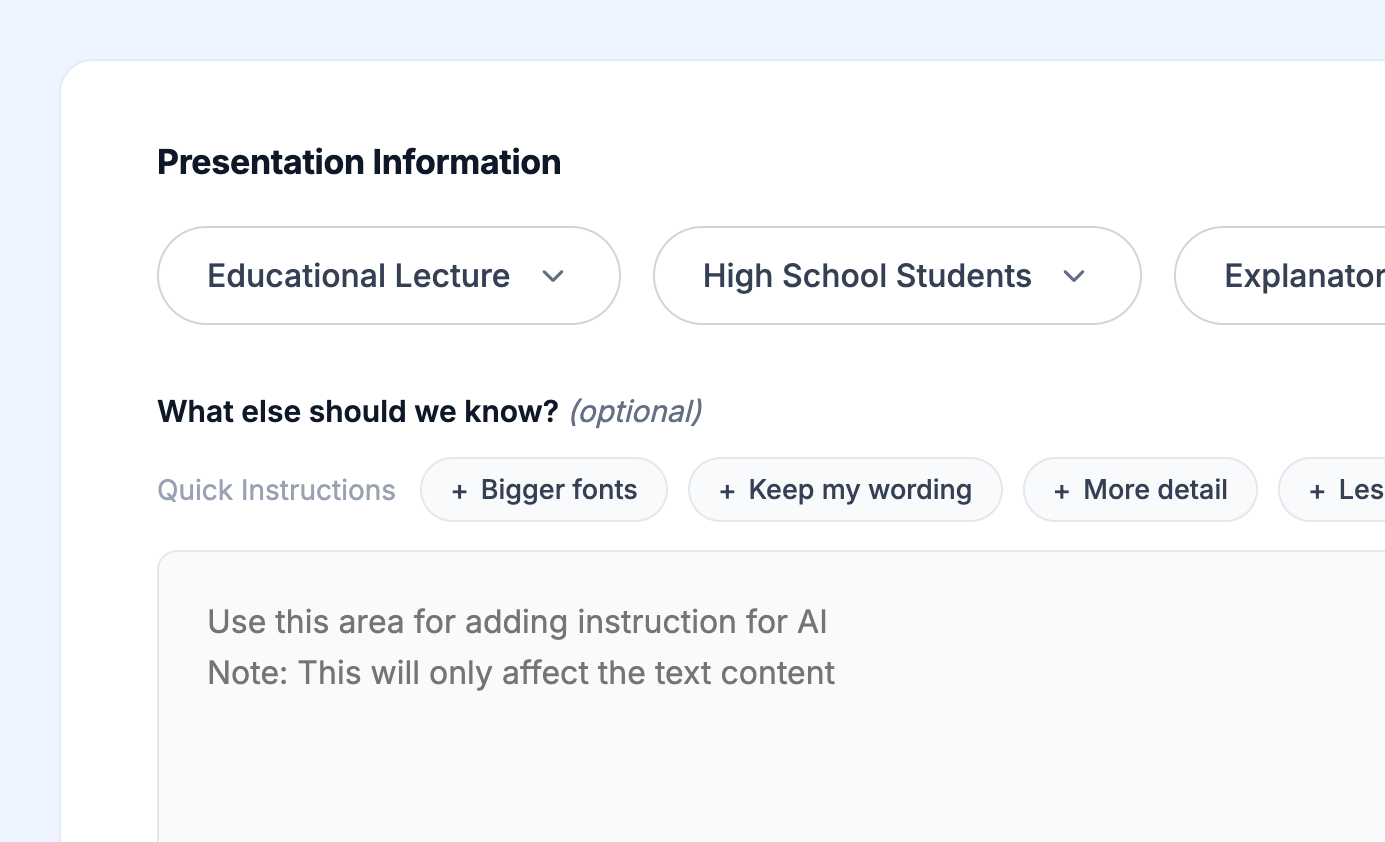
The Add Your Instructions step with dropdowns for audience, presentation type, and tone.
Step 4: Review the Outline
SlidesAI generates a slide-by-slide outline. Review each slide title and description, edit content, add or remove slides, and regenerate if needed before continuing.
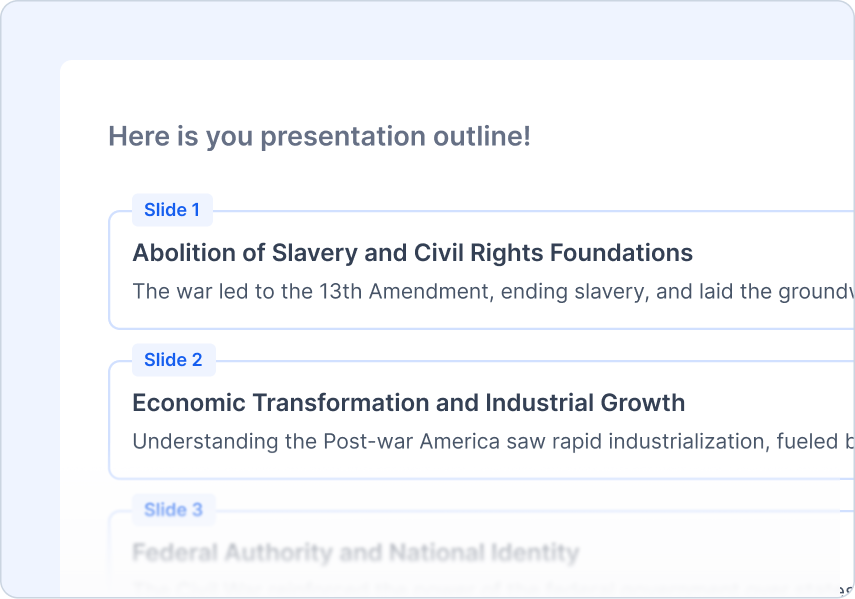
The Review the Outline step showing the generated slide-by-slide structure.
Step 5: Pick a Theme
Select a design style that matches your content. Browse categories like Recommended, Business, Educators, and Entrepreneur, or upload your logo.

The Pick a Theme step with template categories and preview cards.
Generate and view your presentation
After you confirm the theme, SlidesAI begins generating the presentation. The progress screen shows real-time status through steps such as parsing, creating content, formatting slides, finding design, getting images, and creating slides.
When the status reaches Completed, you will see a success screen with the following options:
Continue to Editor — Open the presentation in the SlidesAI web editor at app.slidesai.io, where you can edit slides directly or use Refine to adjust wording.
Continue with Google Slides — Open the generated presentation in Google Slides.
Continue with PowerPoint — Open the generated presentation in Microsoft PowerPoint.
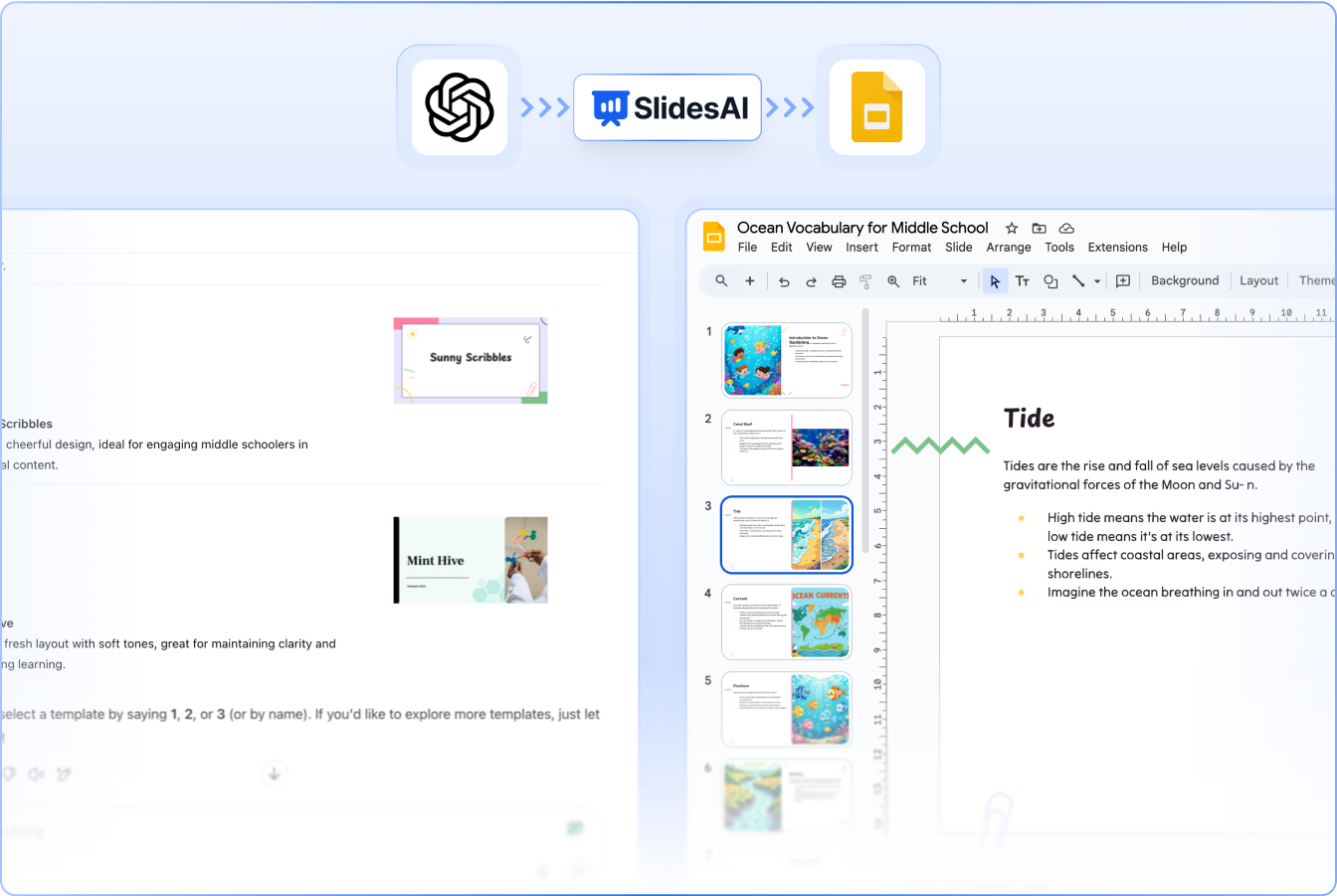
The final presentation opened in Google Slides after generation completes.
If generation fails, the screen shows Something went wrong with a Try Again button that returns you to the start.