
Remove the Made with SlidesAI watermark
Updated 3 months ago
Decks made on a free plan carry a small Made with SlidesAI mark, which appears on exported files and at the end of a shared presentation link. On a paid plan you can remove it.
Where the mark appears on exports
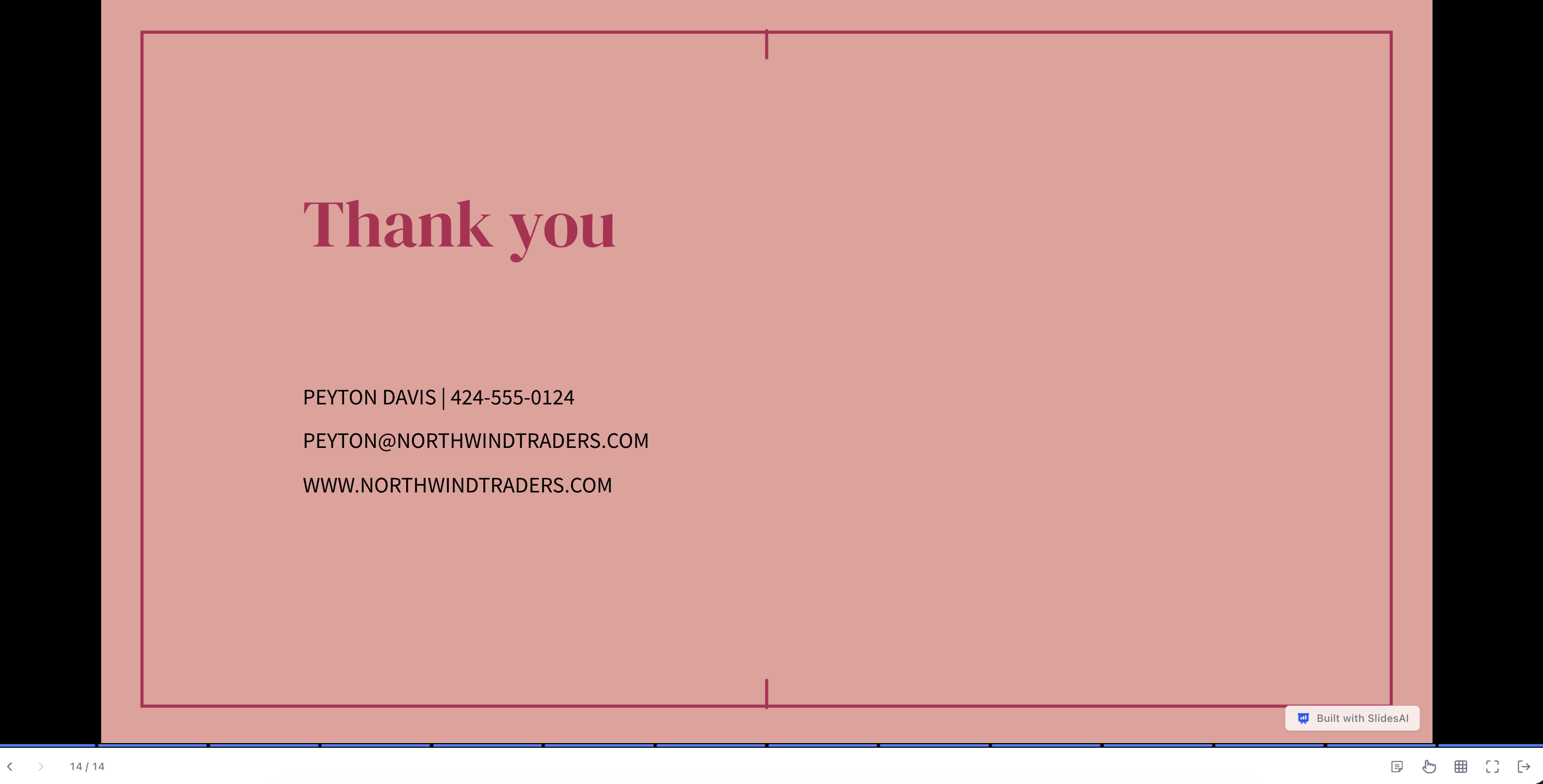
Every exported slide shows a small Made with SlidesAI badge in the bottom-right corner. It's a discreet rounded label — not a large stamp across your content — and it links back to SlidesAI. The badge applies to all three export options: PowerPoint (.pptx), PDF, and Google Slides.
In a PowerPoint export the badge is part of the slide, so you can select and delete it in PowerPoint if you need to. In a PDF it's baked into the page.
Turn it off when you export
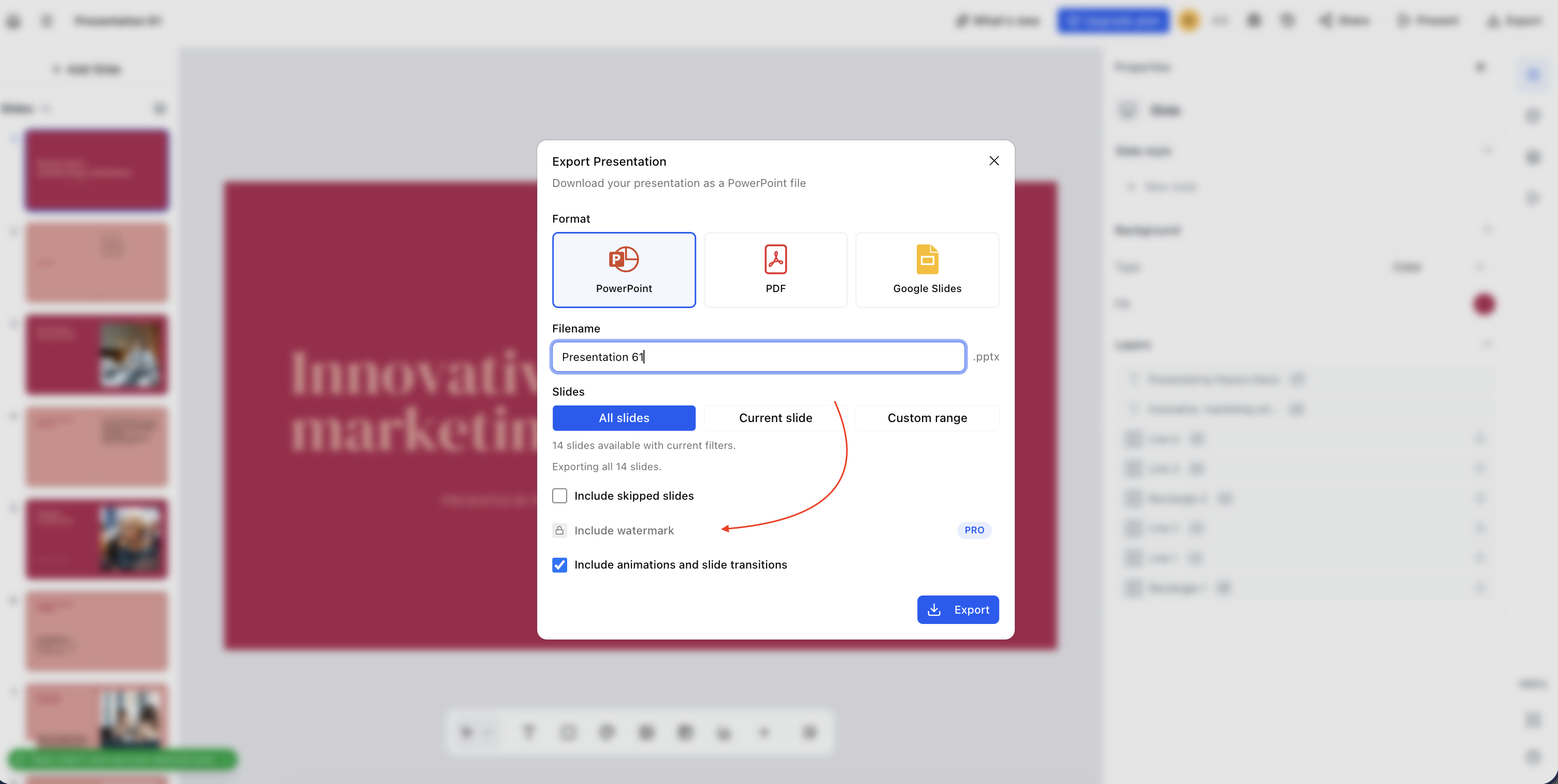
Open Export from the top bar. Under the format and slide options, you'll see an Include watermark checkbox.
Untick Include watermark.
Choose your format and export. On a paid plan (Pro, Premium, or a paid team plan), the file downloads without the badge.
On the free plan the checkbox is locked and marked PRO; click it to see the upgrade options.
The checkbox turns itself back on every time you open the Export window, so untick it again before each export. If you're part of a team, the team's plan decides this — not your personal one.
The mark on share links
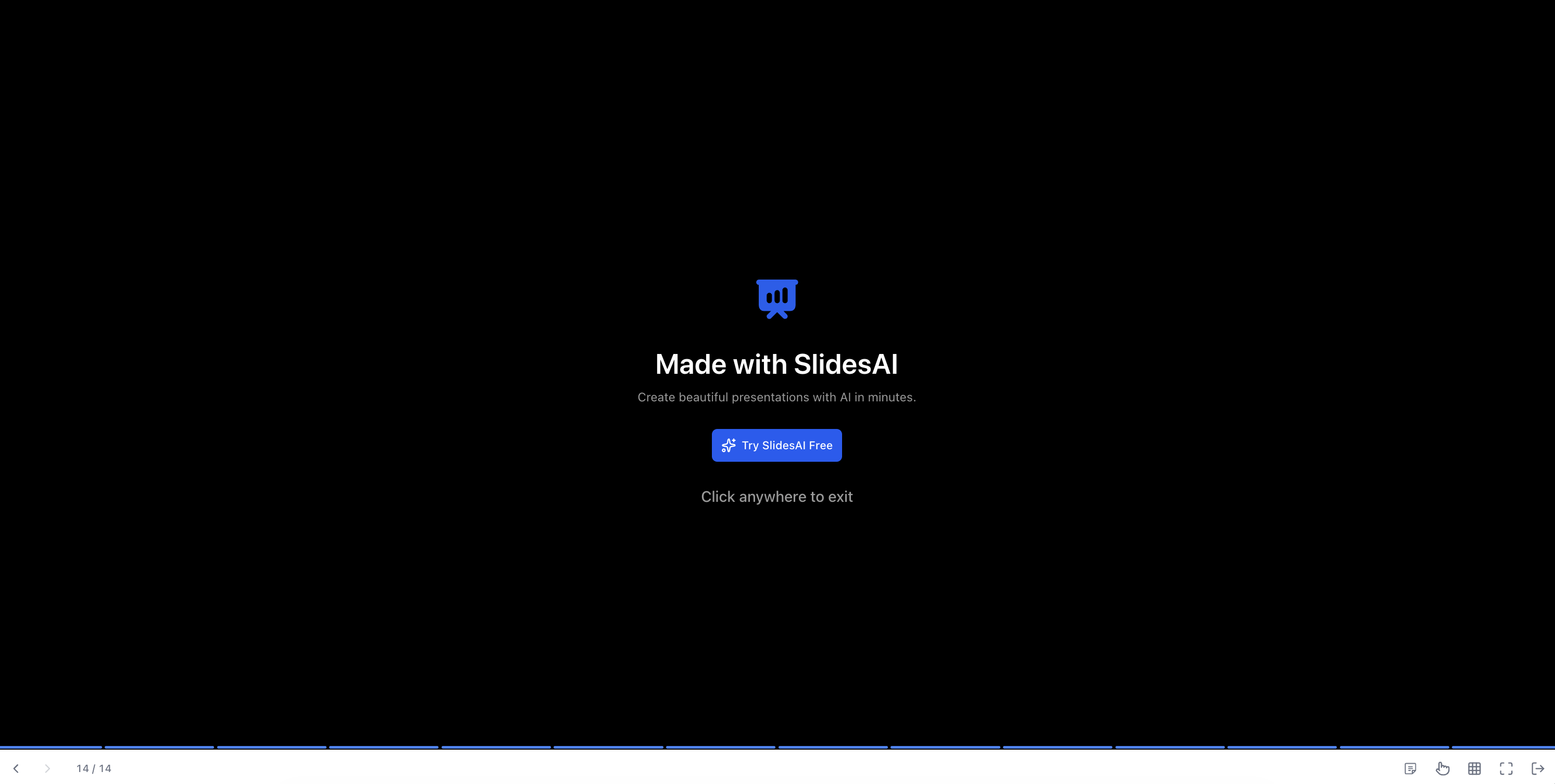
Shared links don't put a badge on your slides. Instead, when someone reaches the end of your presentation, they see a Made with SlidesAI end screen with a link to try SlidesAI.
The end screen only shows up when all of these are true:
the link is a public shareable link
the viewer isn't signed in to SlidesAI, and isn't the owner or an editor
the deck owner is on the free plan
So you won't normally see it yourself while testing your own link, and neither will your teammates. Your actual slides are never marked. On a paid plan, viewers reach a plain End of presentation screen instead — no branding.

Removing it for good
Upgrading to a paid plan removes both: exports lose the badge once you untick the box, and share links lose the end screen. The change applies to decks you've already made — just re-export or reshare them.
Files you exported before upgrading keep the badge that was in them. Export again to get a clean copy.
Good to know
The badge doesn't appear while you're editing or presenting your own deck — only on exported files and on public links viewed by others.
Removing the watermark doesn't change anything else about your slides.
The badge is the same size on every slide regardless of your theme or slide style.