Get Started

Generate your first presentation

Ready to make your first presentation? Describe what you want, review the outline, and let SlidesAI build the slides. The flow is the same in every interface: enter your idea, confirm the structure, and pick a design.

Before you start

Have a one-line idea of your presentation ready — the topic, the audience, and roughly how many slides you want. A clear prompt gives a much better first draft.

Generate your first presentation

In the SlidesAI Platform

Sign in to slidesai.io, then click Try Now and then continue the steps.

The presentation creation guided steps guides you through the process. For your first presentation, the steps are:

Step 1: Choose Prompt or topic

On the generation options screen, select Prompt or topic to build a presentation from a single idea.
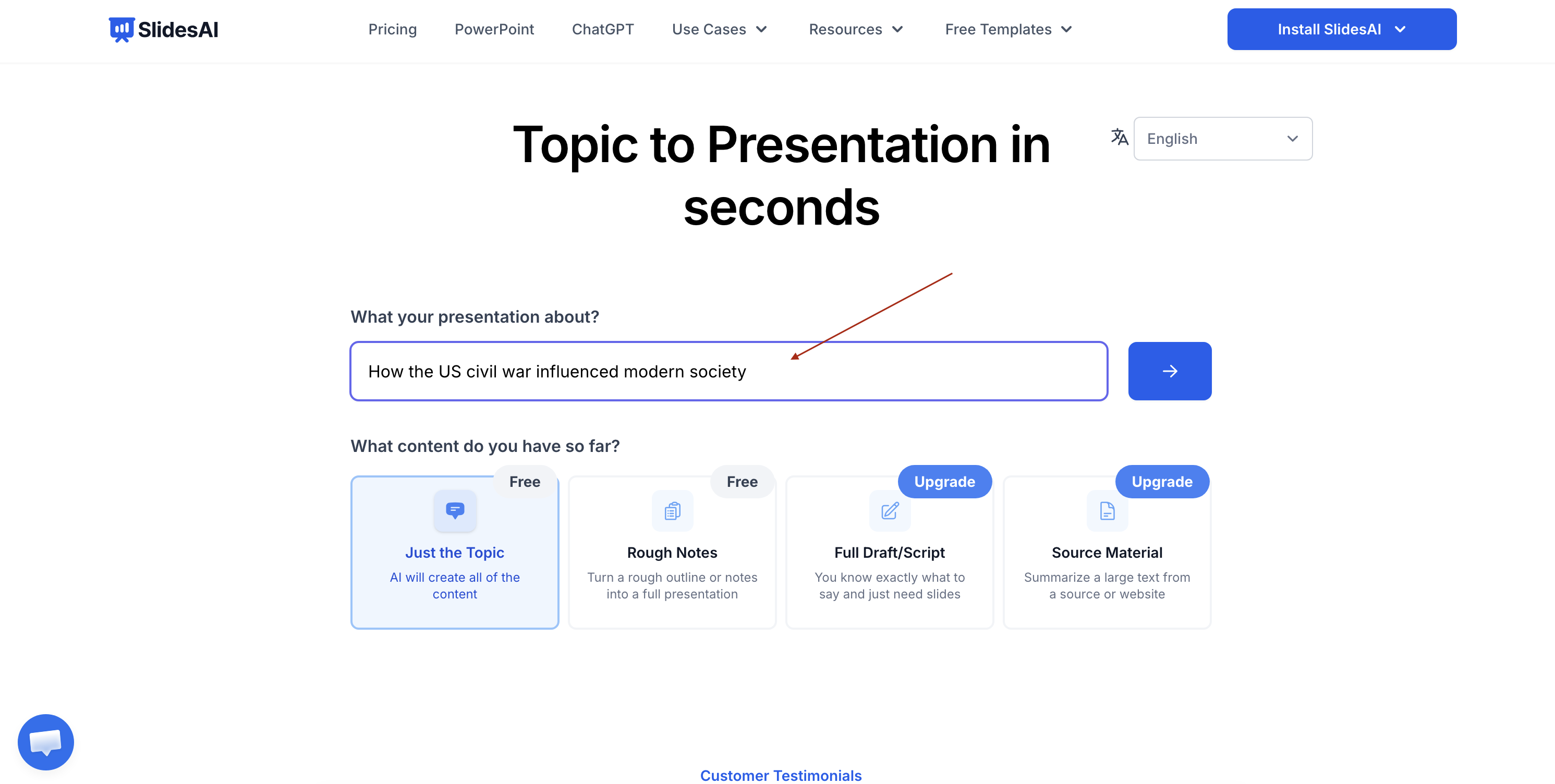
The generation options screen with the Prompt or topic card.

Step 2: Enter your topic

Type your topic or prompt into the input field. Choose a presentation length and language from the available options. The more specific your prompt, the better the outline.
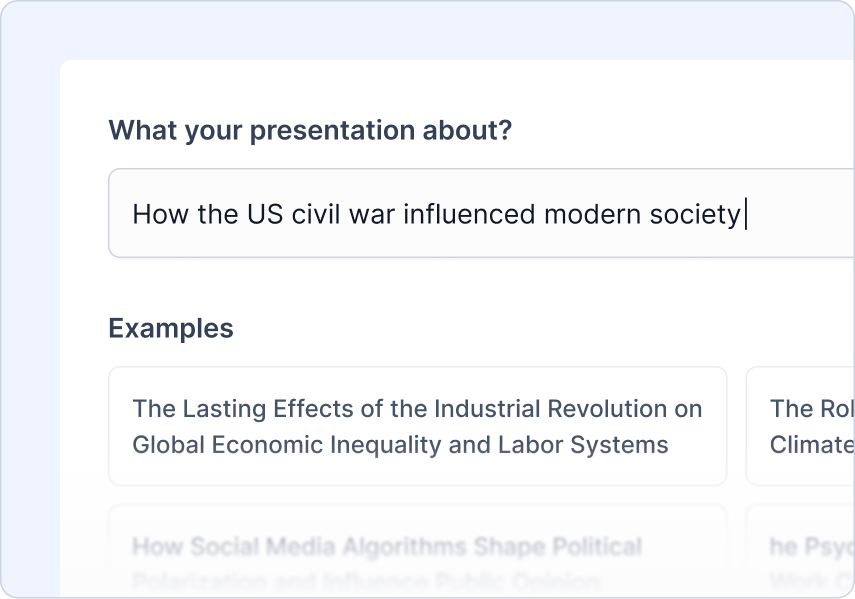
Enter Your Topic screen with a text input and example topics

The Enter Your Topic step where you type or choose a presentation topic.

Step 3: Add your instructions

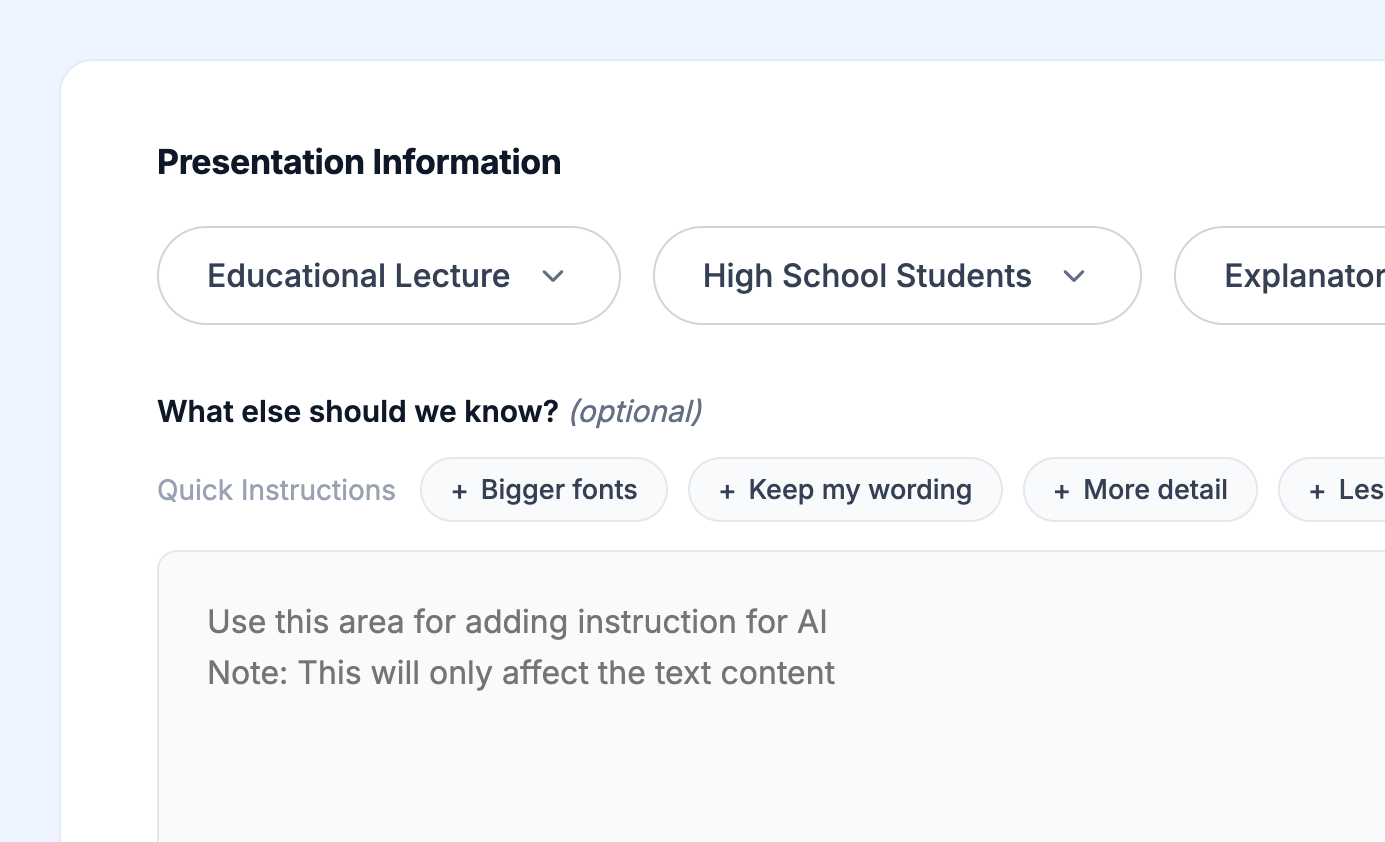
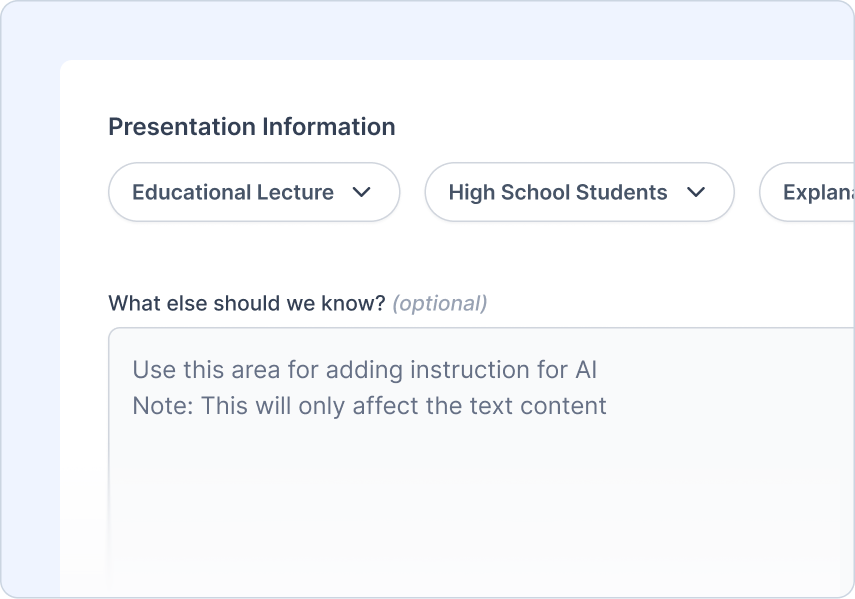
Choose the audience type, pick a presentation type, and set the tone of voice. Use the optional text area to add custom instructions for the AI.

Add Your Instructions screen with dropdowns for audience, type, and tone

The Add Your Instructions step with dropdowns for audience, presentation type, and tone.

Step 4: Review the outline

SlidesAI generates a slide-by-slide outline. Review each slide title and description, edit content, add or remove slides, and regenerate if needed before continuing.
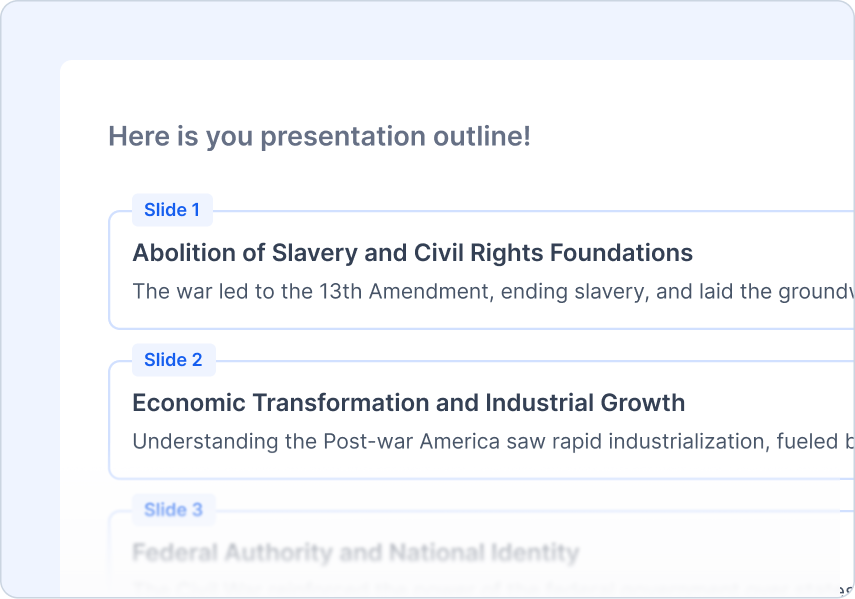
Review the Outline screen showing slide cards with titles and descriptions

The Review the Outline step showing the generated slide-by-slide structure.

Step 5: Pick a theme

Select a design style that matches your content. Browse categories like Recommended, Business, Educators, and Entrepreneur, or upload your logo.

Pick a Theme screen showing a grid of template cards

The Pick a Theme step with template categories and preview cards.

Generate and view your presentation

After you confirm the theme, SlidesAI begins generating the presentation. The progress screen shows real-time status through steps such as parsing, creating content, formatting slides, finding design, getting images, and creating slides.

When the status reaches Completed, you will see a success screen with the following options:

  • Continue to Editor — Open the presentation in the SlidesAI web editor at app.slidesai.io, where you can edit slides directly or use Refine to adjust wording.

  • Continue with Google Slides — Open the generated presentation in Google Slides.
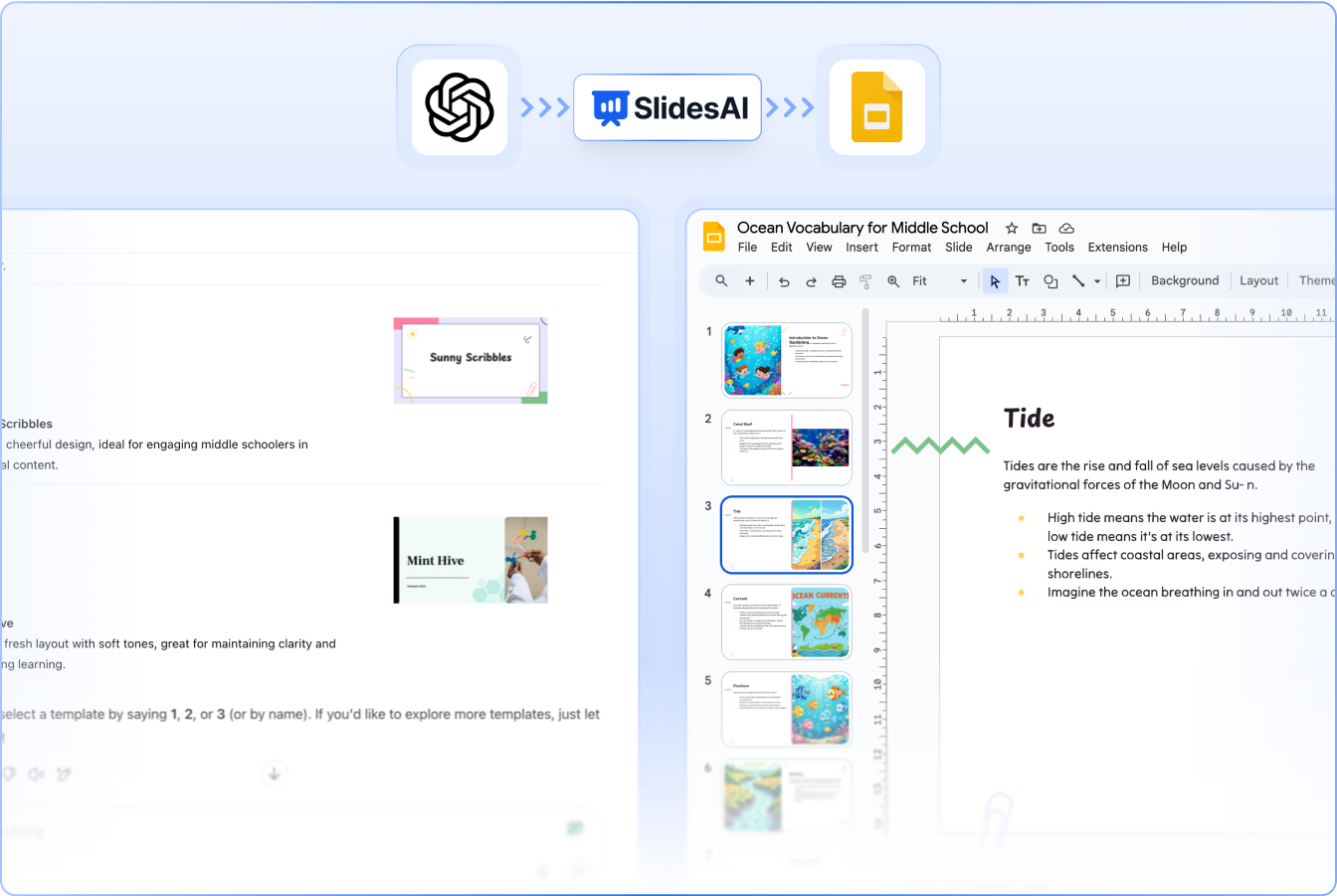
A generated presentation open in Google Slides showing slide thumbnails and slide content

The final presentation opened in Google Slides after generation completes.
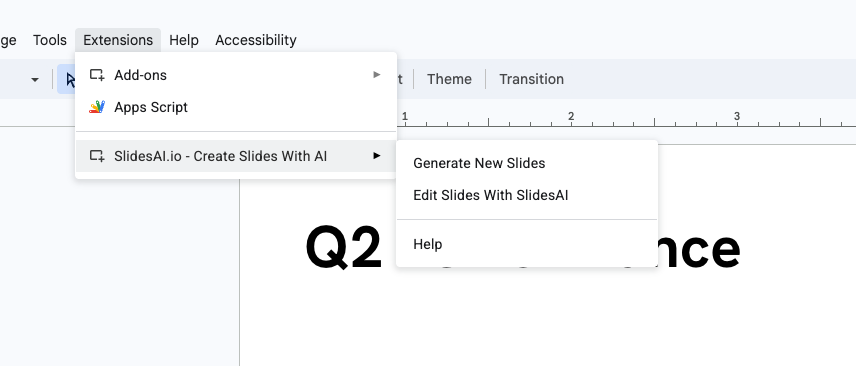
In Google Slides

Open a presentation in Google Slides, then go to Extensions → SlidesAI → Generate Slides to open the SlidesAI sidebar.

The Extensions menu showing SlidesAI in Google Slides.

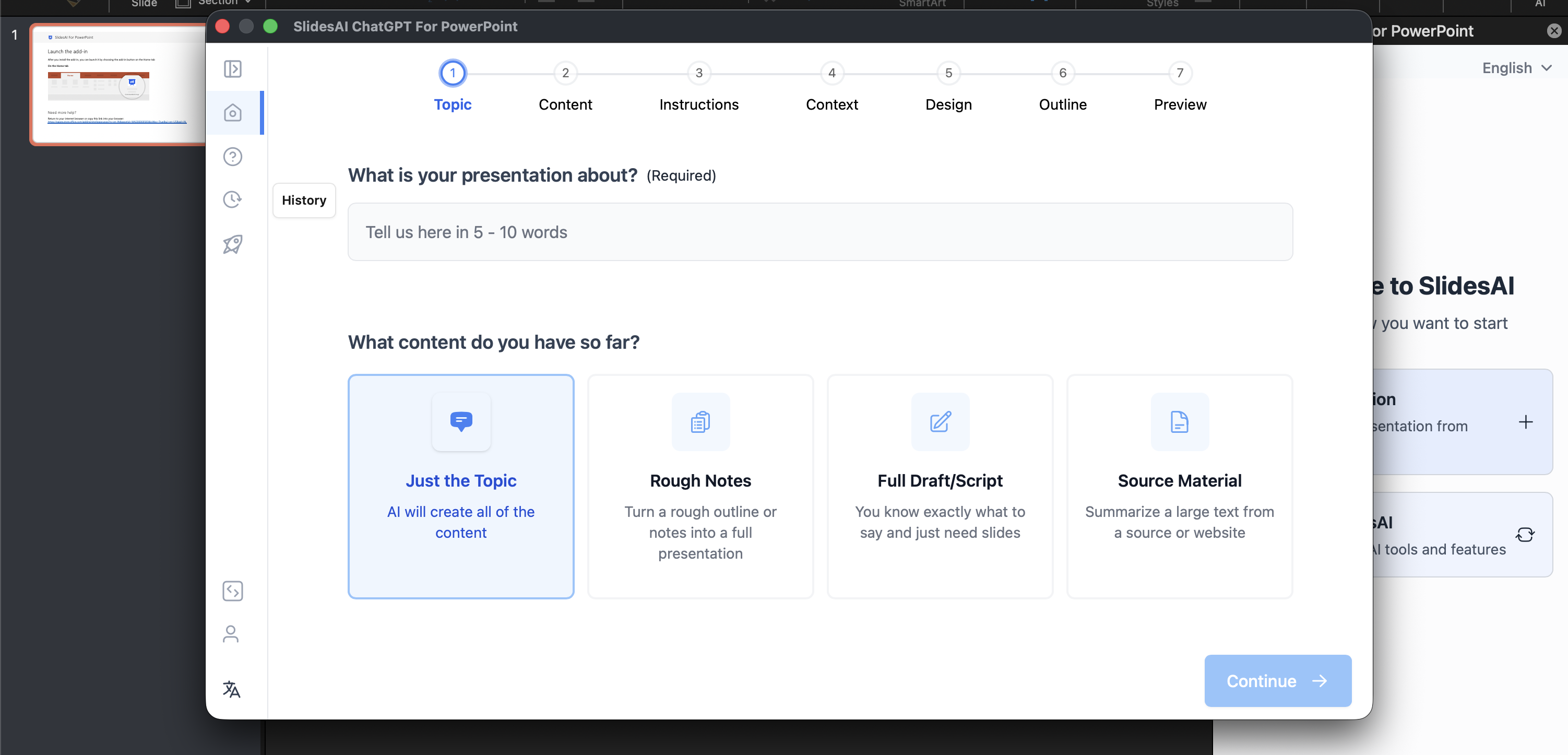
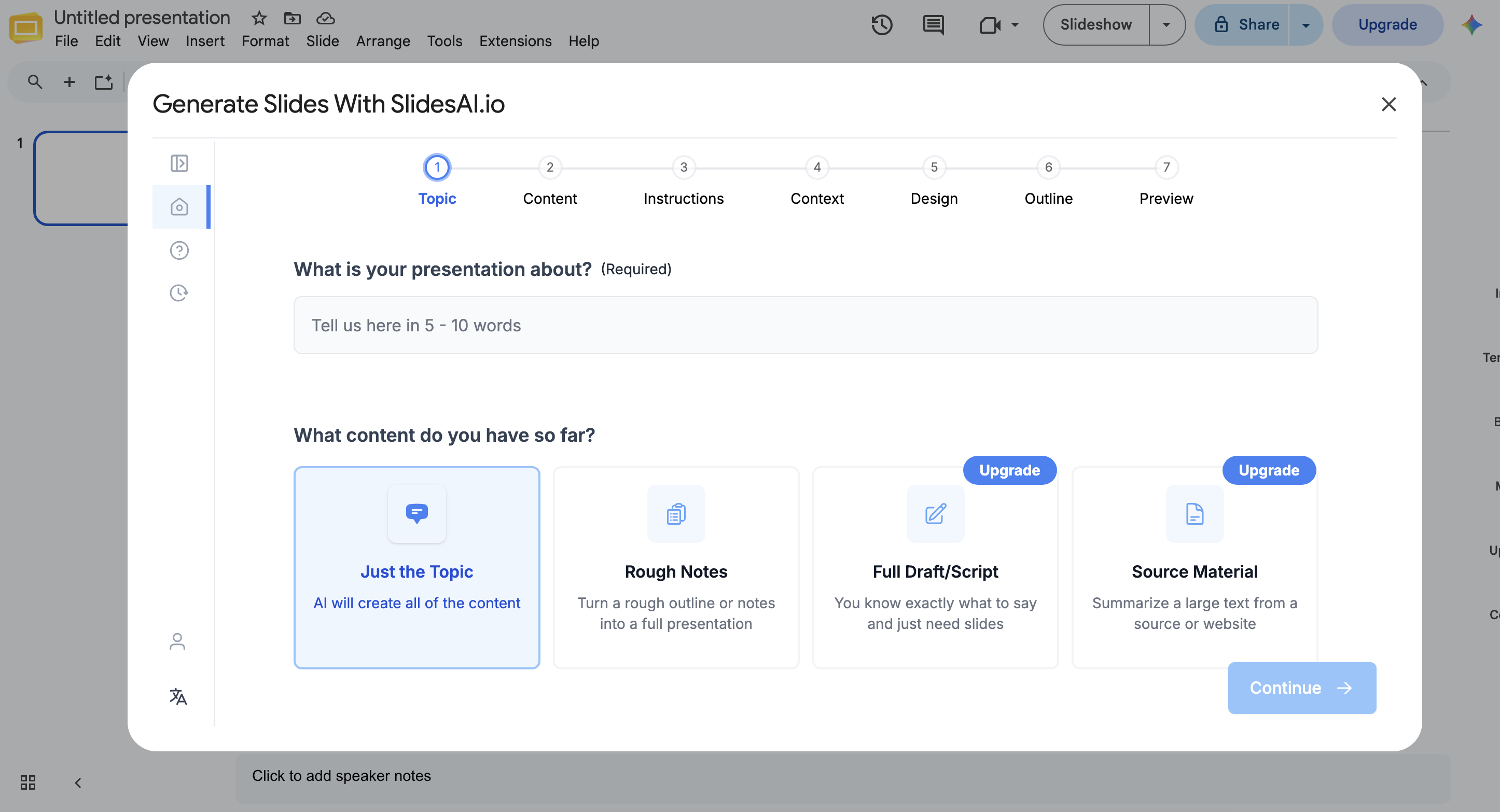
Continue with Just the Topic option and enter your topic

The presentation creation guided steps guides you through the same process as the SlidesAI Platform:

Step 1: Enter your topic

Type your topic or prompt into the input field. Choose a presentation length and language from the available options. The more specific your prompt, the better the outline.

Enter Your Topic screen with a text input and example topics

The Enter Your Topic step where you type or choose a presentation topic.

Step 2: Add your instructions

Choose the audience type, pick a presentation type, and set the tone of voice. Use the optional text area to add custom instructions for the AI.

Add Your Instructions screen with dropdowns for audience, type, and tone

The Add Your Instructions step with dropdowns for audience, presentation type, and tone.

Step 3: Review the outline

SlidesAI generates a slide-by-slide outline. Review each slide title and description, edit content, add or remove slides, and regenerate if needed before continuing.

Review the Outline screen showing slide cards with titles and descriptions

The Review the Outline step showing the generated slide-by-slide structure.

Step 4: Pick a theme

Select a design style that matches your content. Browse categories like Recommended, Business, Educators, and Entrepreneur, or upload your logo.

Pick a Theme screen showing a grid of template cards

The Pick a Theme step with template categories and preview cards.

Step 5: Generate and view your presentation

After you confirm the theme, SlidesAI begins generating the presentation. The progress screen shows real-time status through steps such as parsing, creating content, formatting slides, finding design, getting images, and creating slides.

When the status reaches Completed, SlidesAI inserts the new slides directly into your current Google Slides presentation.

A generated presentation open in Google Slides showing slide thumbnails and slide content

The final presentation inserted into Google Slides after generation completes.
In PowerPoint

Open PowerPoint and launch the SlidesAI add-in from the ribbon to open the SlidesAI pane.

The PowerPoint ribbon with the SlidesAI add-in.

In the SlidesAI pane, click New Presentation to start the generation guided steps.

The SlidesAI pane with the New Presentation button in PowerPoint.

The presentation creation guided steps guides you through the same process as the SlidesAI Platform:

Step 1: Enter your topic

Type your topic or prompt into the input field. Choose a presentation length and language from the available options. The more specific your prompt, the better the outline.

Enter Your Topic screen with a text input and example topics

The Enter Your Topic step where you type or choose a presentation topic.

Step 2: Add your instructions

Choose the audience type, pick a presentation type, and set the tone of voice. Use the optional text area to add custom instructions for the AI.

Add Your Instructions screen with dropdowns for audience, type, and tone

The Add Your Instructions step with dropdowns for audience, presentation type, and tone.

Step 3: Review the outline

SlidesAI generates a slide-by-slide outline. Review each slide title and description, edit content, add or remove slides, and regenerate if needed before continuing.

Review the Outline screen showing slide cards with titles and descriptions

The Review the Outline step showing the generated slide-by-slide structure.

Step 4: Pick a theme

Select a design style that matches your content. Browse categories like Recommended, Business, Educators, and Entrepreneur, or upload your logo.

Pick a Theme screen showing a grid of template cards

The Pick a Theme step with template categories and preview cards.

Step 5: Generate and view your presentation

After you confirm the theme, SlidesAI begins generating the presentation. The progress screen shows real-time status through steps such as parsing, creating content, formatting slides, finding design, getting images, and creating slides.

When the status reaches Completed, SlidesAI adds the new slides directly into your current PowerPoint file.

A generated presentation open in PowerPoint showing slide thumbnails and slide content

The final presentation added to PowerPoint after generation completes.

In the ChatGPT helper

Create a presentation with SlidesAI and ChatGPT.

ChatGPT and SlidesAI work together to help you create professional Google Slides presentations quickly. By entering a topic and selecting your preferences, you can generate a complete, editable presentation with visuals and structured content.

Before starting

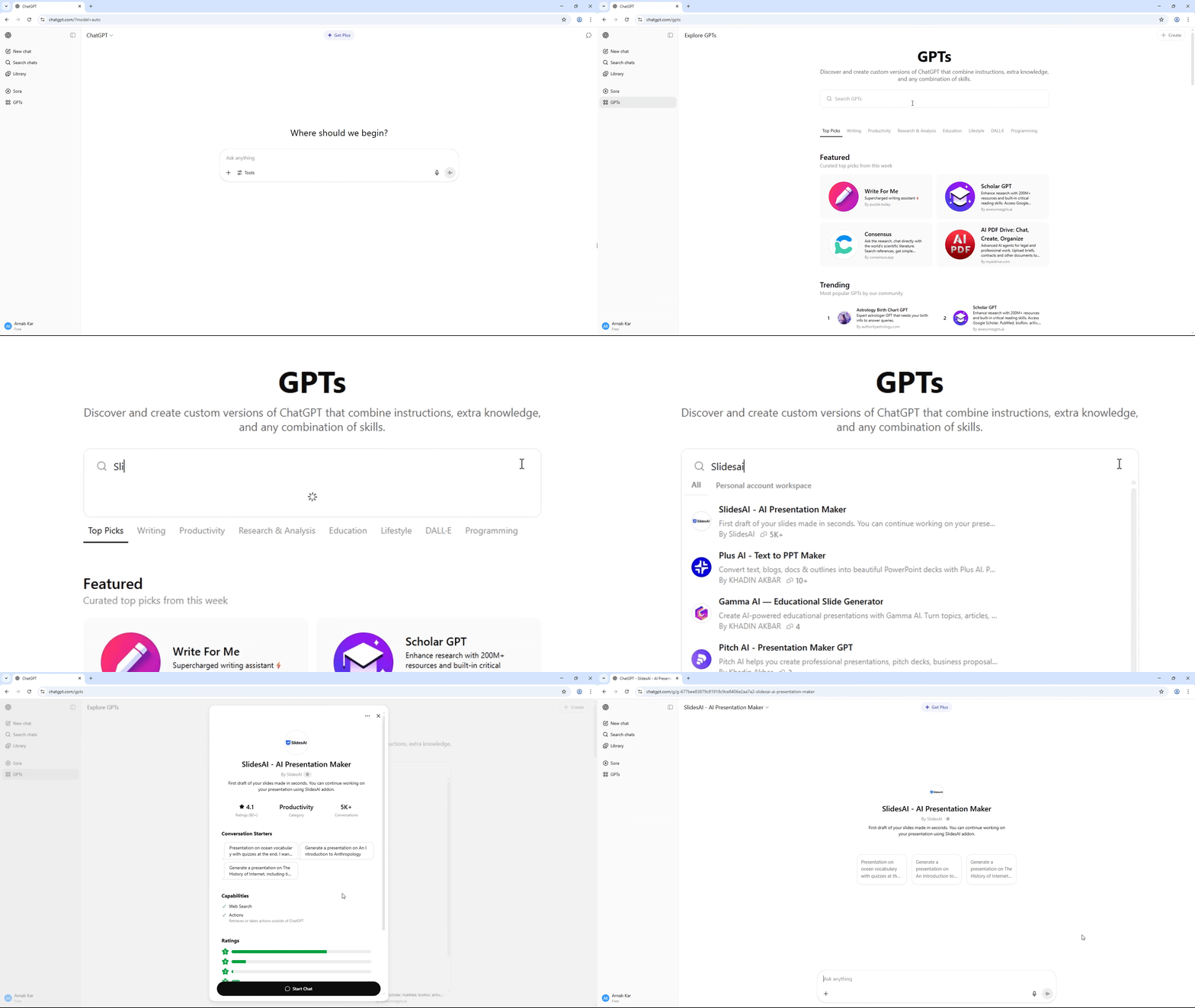
Before starting you'll need to have SlidesAI open in ChatGPT.

  • Go to GPT's in the sidebar.

  • Search for "SlidesAI" in the GPTs section

  • Start a chat with the SlidesAI GPT

Provide your input text and customize settings

Now we need to provide the input text.

  • You can input any kind of text—topic, summary of a book or an article.

  • Review and adjust the suggested Presentation type, tone, and audience

For this tutorial, we'll go with topic "History of Anthropology".

ChatGPT will analyze your input and generate appropriate presentation settings, which you can modify—for example, setting the audience to "college students" and the tone to "formal."

You can also insert any kind of instructions at this step.

Generate and refine the outline

GPT will then create an outline where each item represents a slide title. This forms the basic structure of your presentation.

  • Respond with "Yes" when asked to generate an outline

  • Review the suggested slide and content

  • Ask for changes if needed (e.g., reorder, add, or remove slides)

This outline will directly inform the content and organization of your final slides.

Each heading here represents a slide in the final presentation.

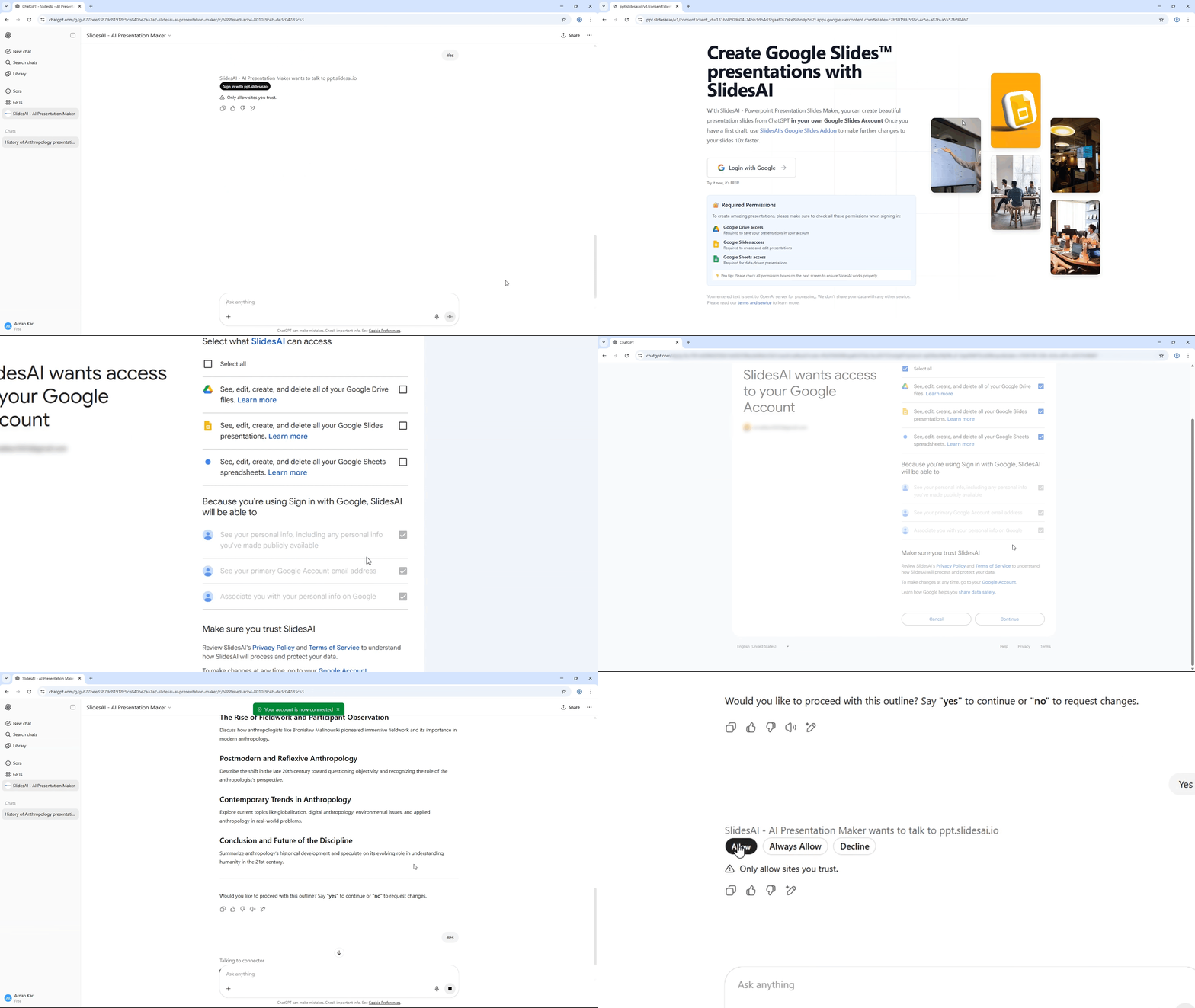
Connect your Google Account and give access

If you're making the presentation for the first time, you'll be asked to log in through SlidesAI.

  • Click the Button on your screen

  • Sign in using your Google account

  • Grant all requested permissions to allow integration

  • Finally Click "Allow" or "Allow all" to allow ChatGPT to work with SlidesAI

These permissions ensure the presentation is created and stored directly in your own Google Slides account.

Choose a template for your slides

SlidesAI offers multiple visual styles to suit different types of content and audiences.

  • Select one of the three suggested templates from your screen

The selected theme will define the look and feel of your final slides.

Generate and view your presentation

After confirming the template and settings, SlidesAI will begin building the actual presentation.

  • Confirm that you're ready to generate the presentation

  • Wait while the slides are being created

  • Click the provided link to open your finished Google Slides presentation

The generated presentation includes titles, content, and images—and is saved directly to your Google Drive. You can open it in Google Slides and freely edit anything.

If you want to build on your existing presentation or generate new slides within Google Slides, the SlidesAI add-on can be installed for deeper functionality.

  • Use the add-on to change the theme altogether

  • You can edit slide content or add new slides

Was this helpful?