
Change your slide style with the Style Builder
Updated 3 months ago
The Style Builder is where you change the look of your deck — background, fonts, text colours, tables, cards, shapes and charts — in one place and preview the result before you commit. It works in the SlidesAI Platform on a laptop or desktop.
What a slide style is
Every deck follows a style: a shared set of rules for how titles, body text, tables and other elements look. Change the style once and every slide using it updates together.
A presentation can have more than one style, and each slide uses one of them. Styles belong to the presentation you're working on, so editing a style here won't change your other decks.
When you generate a new presentation, the AI builds a set of slide styles for that deck from the slides it produces: each slide's background colour is read and named — light backgrounds become Light, dark ones Dark — and when several styles would share a name they're numbered Light 2, Dark 2, Light 3 and so on. You can see and change them per slide from the Properties panel's Slide style dropdown.
Open the Style Builder
Open the Style Builder from the Properties panel's Slide style dropdown, from the Themes panel, or from a colour or text picker on a slide.
In the Properties panel, open Slide style, hover the style you want, click the … menu and choose Edit.
To start fresh, click New style at the bottom of the same dropdown.
To start from a theme, open a theme card's … menu in the Themes panel and choose Edit a copy. This works on a copy, so the original theme stays as it is.
When you're editing a colour or text on a slide, the picker also has an Edit style link.
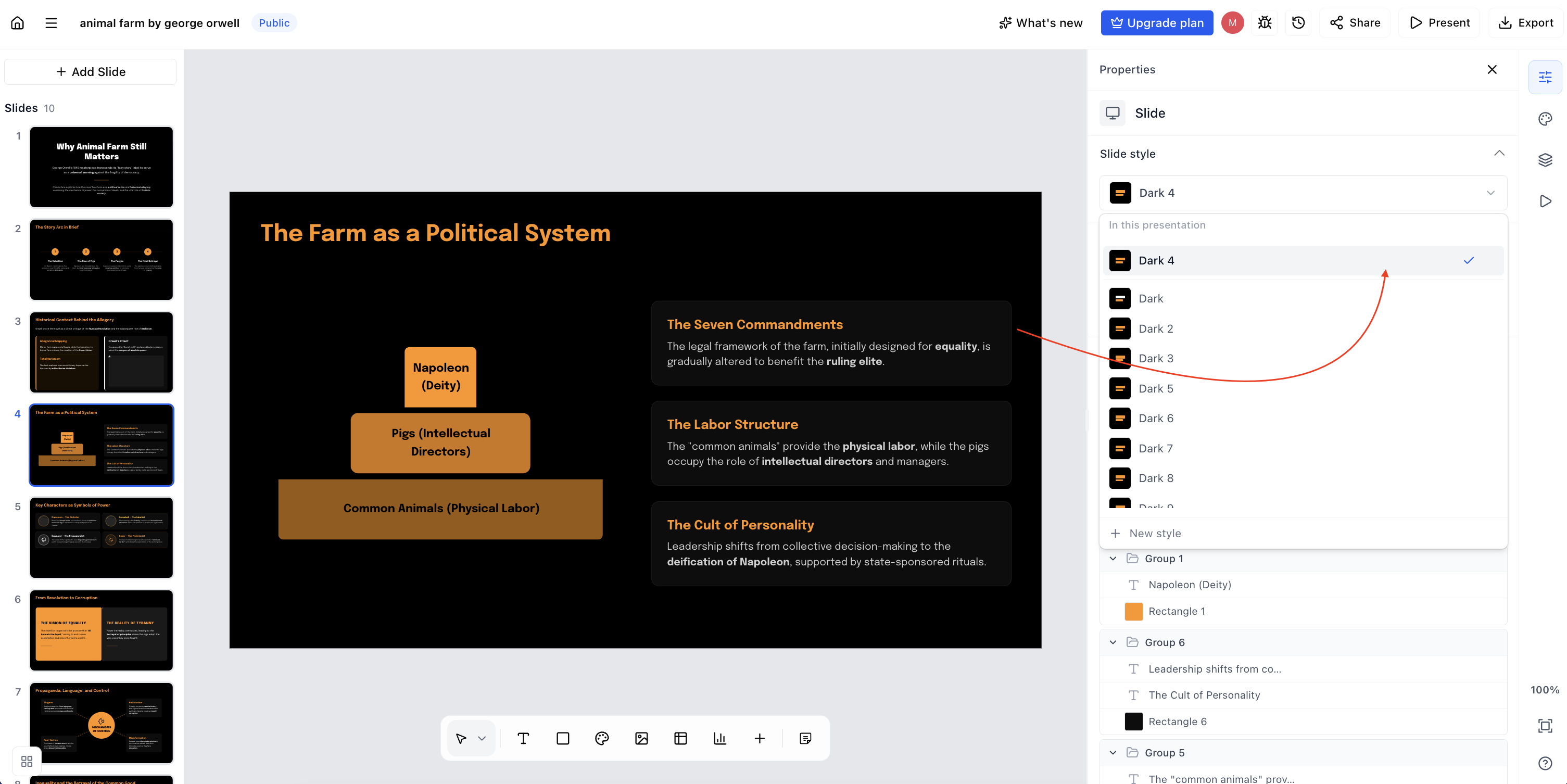
The Slide style dropdown in the Properties panel lists your styles, with New style at the bottom.
Change a part of your style
The page shows a sample slide with every part of your style laid out: background, title, headline, subheading, body, card, caption, link, shapes, charts and table. Hover any part and an Edit pencil appears; click it to open a small panel with just the controls for that part.
Title, headline, subheading, body, caption — font, colour, size, weight, spacing, and upper or lower case.
Link — link colour.
Background — background colour.
Card — colours, border, rounded corners and a shadow.
Table — font and size, plus header, cell, alternating row and border colours.
Shape — fill, outline and text colour.
Chart — chart colour and palette, text and axis colours, and switches for the legend, data labels, grid lines and axis.
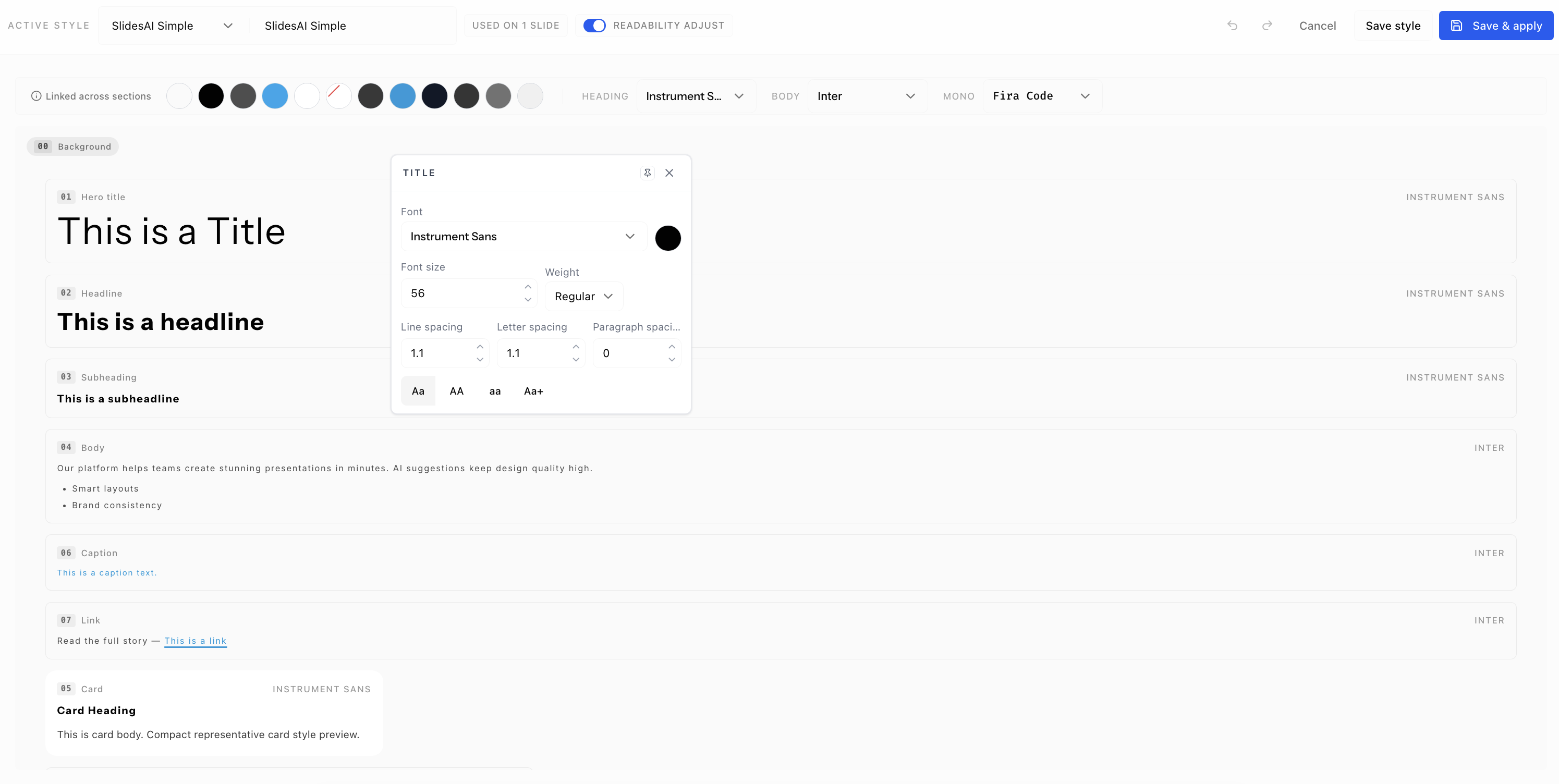
Click any part of the preview to open its controls.
Click the part again or press Esc to close the panel. To keep a panel open while you work elsewhere, click the pin icon.
The row of swatches at the top, Linked across sections, shows every colour and font your style uses. Changing one there updates every part of the style that uses that colour at once.
Everything on the page is sample text, not your own slides, so you can experiment freely.
Readability adjust
Readability adjust darkens or lightens text colours so they stay readable when a colour choice is hard to read — pale grey on white, for example. Your backgrounds, fills and chart colours are never changed.
When it steps in, a small person icon appears next to that section; hover it to see exactly what was changed, before and after. Turn off the Readability adjust switch in the top bar to keep your exact colours.
Save or apply your style
Use Save style to save your changes to the style only — your slides stay exactly as they are — or Save & apply to put the style onto your slides.
Save & apply shows a preview of every slide in the new style first; click Confirm & apply to commit. It updates every slide in the presentation, including slides that were using a different style, and it replaces each slide's background colour and removes any slide background images.
If you only want to restyle some slides, close the Style Builder and choose the style per slide from the Properties panel instead.
Cancel leaves without saving. Undo and Redo in the top bar (or Ctrl/Cmd+Z and Ctrl/Cmd+Shift+Z) step back and forward through your changes.
Good to know
Bullet points follow your Body settings — there's no separate bullet control.
Card headings use your Subheading font and size.
Links are always underlined; you can change the colour.
To change the font used in charts, use the Linked across sections row at the top.
If you leave the name blank, the style saves as Custom Style.
The default style, SlidesAI Simple, and the only remaining style in a presentation can't be deleted — Delete stays in the … menu, but choosing it shows "Cannot delete the default style" or "Cannot delete the only remaining style".
While you work, the editor's browser tab reads Theme Builder | SlidesAI — it's the same feature.
Related articles
Change themes and layouts — apply a theme to the whole presentation or pick a style per slide.
Refine and edit your slides — every refinement step after generation.
Edit slides after generation — edit text, images and layout in the Platform editor.