
Go to slidesai.io.
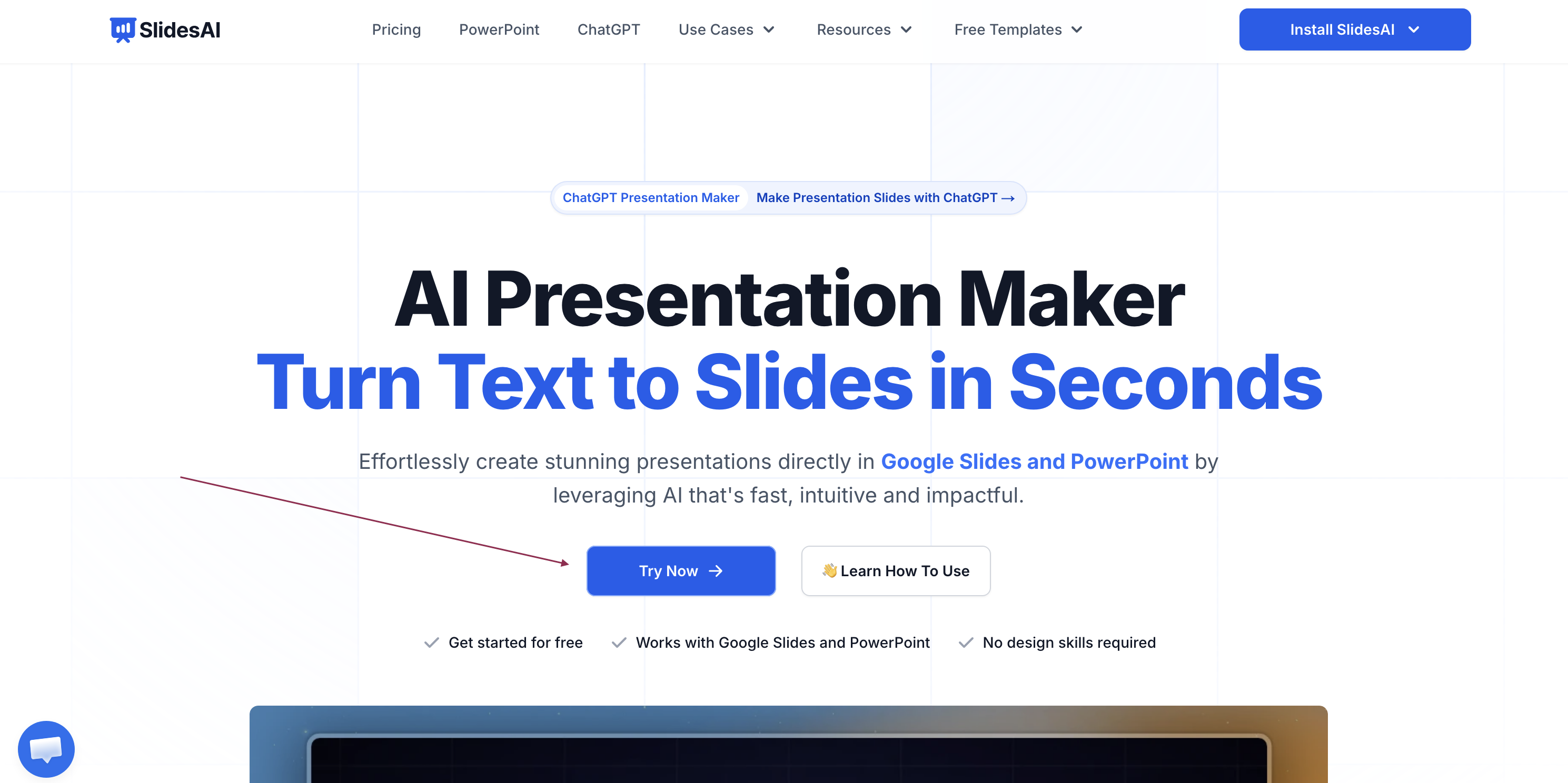
Click Try Now and follow the steps.
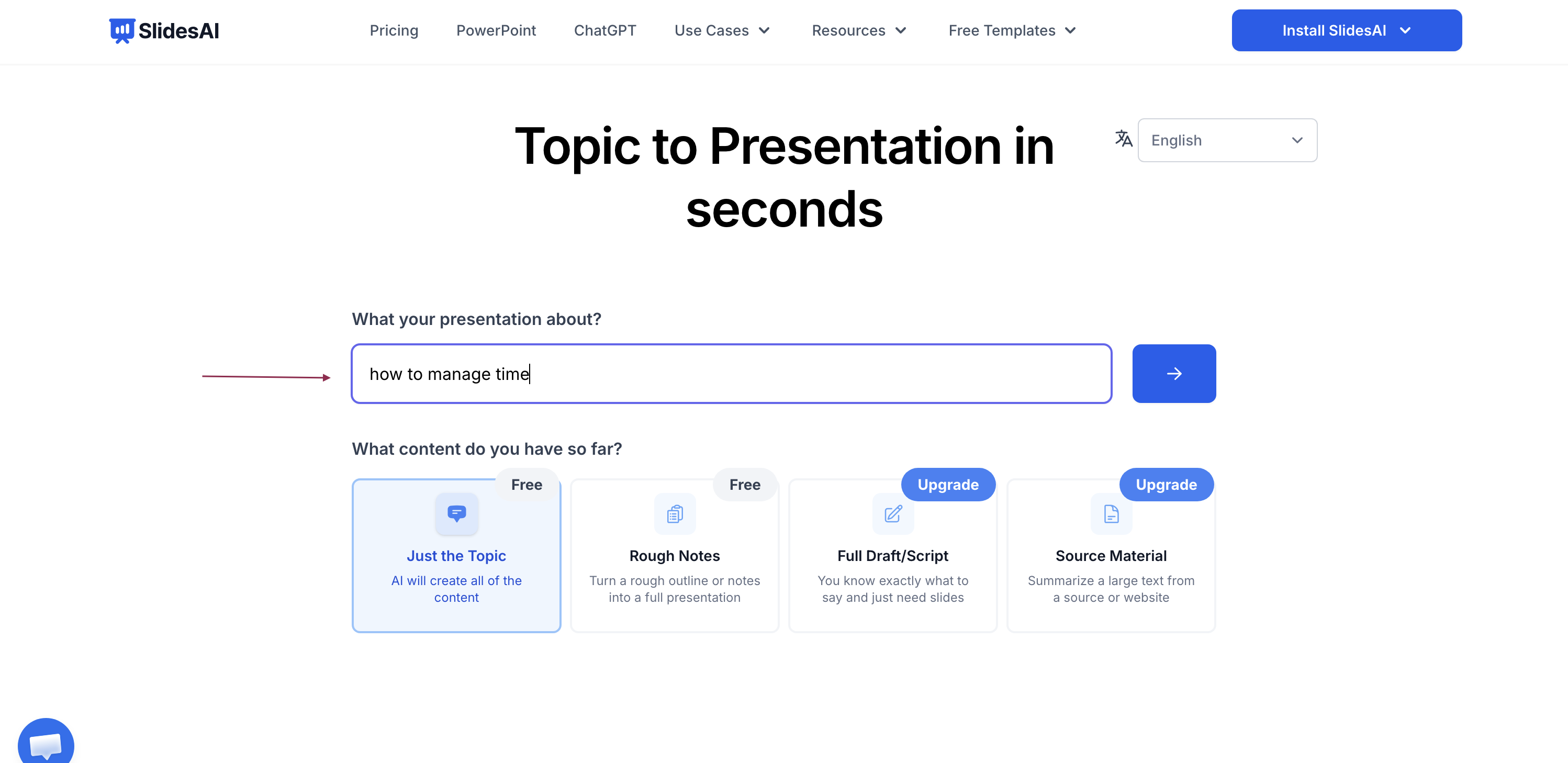
That's it — there's nothing to install. You can start creating presentations right away in the browser.
Updated 3 months ago
Install or connect SlidesAI wherever you want to work. You can use more than one app with the same account — just sign in with the same Google/Gmail account each time so your plan and presentations stay together. Expand the app you want to use below.
Go to slidesai.io.
Click Try Now and follow the steps.
That's it — there's nothing to install. You can start creating presentations right away in the browser.
Open the Google Workspace Marketplace and search for SlidesAI.
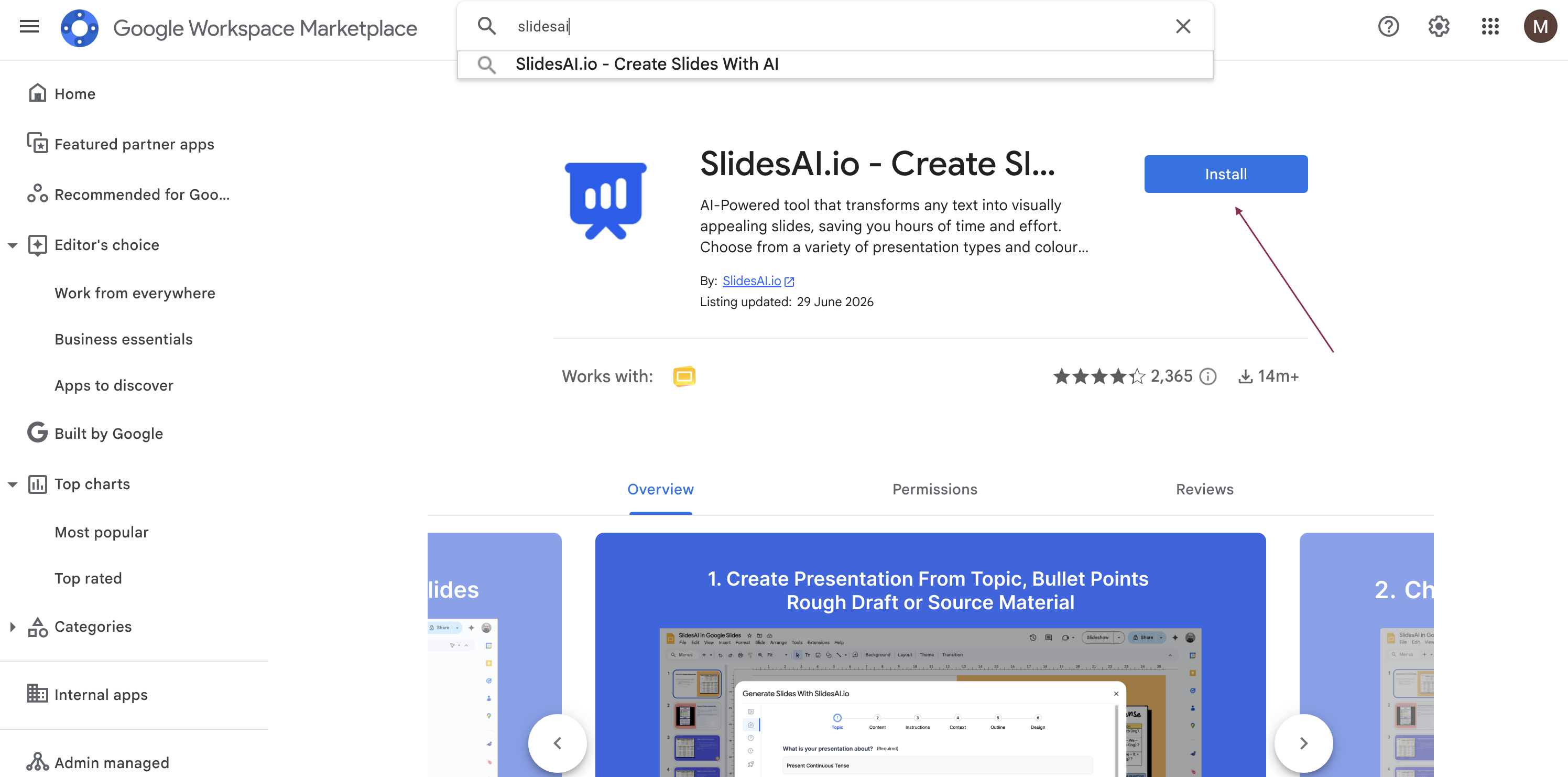
Click Install and grant the requested permissions.
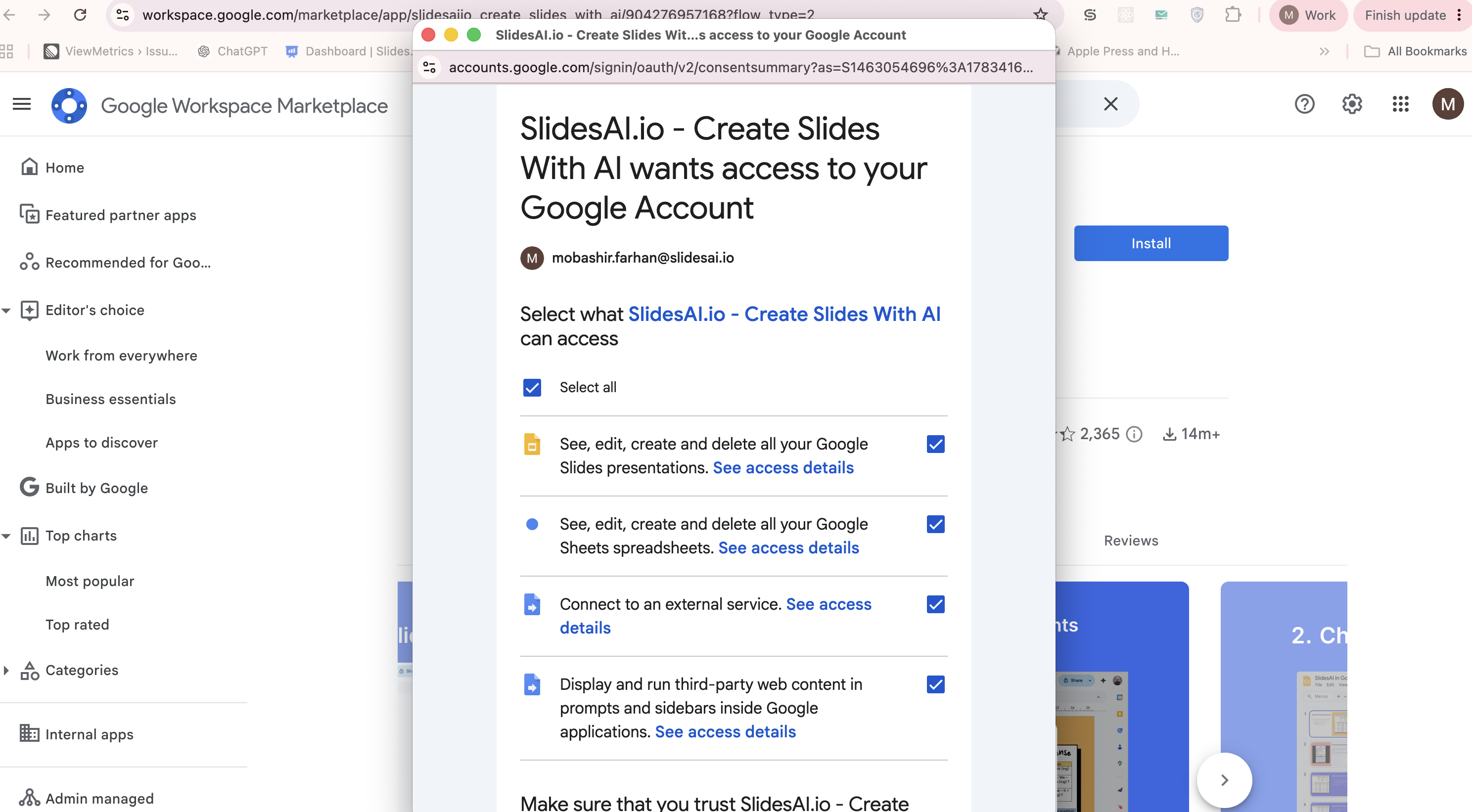
In any presentation, open Extensions → SlidesAI → Generate Slides to launch the add-on.
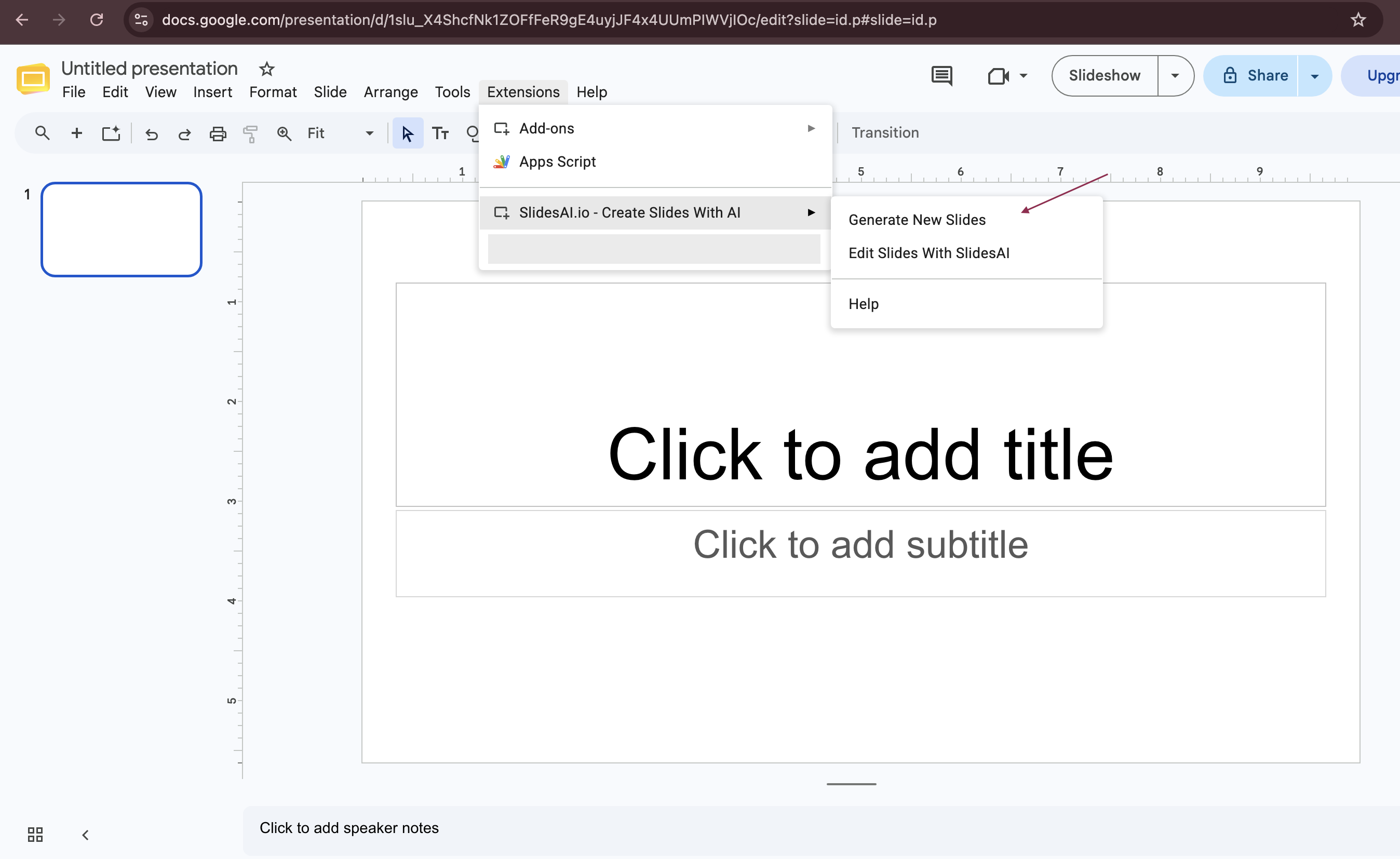
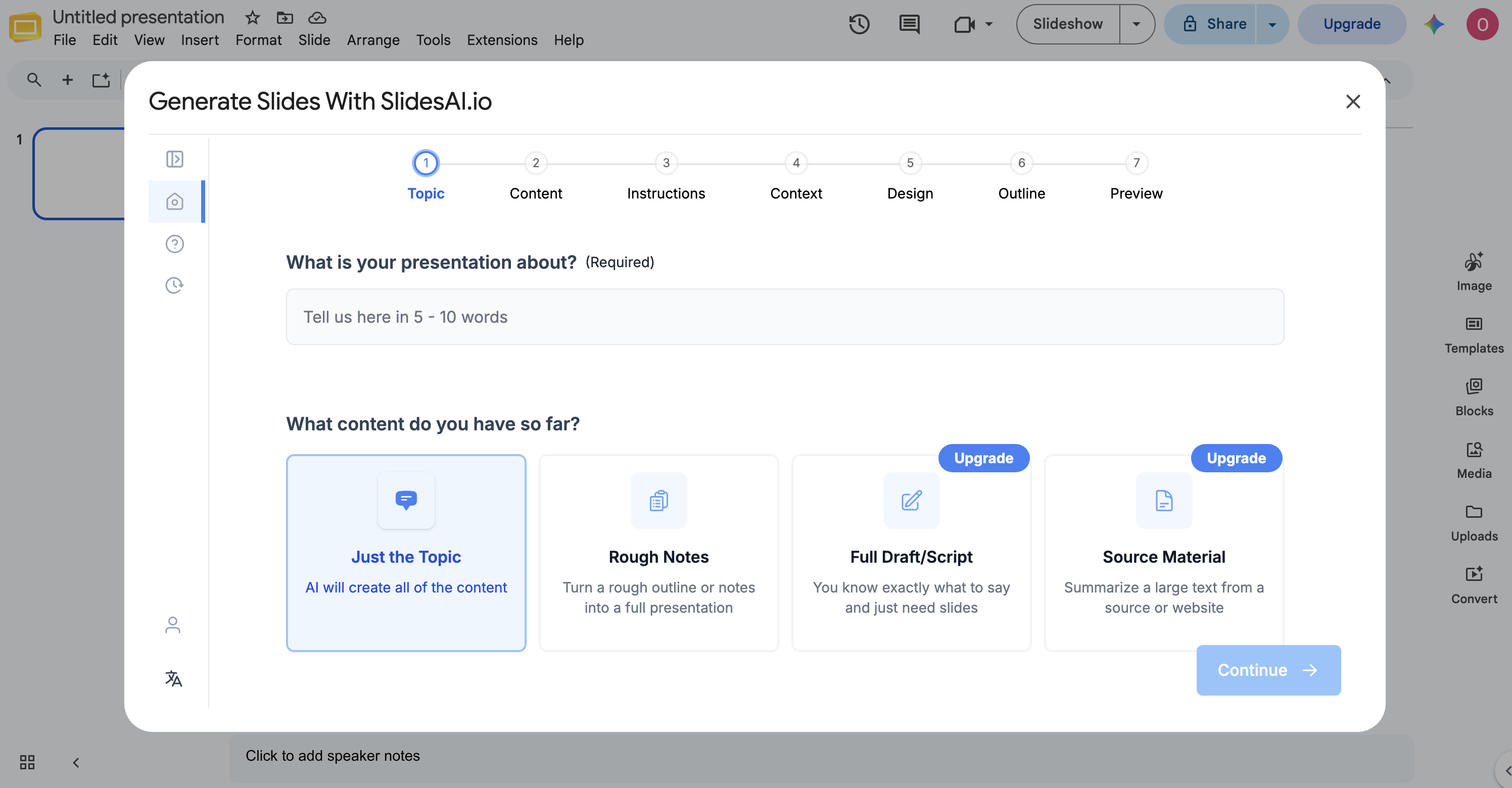
Now you can see the add-on and continue the steps.
Please install SlidesAI Add-in via Microsoft AppSource and come back to this guide.
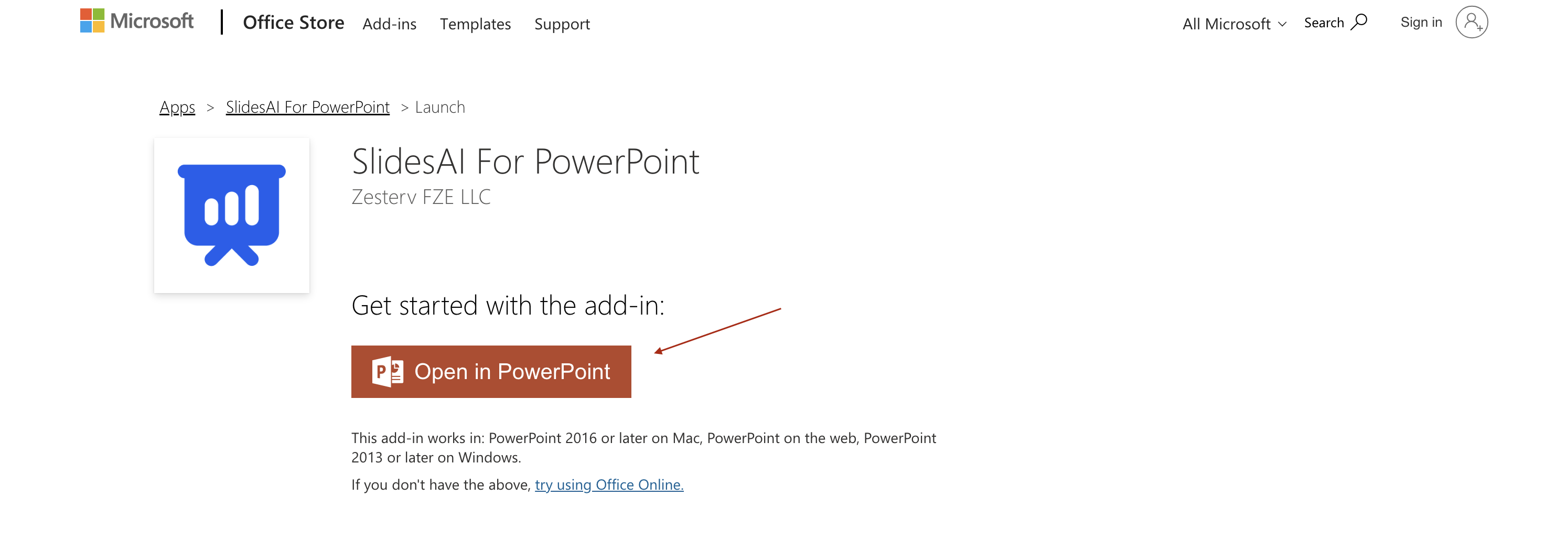
On clicking Open In PowerPoint, you will be redirected to a deck with next steps.
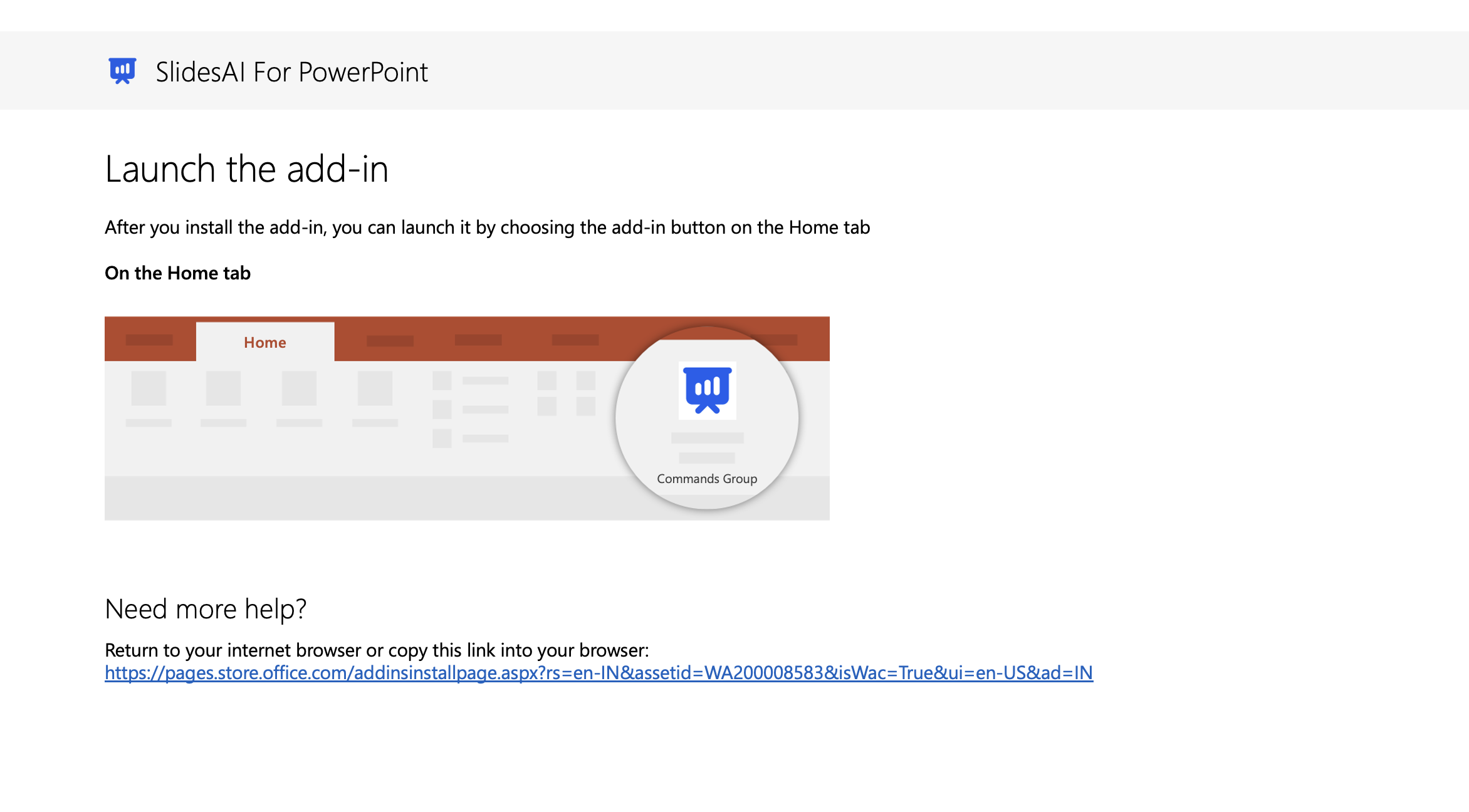
Follow the steps and start creating your presentation.
Before creating a presentation, open the SlidesAI helper inside ChatGPT and connect your Google account.
In the ChatGPT sidebar, go to GPTs.
Search for SlidesAI in the GPTs section.
Start a chat with the SlidesAI helper.
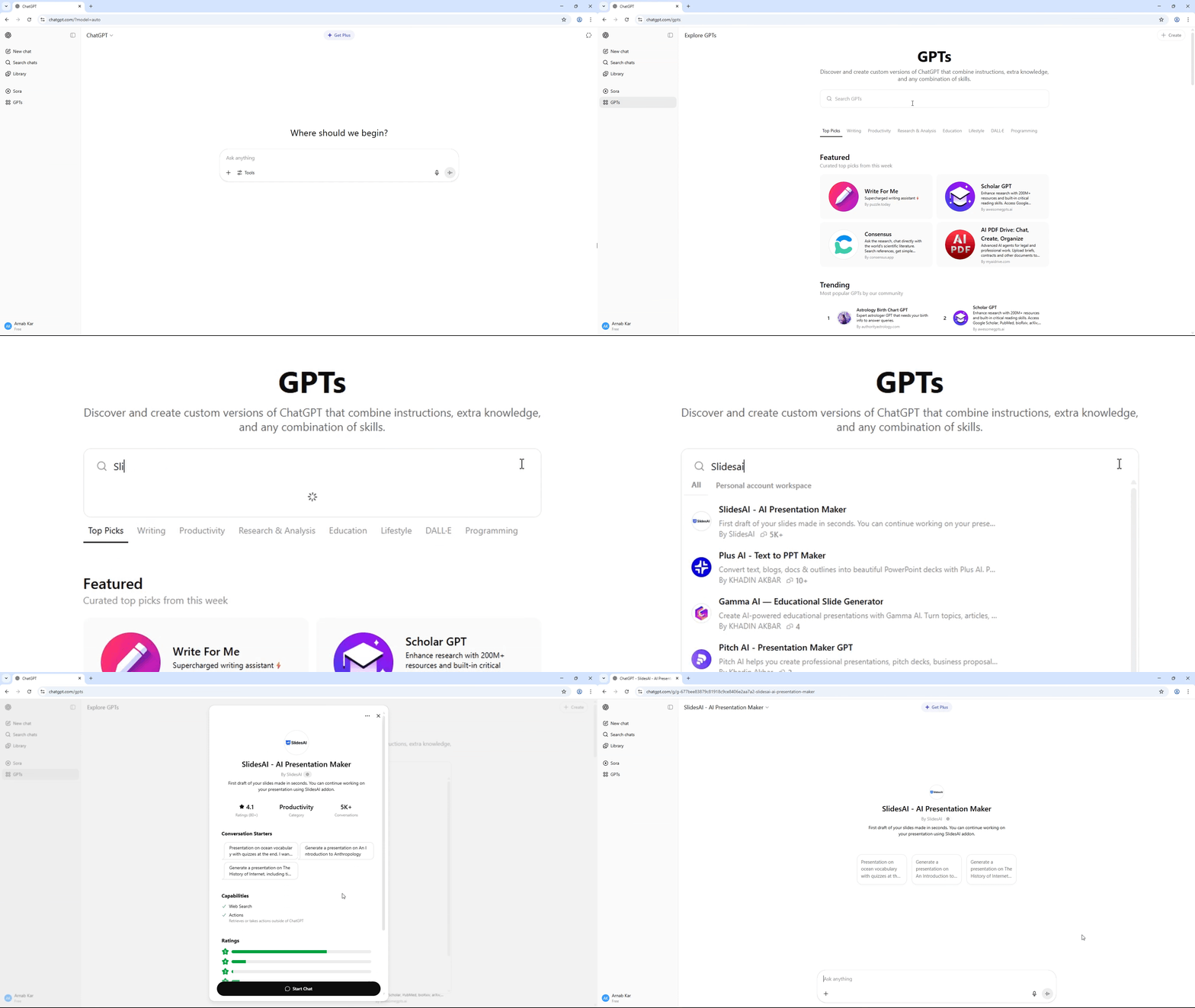
If this is your first time, you will be asked to log in through SlidesAI.
Click the button on your screen.
Sign in using your Google account.
Grant all requested permissions to allow integration.
Click Allow or Allow all so ChatGPT can work with SlidesAI.
These permissions ensure the presentation is created and stored directly in your own Google Slides account.
Once connected, you are ready to start creating presentations. See Generate your first presentation for the next steps.