Generate an on-brand presentation with your Brand Kit
Updated last month
A Brand Kit holds your brand colours, fonts and slide styles in one place. Every presentation you generate comes out like your brand.
Two ways to build one. Do you already have a PowerPoint you present from, or a brand template?
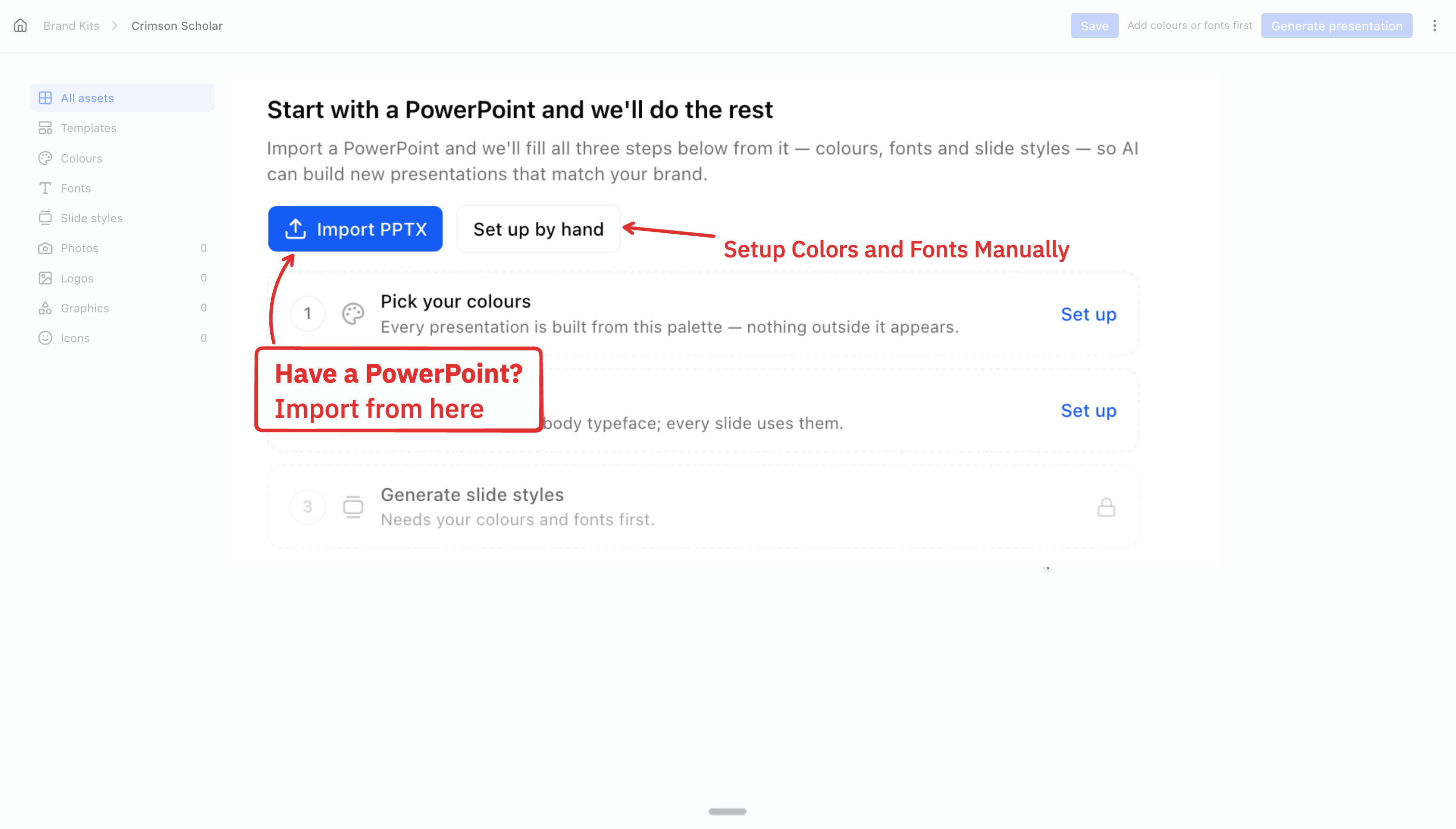
Yes — import it. We read your colours, fonts, images and slide designs straight out of the file.
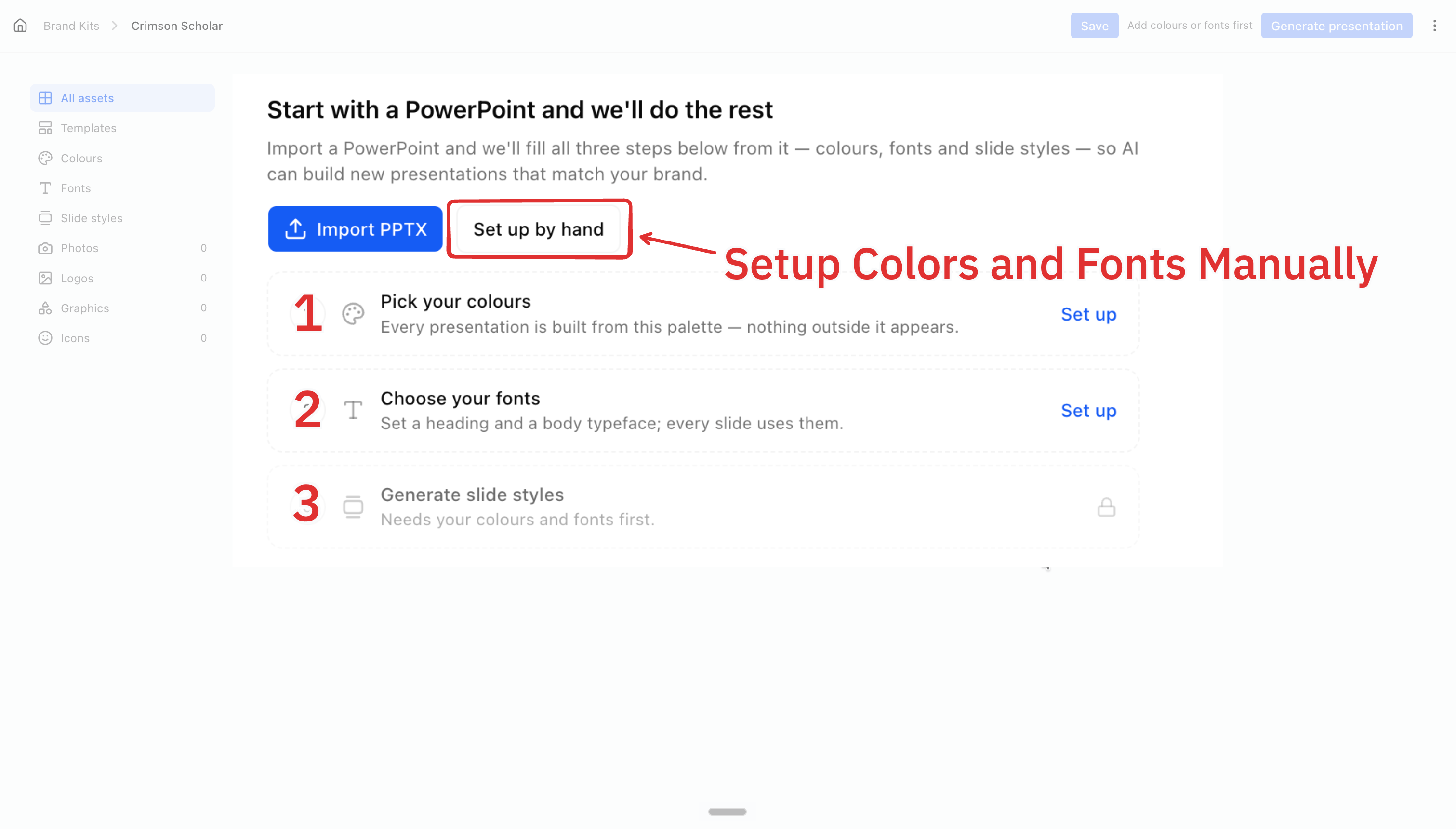
No — build it by hand. Pick your colours, pick your fonts, and we generate slide styles from them.
Both give you on-brand presentations. The difference is whose slide designs they use — importing is the only route that also gives you a template, and once that's AI-ready, presentations are built from your own slides instead of ours.
What a kit holds
Colours — one palette. Every presentation we generate uses these colours and nothing else.
Fonts — five type roles, Title down to Caption.
Slide styles — a fixed arrangement of typography, tables, charts and cards that every generated presentation follows.
Photos, Logos, Graphics and Icons — your image libraries.
Template — the PowerPoint AI learns your slide designs from, if you import one.
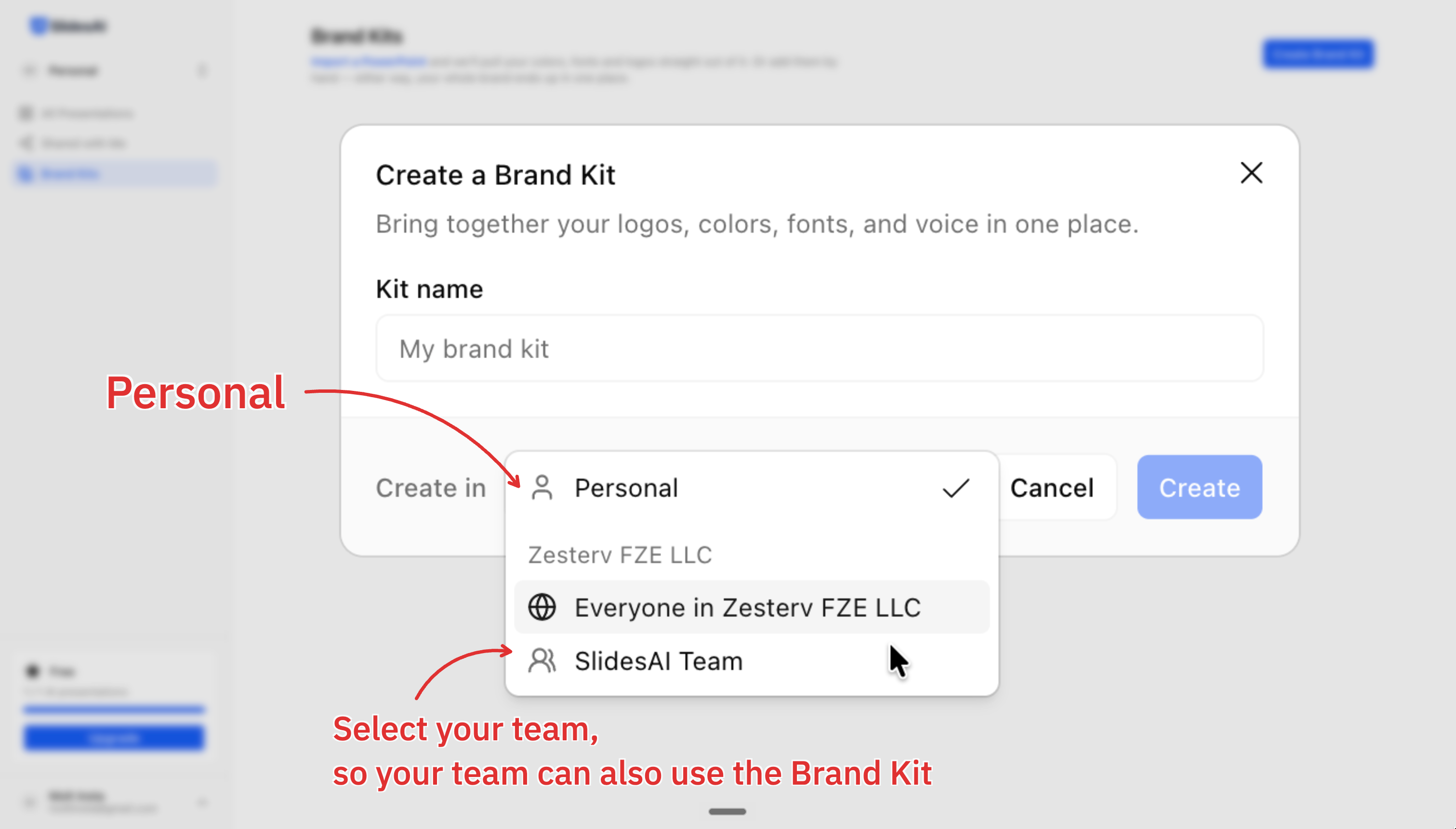
A kit lives in your personal space, a team, or the whole organization, and that decides who can see it.
How many kits you can keep
Only kits you own in your personal space count. Kits shared with you don't use a slot, and kits in an organization follow that team's plan.
Plan
Brand Kits
Free
1
Pro
3
Premium
6
Need more kits, or have a use case a kit doesn't cover? Contact support and we'll sort it out.
Create a kit
A kit is always created empty. You name it, then fill it from inside.
In Brand Kits, click Create Brand Kit.
Enter a name.
Under Create in, choose your personal space, a team, or the organization.
Click Create.
Import a PowerPoint
Use the PowerPoint your team actually presents from. AI builds new presentations from these slides, so choose ones you'd be happy to see reused.
Click Import PPTX and choose a .pptx file up to 100 MB.
Click Import presentation.
It takes about a minute to upload your presentation, pull out your images, colours and fonts, and set up your slide styles. Large files with hundreds of images take a few minutes. Leave the page open while it runs.
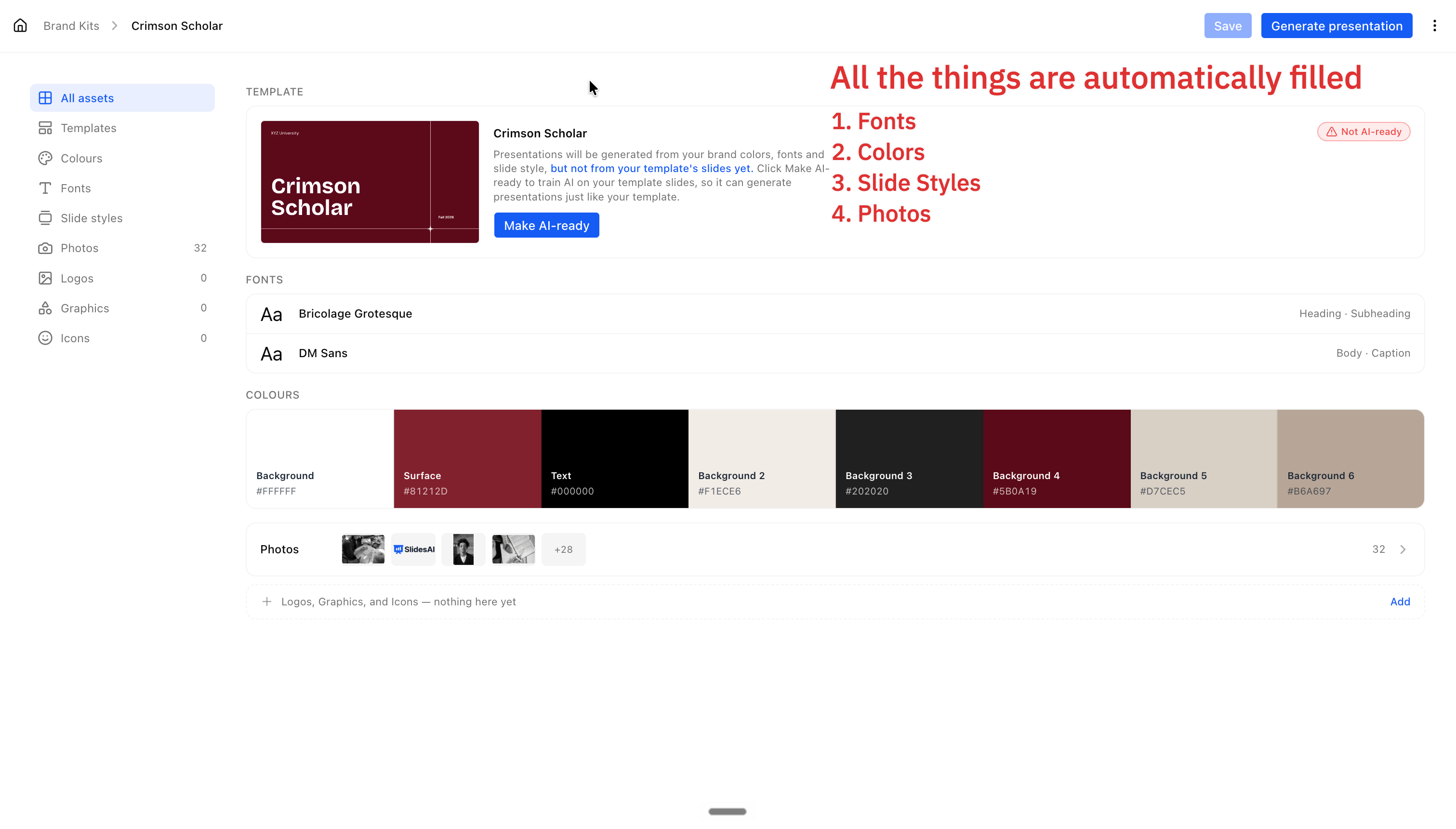
Then open All assets and check what came through:
Colours — your palette, named by job.
Fonts — a heading and a body typeface.
Slide styles — generated for you from the palette. Check all of them.
Photos — every image lands here, logos and icons included. Move the ones that belong elsewhere.
If the import fails partway
Click Try again. It resumes from the furthest point that succeeded, so a large file isn't uploaded twice.
Build it by hand
Three steps, in order. Slide styles stay locked until colours and fonts are both done, because a style is an arrangement of the two.
Pick your colours. Everything we generate is drawn from this palette.
Choose your fonts. You need a heading and a body typeface.
Generate slide styles. We build a set from your palette.
The checklist on All assets tracks all three and disappears once they're done. You can generate before finishing it — but until slide styles exist, presentations won't look like your brand yet.
Your edits are a draft until you click Save.
Colours
Every colour on a generated slide comes from this palette. Nothing outside it appears.
Pick a swatch from your palette and it keeps following the palette — change the hex later and every style and every linked presentation updates, with nothing to regenerate.
Type a hex or drag the picker and the colour is frozen at what you chose.
When a colour is too light to read
We check every text colour against the background behind it. A colour that's hard to read at body size is used anyway. One that's too low to use is swapped for a readable colour when the slide renders — which is why a generated slide can show a different colour from the one in your kit.
Fonts
Five roles: Title, Heading, Subheading, Body and Caption. Tables and charts follow Body.
You don't have to set all five. A role you leave empty inherits from a related one.
That's also why a role can look empty here while your slides are clearly using a font.
When your presentation uses a custom font we don't have
Brands often run on licensed or bespoke typefaces that aren't ours to serve. When an imported presentation names one, we ask you to settle it before going further.
Those roles show Not available, grouped by typeface, so one decision covers every role that used it.
Two ways to settle it:
Replace it with any Google font.
Upload your own font file and keep the brand exact. Uploading is on paid plans.
Slide styles
A slide style is a fixed arrangement of typography, tables, charts and cards. Every presentation generated from the kit follows one.
Keep several, so a presentation can change register without leaving your brand:
A section divider with more weight than a content slide.
A dark style and a light one.
A quieter style for text-heavy slides.
A generated presentation draws on every style in the kit, choosing per slide.
Editing a style reaches work you've already made. Change one, and the templates and presentations built from this kit change with it.
Click any part of the sample slide — a heading, a card, the chart — to edit just that part.
Your images
Four libraries — Photos, Logos, Graphics and Icons — and generation draws on all of them.
PNG, JPEG, WEBP, SVG or GIF, up to 10 MB each.
An import puts everything in Photos. Move logos and icons to their own libraries.
We fit your logo into the logo slot a slide design provides, scaling rather than cropping.
Coming soon: choose where images come from
You'll be able to set how we source the images on a generated slide.
Auto — your own libraries first, wherever an image fits, with the rest filled in for you.
AI — images generated for the slide.
Stock — photography from our library.
Make your template AI-ready
Only if you imported a presentation. This is the step that makes generated presentations use your own slides.
Before — your colours and fonts, on our layouts.
After — your template's own slides, with your content in them.
Open Templates and click Make AI-ready.
Choose what should happen to content that doesn't fit your slides.
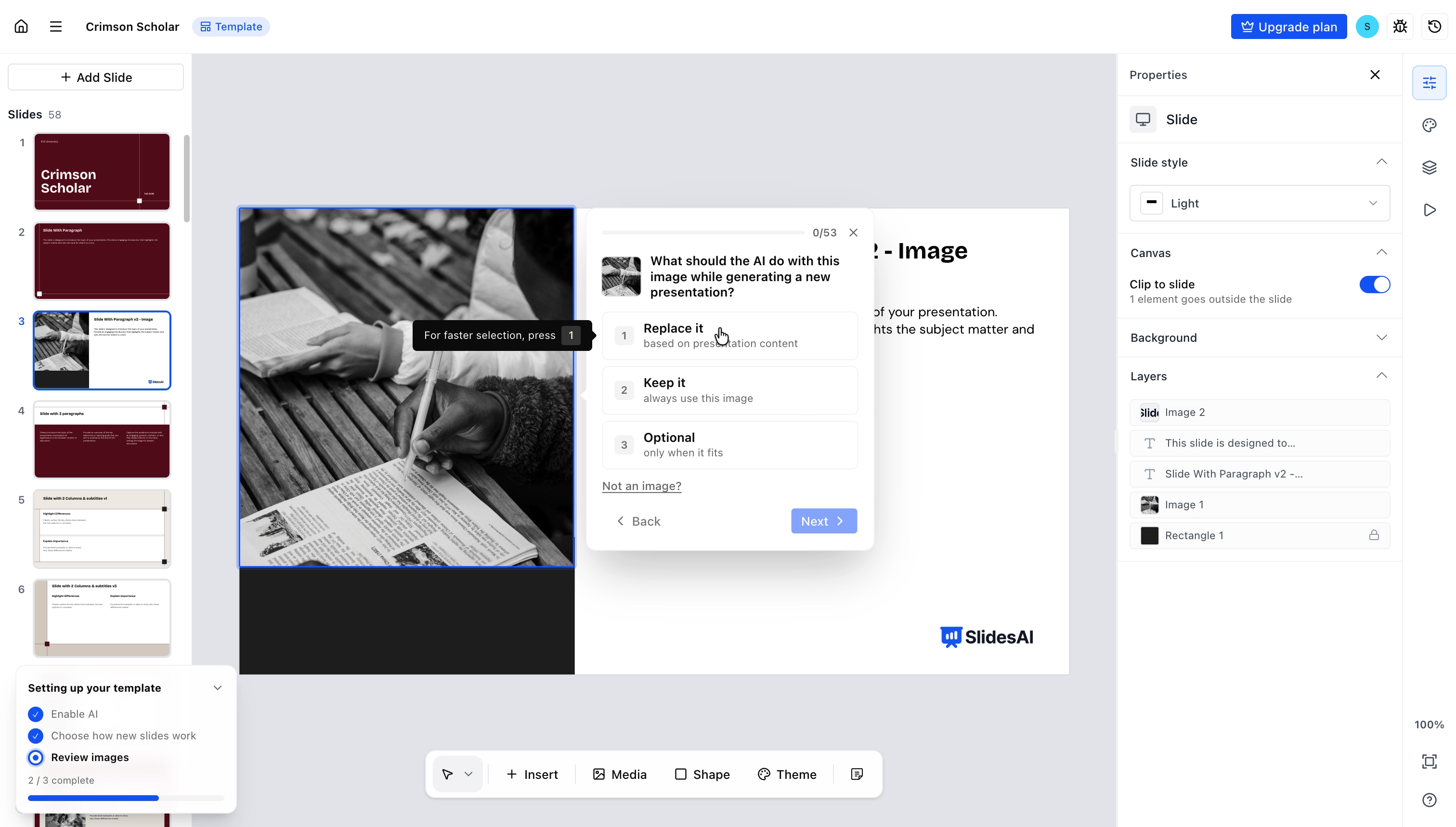
Review your images — keep anything that shouldn't change, like your logo or a design element, and let the rest be swapped.
Click Start training.
Training takes a few minutes in the background, and you can close the page — we email you when it's ready. Generating from the kit pauses until it finishes.
Here is the full video about how to prepare your template for Make AI-ready
Content that doesn't fit your slides
Most topics land on one of your existing slides. This choice is only about the leftovers.
Design a new slide — when content matches nothing in your template, we design a slide for it in your template's fonts, colours and spacing. Right for most presentations.
Only use my slides — we put the content on whichever of your slides suits it best, and never design a new one. Right when every slide has to come from your template.
Review your images
The images in your template mean different things. Your logo has to survive on every generated slide; the stock photo behind your intro should not.
We can't tell those apart from the pixels, so you confirm it once. Your answers hold for every presentation you generate.
What to answer, case by case
Your logo, brand artwork, background textures and design elements → Keep it. They appear unchanged on every generated slide.
A stock or placeholder photo → Replace it. We swap in something matching the new presentation's topic.
An image the slide doesn't need → Optional. We drop it when the content needs the room.
A chart or table pasted in as a picture → swap it for a real one, below.
Stuck on one? Ask whether the image is about your brand or about the topic. Brand means Keep it. Topic means Replace it.
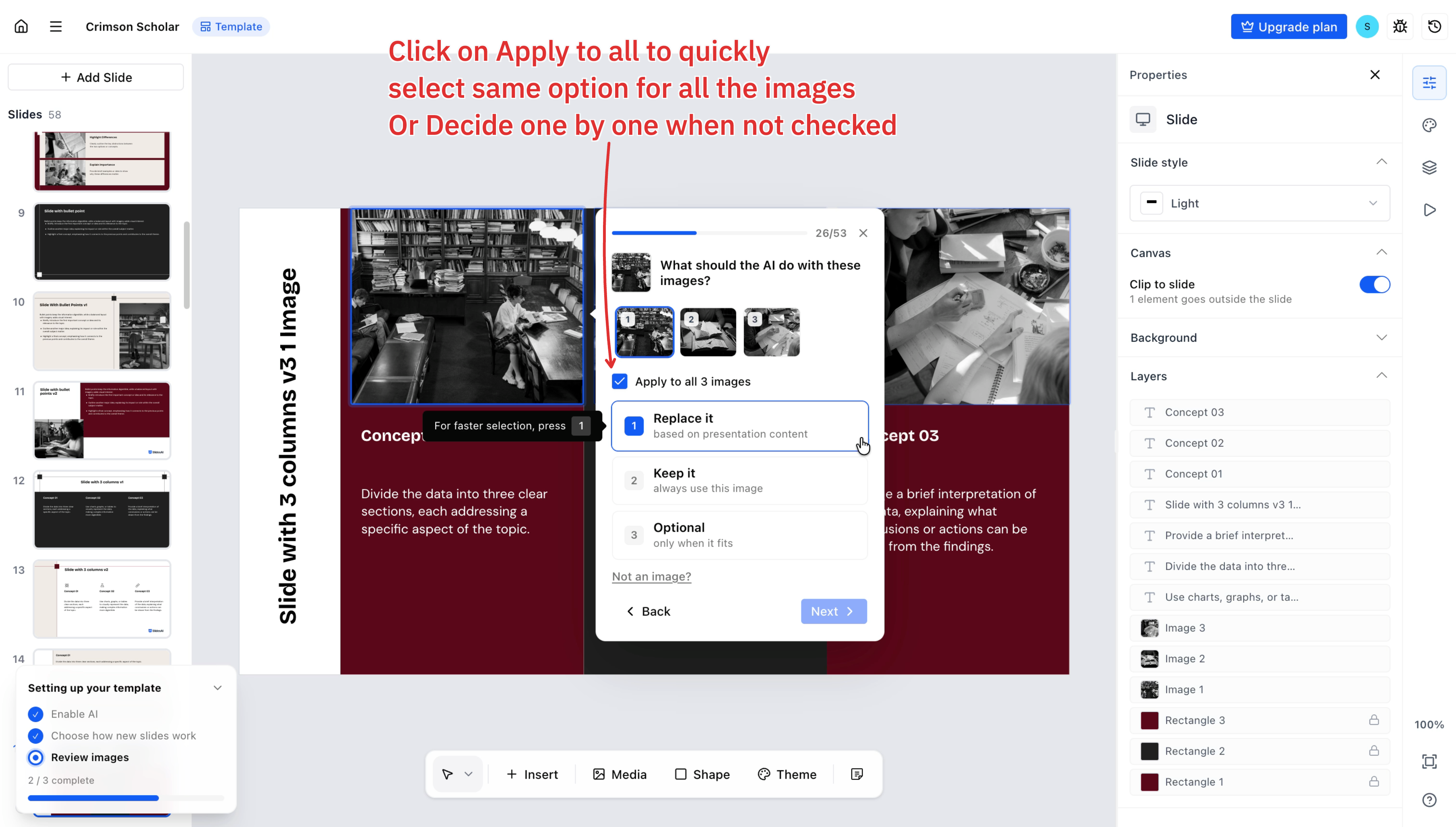
Answer several images at once
A repeated image arrives as one card, showing how many slides it appears on.
Tick Apply to all and one answer settles every copy — a logo on 13 slides is a single question.
Images forming a row on one slide group the same way.
Once you use Apply to all, later groups arrive with it already ticked.
Use the keyboard
Choosing an answer also moves you on, so most images take one keystroke.
Key
Does
123
Choose that answer and move on
A
Turn Apply to all on or off
N
Open Not an image?
Enter
Next image
←→
Step back and forward
Answers save as you go, and every image needs one before training can start.
When a chart came in as a picture
We build real charts and tables on generated slides. A chart pasted into PowerPoint as a picture is only pixels, so it can't carry data — but you can swap it for a real one.
Press N or click Not an image?
Choose Chart, Table or Icon.
The picture turns into a placeholder on the canvas. That's expected — a real chart or table, built with the new presentation's data, takes its place on each generated slide. One answer covers every copy of a repeated chart.
Changing your answers later
Open the template, click Manage template, then Edit decisions. Every image is listed with the answer it has now, including ones you retyped. Approving your changes runs training again.
Generate a presentation
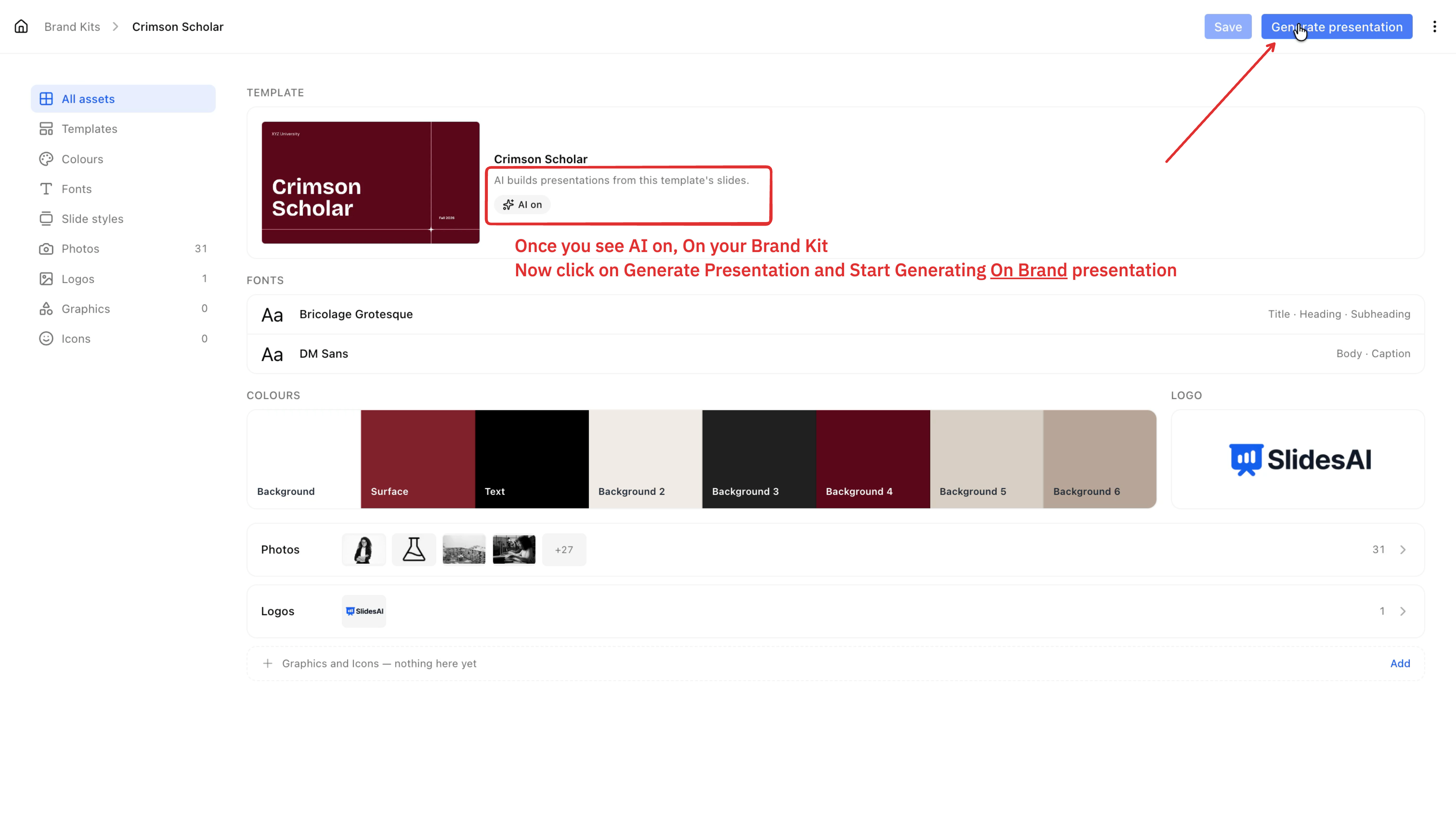
Click Generate presentation from the kit. What you get depends on how complete the kit is.
Your kit
What you get
No colours and no fonts
You can't generate yet
Colours, fonts and slide styles
An on-brand presentation on our slide designs
An AI-ready template
A presentation built from your template's own slides
A template still training
Generation reopens when training finishes
Presentations stay linked to the kit, so later changes to your colours, fonts and slide styles reach them too — except anything you edited by hand inside a presentation.