
Create a custom theme
Updated 2 months ago
A custom theme is a set of colors and fonts you define yourself. You create one on the Design step, where you pick a style for your presentation.
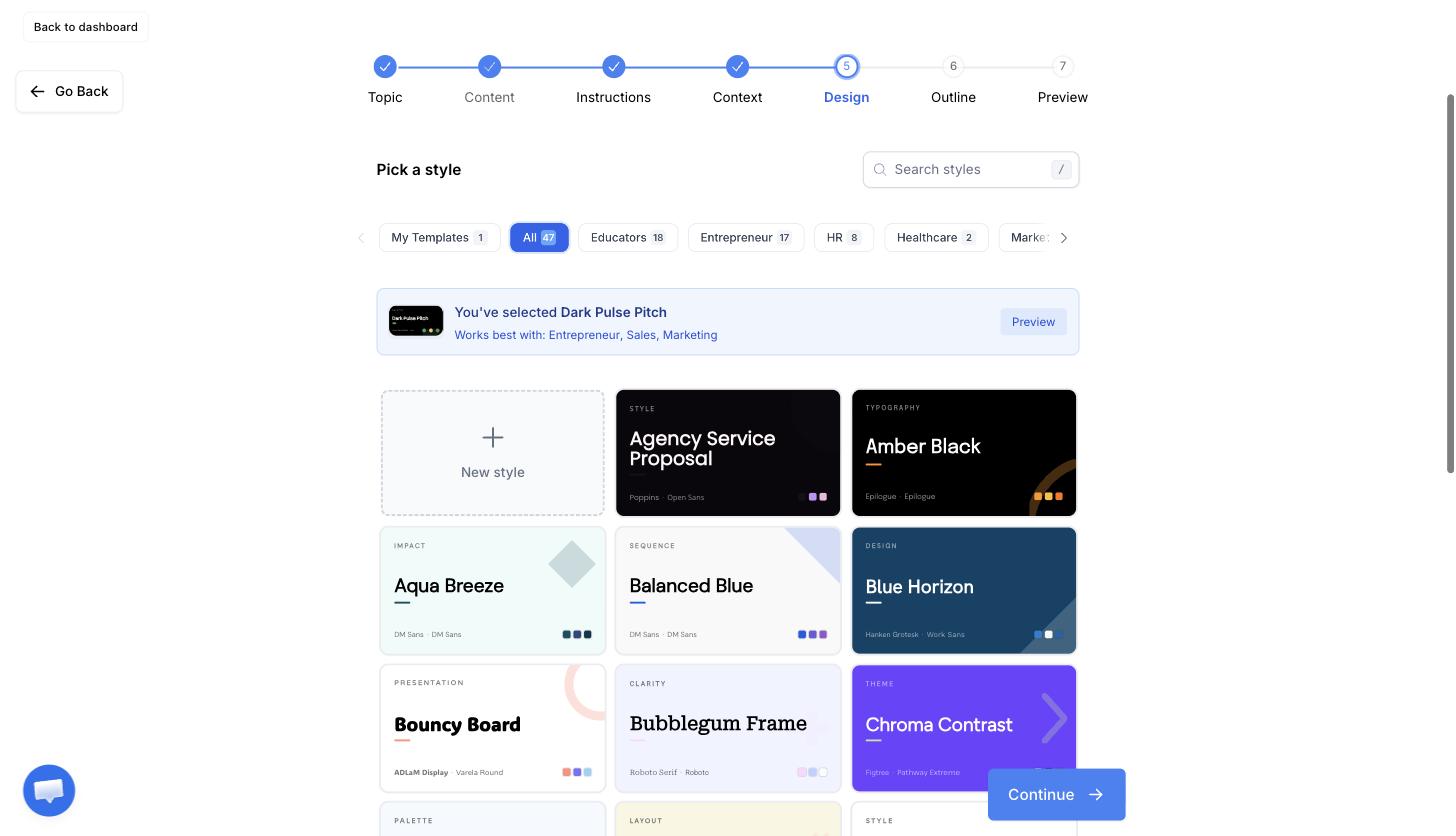
Click New style in the grid, choose your colors and fonts, and give the theme a name. It then sits in that grid with the built-in themes, ready to use on any presentation. Creating themes is available on paid plans.
Create a theme
On the Design step, click New style in the grid.
On the Colors step, set Primary, Secondary, Background, Card and Accent. Click a swatch to pick a color, or type a hex code.
Set Text on light color and Text on dark color.
On the Fonts step, choose a Heading font and a Body font.
On the Details step, enter a Theme name and, if you're on a team, set Visible to.
Click Save style.
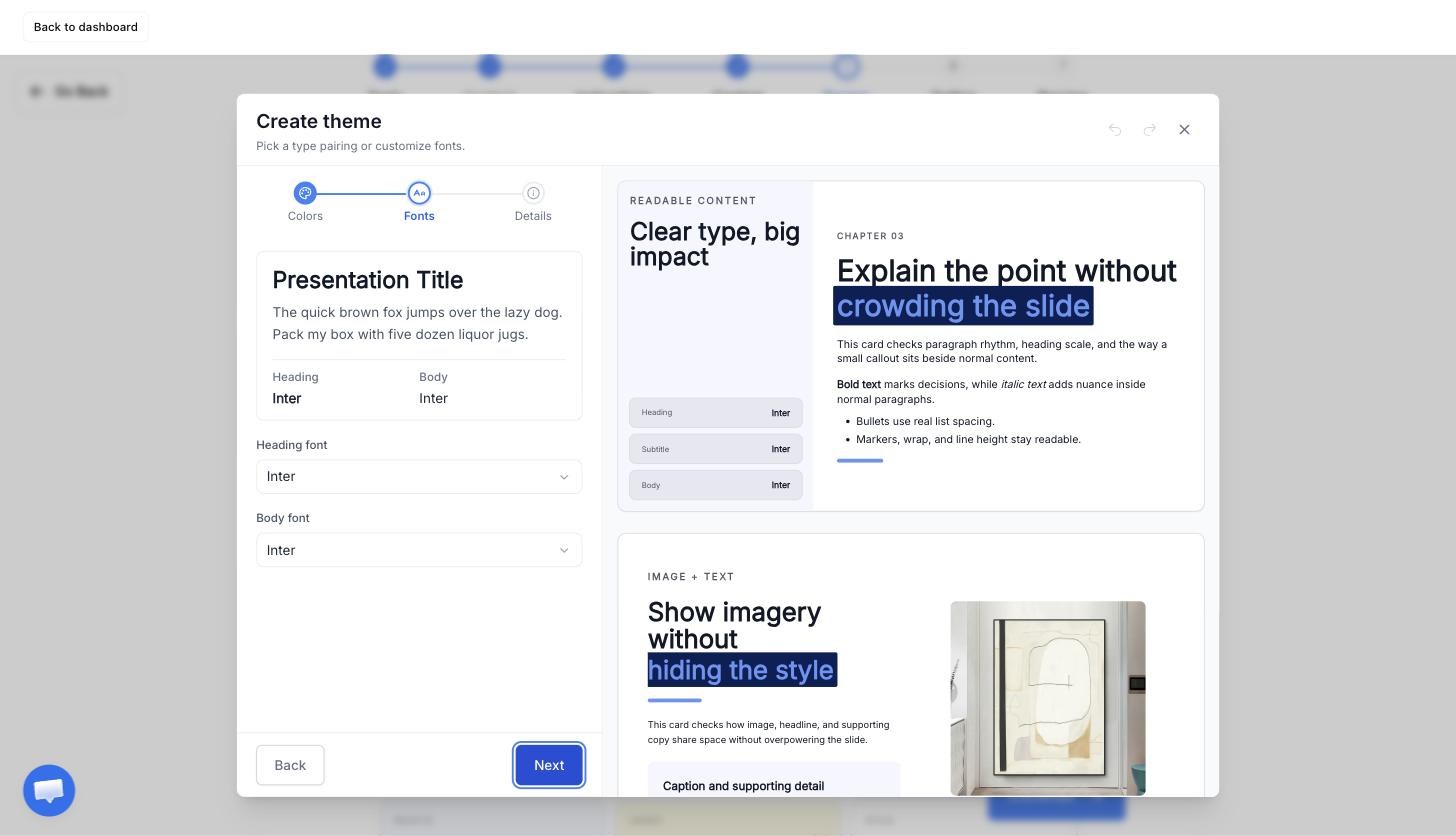
The theme is applied to your current presentation as soon as it saves. The three steps are clickable in any order, so you can jump back to colors after choosing fonts. Undo and redo are in the header, and ⌘Z and ⇧⌘Z work as well.
Saving needs a name, all five colors as valid hex codes, and both fonts chosen. A preview of six slide types sits beside the editor and updates as you go.
Keep your text readable
Each of the two text colors is scored against the backgrounds it will actually appear on, and shows AA or AAA when the contrast is good enough. AA means a contrast ratio of at least 4.5:1, AAA at least 7:1.
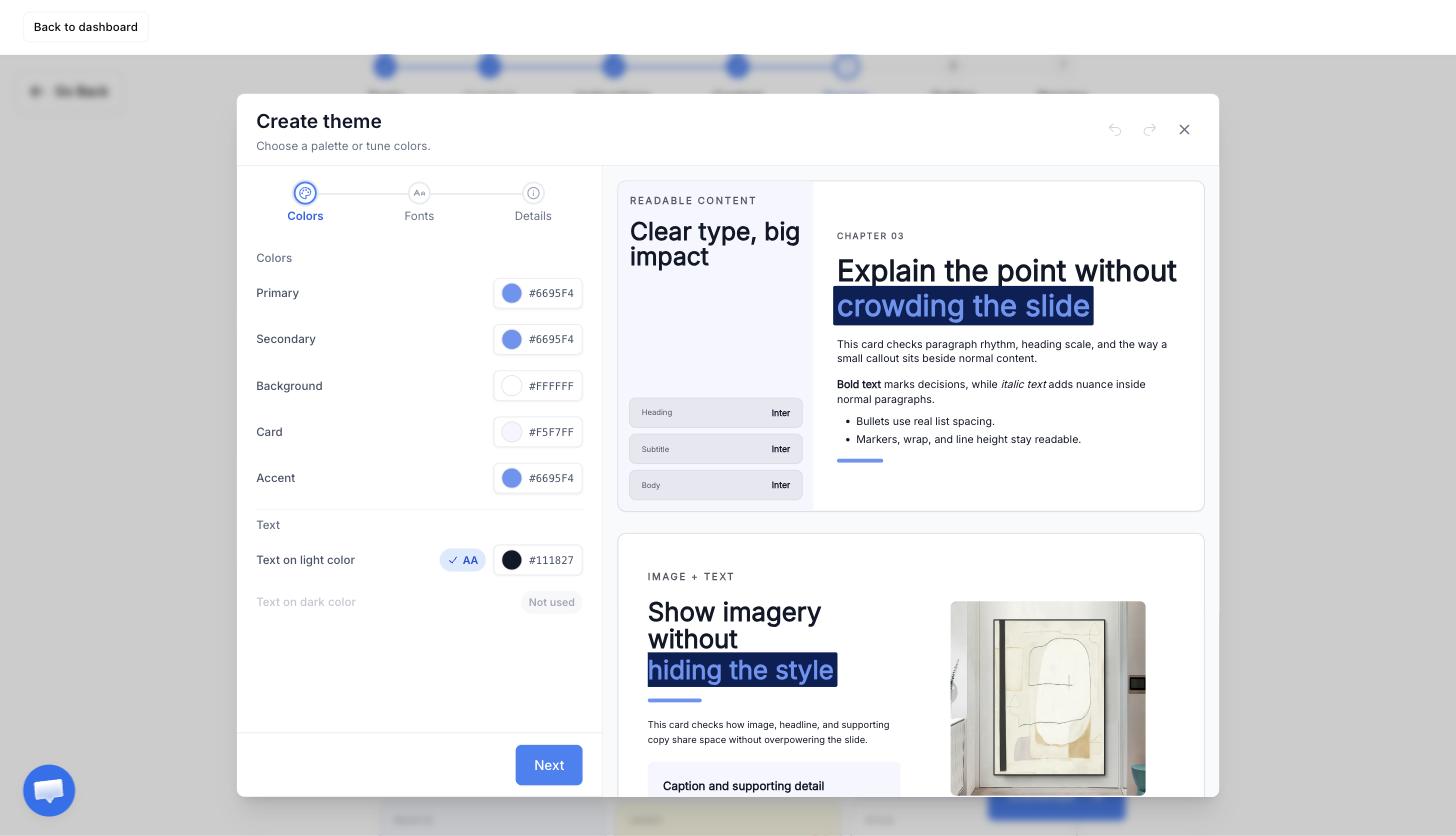
When a text color fails, the badge becomes a Fix contrast button that picks a readable color for you. Text colors are also adjusted automatically whenever you change one of the five base colors, so a dark background won't leave you with dark text.
A text color marked Not used has no matching background in your theme — nothing in it is light enough, or dark enough, for that color to appear.
Name it and choose who sees it
Theme names are limited to 34 characters. The name is how the theme is listed in the grid, so make it recognisable at a glance.
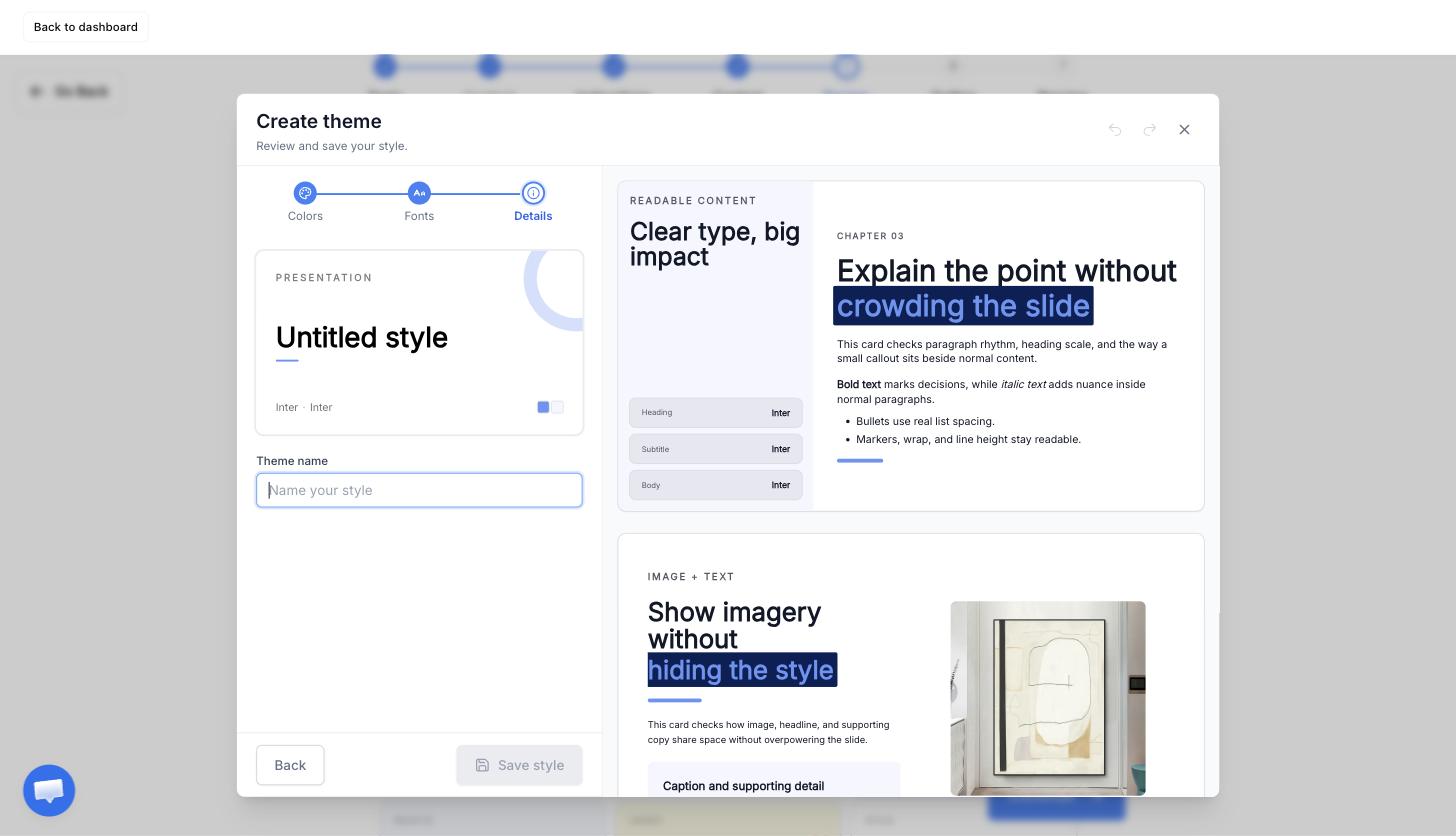
Visible to controls who can use the theme:
Just me — the theme stays in your own account.
My team — everyone on your team can pick it. This option appears only if you're on a team.
Visibility is set once, when you create the theme. You can't change it afterwards, so a personal theme you later want to share has to be built again as a team theme.
Start from an existing theme
Any built-in theme can be the starting point for your own. Open a theme in the preview and click Edit: its colors and fonts are copied into a new theme for you to change, and the original is untouched.
The name field starts empty, so give the copy its own name before saving.
Edit or delete your themes
Only themes you created can be edited or deleted — the built-in ones can't. Hover a theme and click Preview, then Edit to change its colors, fonts or name, and Save changes.
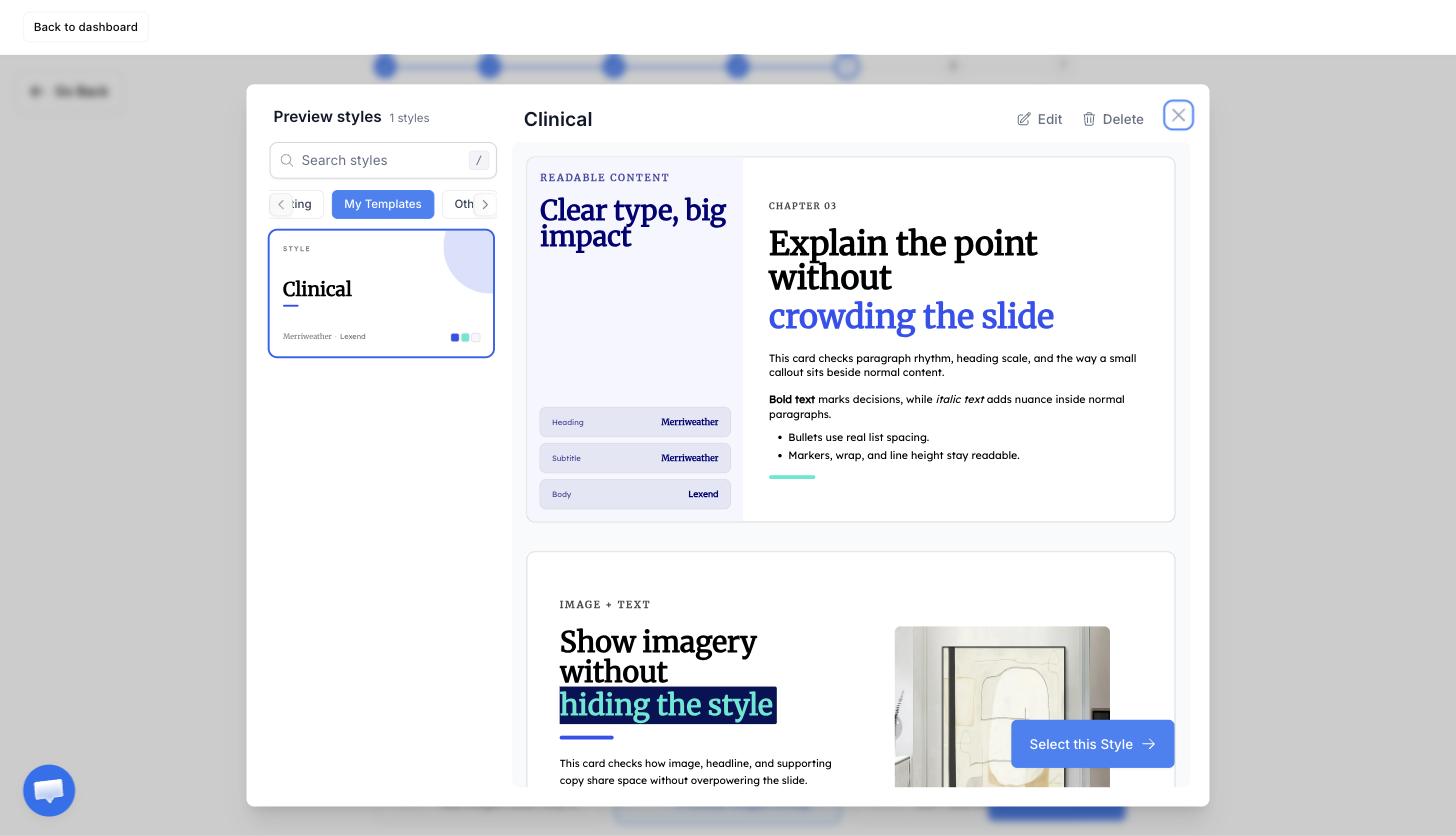
To delete one, use Delete in the preview, or the delete button under Danger zone on the Details step. Deleting removes the theme from your account. Presentations that already used it keep the colors and fonts they were built with.
Your themes are listed in the grid alongside the built-in ones, and the My Templates filter narrows the grid to just yours. To change the look of a presentation you've already made, see Change themes and layouts.