
Create a presentation with SlidesAI Agent
Updated today
Tell SlidesAI Agent what your presentation is about, and it builds the slides with you. You answer a few questions, check the outline and the slide text, and then SlidesAI creates the presentation and opens it in the editor.
From your first message to a finished outline.
Before you start
Sign in to app.slidesai.io. A good first message names the topic, who will watch, and what you want them to take away. You can also attach notes or documents in the same message.
Start a new chat
On your dashboard, click Start with AI.
Above the message box, click Choose a style and pick how your slides look. SlidesAI remembers this choice for next time, and you can change it later.
Type what your presentation is about, then press Enter.
For example: "A 10-minute talk for new employees about how our customer support team works."
Answer questions and set up the presentation
If SlidesAI needs more detail, it asks you one to three short questions first. Tick your answers and click Submit.
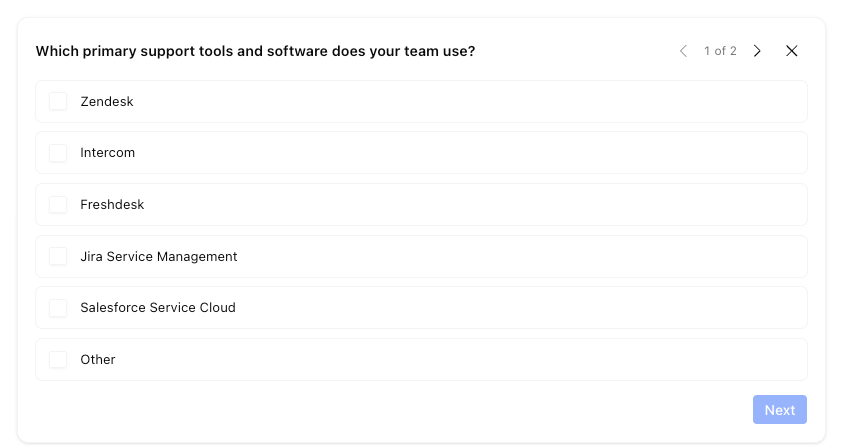
Answer a few quick questions so SlidesAI gets the details right.
Then SlidesAI shows a setup card so you can confirm the basics.
Confirm length, audience, tone, and language, then click Continue.
Slides: keep Auto or pick a number. Your plan sets the most slides you can choose.
Type, Audience, and Tone: pick what fits. The choices for audience and tone change with the type.
Language: the language of your slides.
Quick instructions: add common requests in one click: Bigger fonts, Keep my wording, More detail, Less text per slide, and Simple language. Type anything else in the box below them.
Click Continue when the setup looks right.
Check the outline
SlidesAI writes an outline with one line per slide. It opens in a panel on the right. Nothing is built yet, so this is the cheapest moment to change the structure. See Review and change your outline.
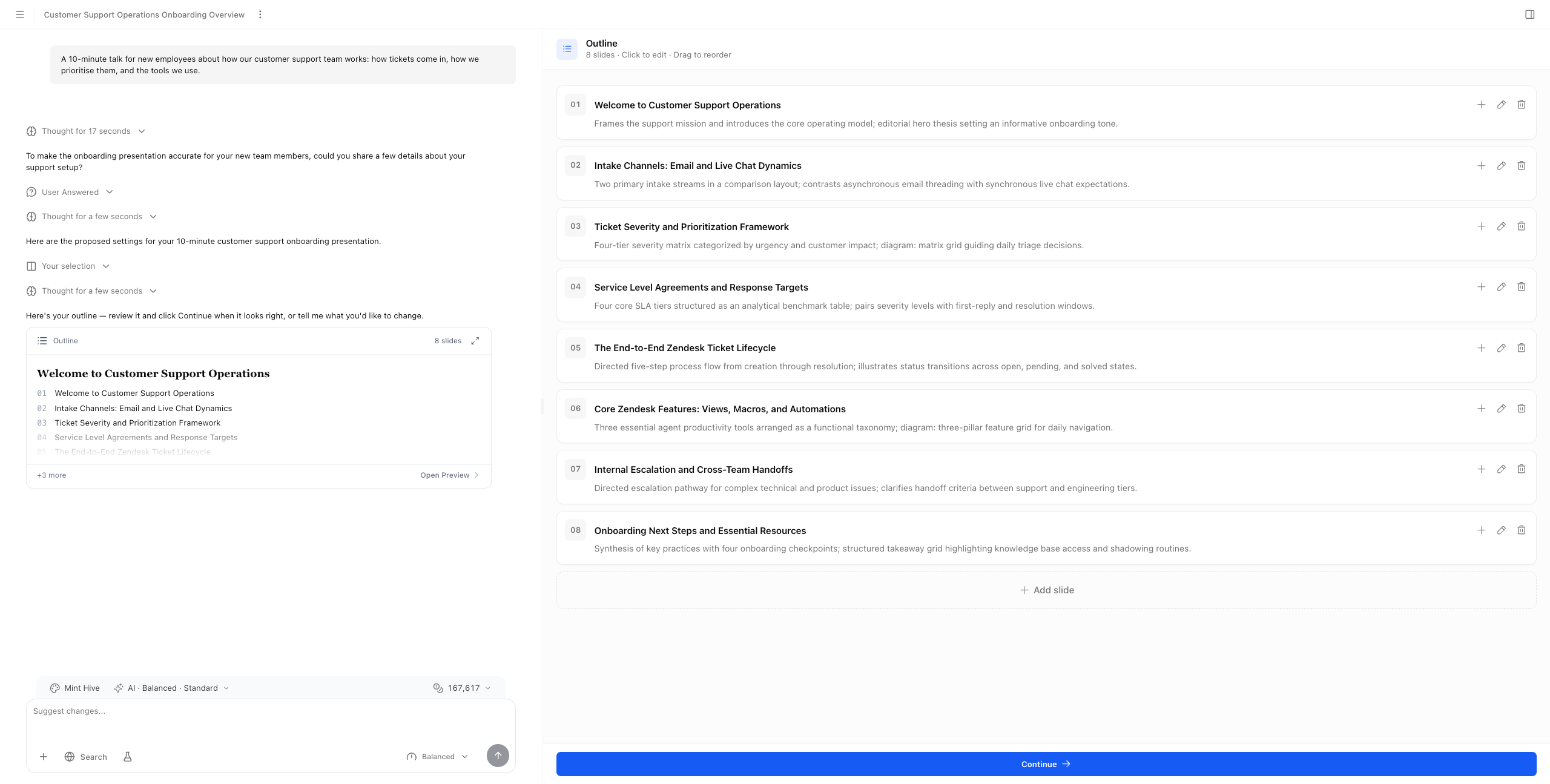
The outline opens next to the chat.
Click Continue at the bottom of the panel to accept the outline.
Check the slide text
SlidesAI writes the text for every slide in the Slide content panel. Click any text to edit it, add speaker notes, or ask SlidesAI to change it. See Edit your slides by asking the agent.
Edit the slide text and add speaker notes before you create the presentation.
Create the presentation
Click Create Presentation. SlidesAI designs the slides with your style and opens the presentation in the editor, where the slides appear one by one.
Creating the presentation uses credits. The amount depends on how many slides you have and the response quality you picked. See Credits and limits when you create with chat.
You can leave the page while SlidesAI works. When you come back, it shows where it got to.
Use SlidesAI on your phone
On a phone, switch between Chat and Preview with the tabs at the bottom of the screen. The Create Presentation button is in the same bar.