
How to use SlidesAI templates
Updated 3 months ago
You can start from a ready-made template file, or generate a full presentation with AI and pick a SlidesAI template during the flow. Both paths work with Google Slides and Microsoft PowerPoint.
Download a ready-made template
Use the template library when you already have content and want a designed deck to customize in Google Slides or PowerPoint.
Open the SlidesAI template library.
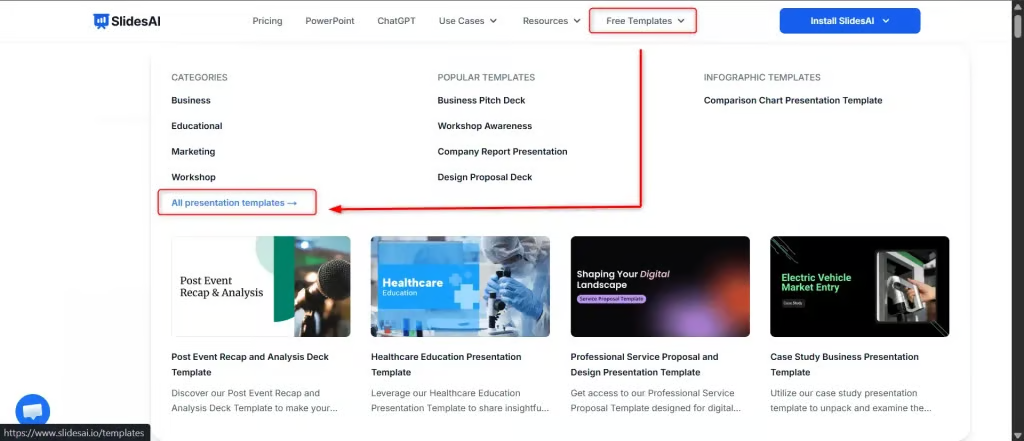
Browse by category or search. Categories include Business, Education, Healthcare, Infographics, Marketing, Pitch Deck, Portfolio, and Workshop.
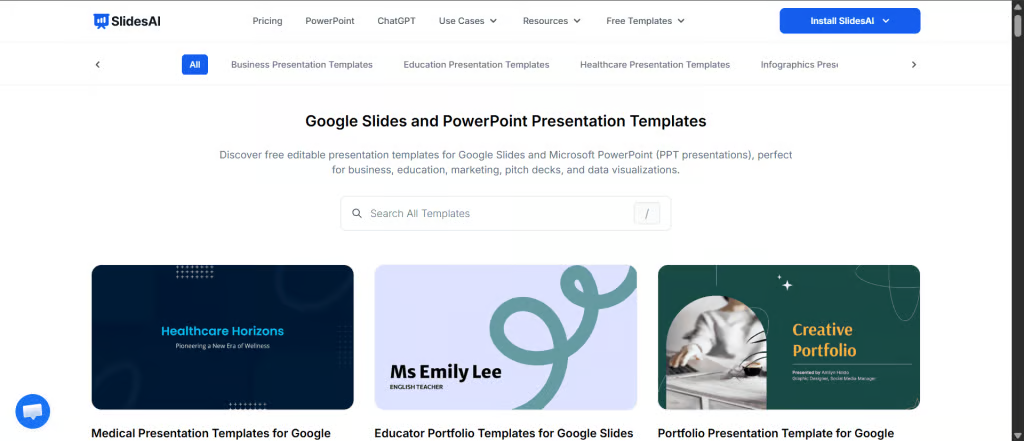
Open the template you want to use.
Click Download, then choose Google Slides or PowerPoint.
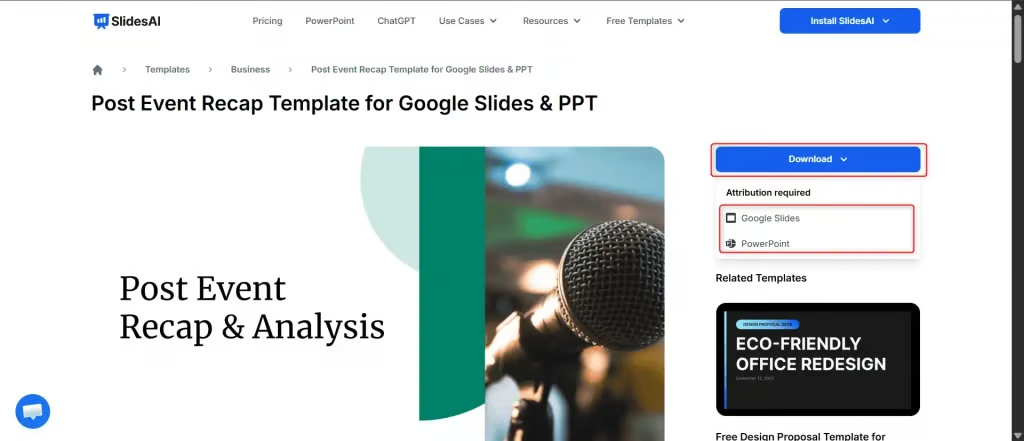
Open the file in your chosen app:
Google Slides: choose Use Template to make an editable copy.
PowerPoint: open the downloaded file and start editing.
Replace placeholder text, images, and other content. Adjust colors, fonts, layouts, and branding as needed.
Templates can be used for personal and commercial work. Reselling or redistributing the template files is not allowed.
Generate an AI presentation with a template
In the SlidesAI Platform, choose your content and preferences, pick a template, then review the outline and slide content before the final deck is generated.
Visit SlidesAI, log in, and open the SlidesAI dashboard (use Visit Dashboard after signing in if you land on the marketing site).
Click Start with AI.
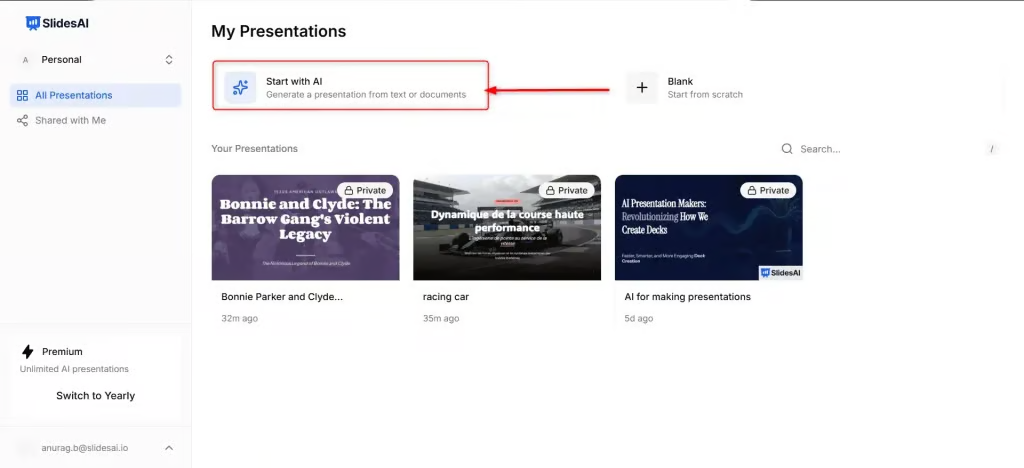
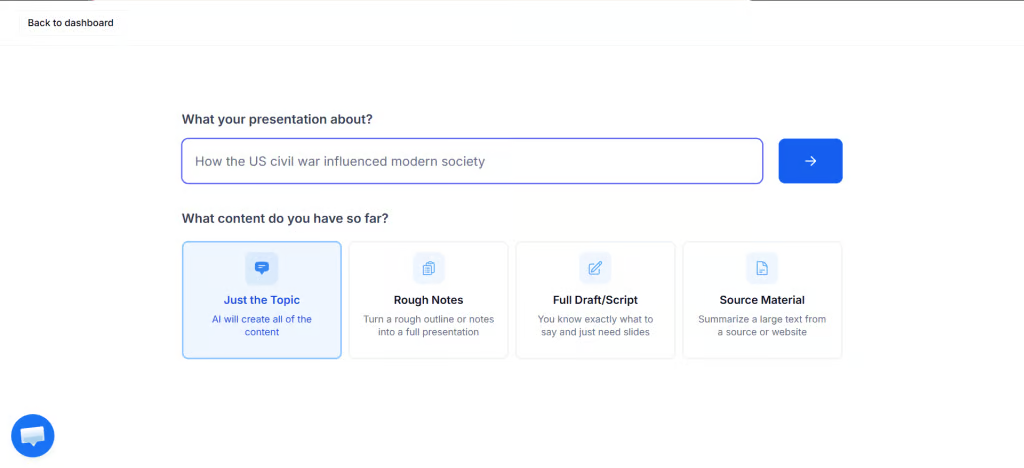
Enter your presentation topic and choose an input method:
Topic — you only have a topic and want SlidesAI to generate the full presentation.
Rough Notes — you have bullet points, rough ideas, or unstructured notes.
Full Draft or Script — your content is already written and you mainly need design help.
Source Material — you want to generate from a website URL or other reference source.
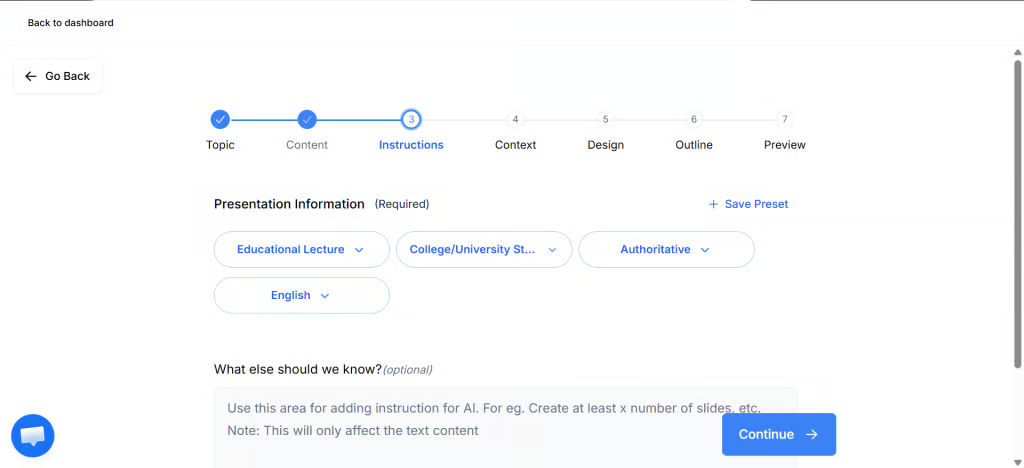
Select presentation preferences: presentation type, audience, tone of voice, and language.
Choose the presentation mode. Select Presenting Live to optimize slide structure for live presentations and audience readability.
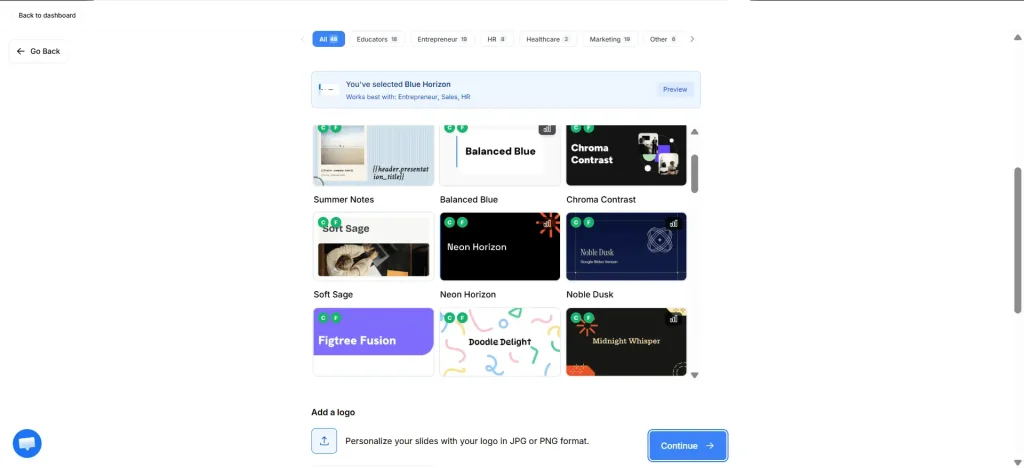
Select a presentation template and visual preferences. Choose a SlidesAI template, and optionally add your logo, use AI-generated images or stock photos, or customize visual styles.
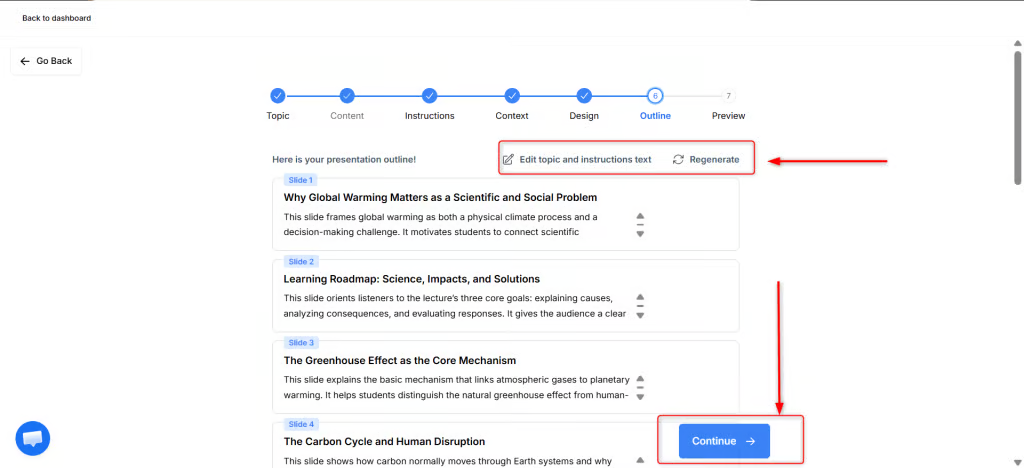
Review the generated outline. Edit it if needed, or regenerate sections before continuing.
Review and edit the final per slide content. Edit existing slides, add or delete slides, and refine wording or structure.
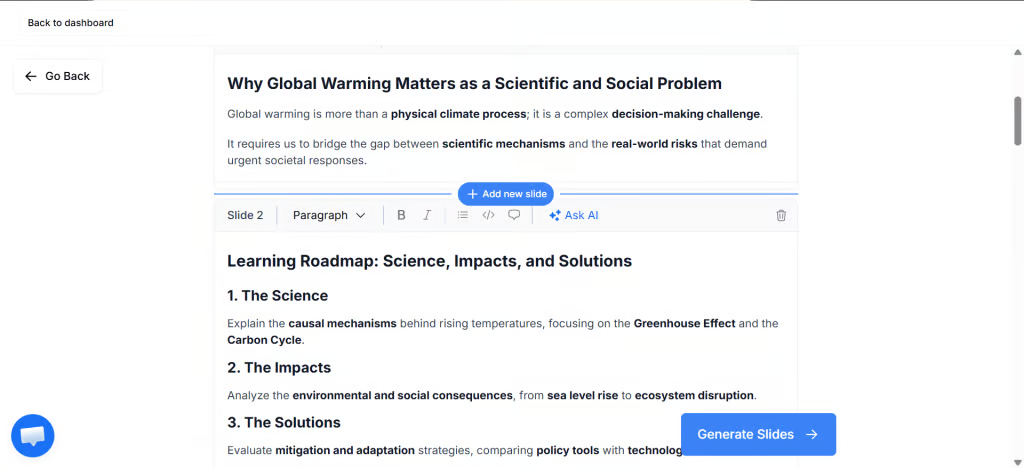
After finalising the presentation, Click on Generate.
Post generation, Review the completed slides and make any last adjustments.
For first-run paths in Google Slides, PowerPoint, and ChatGPT, see Generate your first presentation.
After you apply a template
Keep editing the finished deck in your preferred app.
Edit slides after generation — change text, images, and layout in the Platform, Google Slides, or PowerPoint.
Change themes and layouts — apply a different theme to the whole presentation or change a single slide’s style in the Platform.