
This happens when you add the SlidesAI server by hand with the wrong address. Set its URL to exactly https://mcp.slidesai.io/, without /mcp at the end, then start the sign-in with Authenticate as described above. Installing the plugin sets the right address for you.
Use SlidesAI in Google Antigravity
Updated today
Ask the Google Antigravity agent for a presentation, and SlidesAI drafts the outline, builds each slide, checks it, and gives you a link to an editable deck. It works in the Antigravity App and the Antigravity CLI, and you never leave your workspace.
Before you start
Google Antigravity, either the App or the CLI (
agy).A SlidesAI account. A free account works, and you can create one during sign-in.
Install the SlidesAI plugin
The plugin connects Antigravity to SlidesAI and teaches the agent how to build a deck step by step.
In the Antigravity App
In the left sidebar, open Customizations.
On the Marketplace tab, search for SlidesAI.
Click + on the SlidesAI card, or open the card and click Add.
In the Antigravity CLI
Run this in your terminal, then run agy plugin list to check that SlidesAI is installed and enabled.
agy plugin install slidesaiSign in to SlidesAI
You sign in once, the first time Antigravity uses SlidesAI. Your browser opens a SlidesAI page, and you need no API key.
Pick what Antigravity may do, then click Allow.
Sign in to SlidesAI, or create a free account.
Choose what Antigravity may do. Creating presentations and adding slides are always on, and seeing your brand kits is on by default. Deleting slides stays off unless you tick it.
Click Allow.
If the browser doesn't open, start the sign-in yourself:
App: open Settings (Cmd + , on Mac, Ctrl + , on Windows and Linux), go to Customizations, and click Authenticate next to slidesai_decks.
CLI: run
/mcp, select slidesai_decks, and choose Authenticate.
Open the link it shows, click Allow, then paste the code from the SlidesAI page back into Antigravity.
Create your first presentation
Describe the presentation in plain words, or point the agent at a file in your workspace. For example:
"Make a 4-slide pitch deck for a coffee subscription startup called BeanBox"
"Turn this README into a 6-slide project overview for my team"
"Create a slide with a bar chart of quarterly revenue: Q1 $120k, Q2 $150k, Q3 $170k, Q4 $210k"
You can also start with the command /slidesai:make-presentation.
Here's what happens next:
A few quick questions. The agent asks which look to use (a generic design or one of your brand kits), how many slides, who the presentation is for, and how much detail you want.
You approve the outline. SlidesAI shows a slide-by-slide plan. Ask for changes before anything is built.
Slides are built one at a time. SlidesAI checks each slide against a screenshot before it starts the next one.
You get the editor link. The link opens your presentation in SlidesAI.
The deck Antigravity built, open in the SlidesAI editor.
Every slide stays editable. Open the link to change text, layout, and design, then export to PowerPoint, Google Slides, or PDF.
Stop approving every tool call
Antigravity asks before each tool call by default, and a presentation takes several calls per slide. Allow SlidesAI's tools to let a presentation build from start to finish.
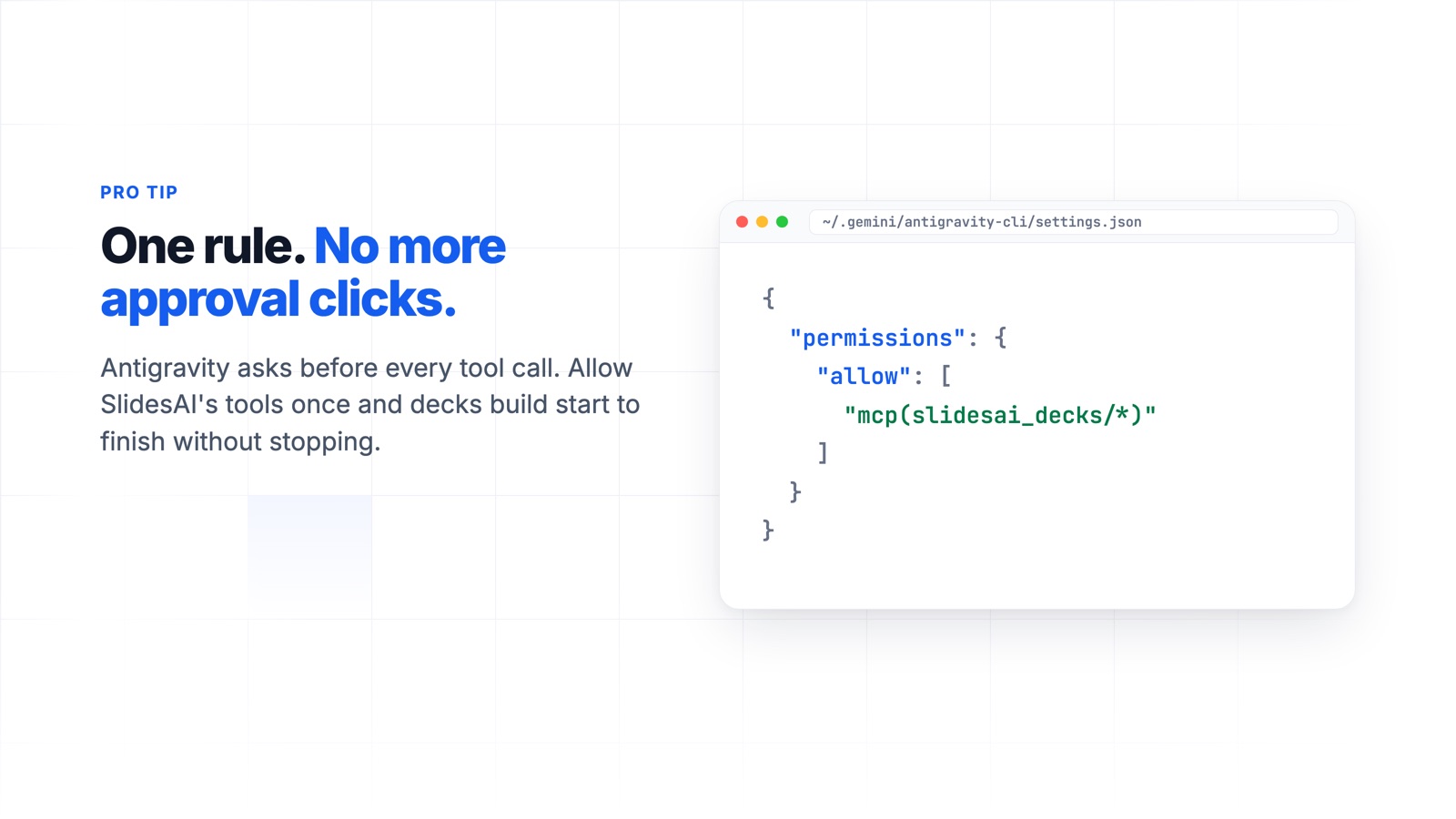
For the current turn: on an approval card, change the target to
slidesai_decks/*before you click Allow. The grant lasts until the agent finishes its turn, so Antigravity asks again after the outline step.Every time: add this rule to your Antigravity settings. For the CLI, the file is
~/.gemini/antigravity-cli/settings.json.
{
  "permissions": {
    "allow": ["mcp(slidesai_decks/*)"]
  }
}
Fix common problems
SlidesAI shows "Unauthorized" and never asks me to sign in
The agent can't find any SlidesAI tools
Check that the plugin is installed and turned on: in the App, open Customizations and then Installed; in the CLI, run agy plugin list. Then start a new conversation.
The agent stops after it creates the presentation
Reply "keep building the slides". The presentation and its editor link are already saved in your SlidesAI account, so nothing is lost.
I want to disconnect SlidesAI
In the App, open Customizations, then Installed, and turn the plugin off or uninstall it. In the CLI, run agy plugin uninstall slidesai.
Related articles
Was this helpful?
Was this helpful?