
We couldn't process that image, so the original stays on your slide and you are not charged. Try again, or use a different image, such as a JPG or PNG with a clear subject.
Remove the background from an image
Updated today
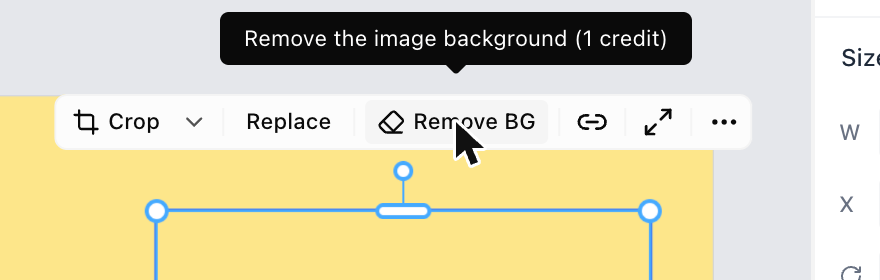
Select an image on your slide and click Remove BG in the image toolbar. We cut out the main subject, such as a person, product, or logo, and swap in a version with a transparent background. Each removal costs 1 credit.
Remove a background
Use this for product shots, headshots, and logos you want to place on your slide's own color or design.
Click the image on your slide to select it.
In the toolbar above the image, click Remove BG.
The image shimmers while we work, which usually takes a few seconds. The cut-out then replaces the original in the same position and size, and the button changes to Restore BG.
Make the subject fill its box
A cut-out keeps the size of the original photo, so the subject can look small inside its box. Click Fit next to Restore BG to make the subject as large as it can be in the box without cutting any of it off.
The box usually stays the same: we zoom in on the subject so it fills the box.
If the photo is too narrow or short for the box: the box shrinks around the subject, keeping the same center. It never grows, so it can't cover anything next to it.
If the subject already fills the box: nothing changes, and we tell you so.
Fit is free and doesn't change the image itself. Press Ctrl+Z (Cmd+Z on Mac) to undo it, or reframe the image later with Crop.
Which images work
Remove BG works on photos and other raster images (JPG, PNG, WebP) on your slide.
SVG and GIF images: not supported, so the button does not appear for them.
Images you just pasted or uploaded: the button stays greyed out until the image finishes uploading. Hover over it to see why.
Large images: scaled down so the longest edge is at most 2,560 pixels.
The cut-out works best when the subject stands out clearly from its background. Busy scenes with no clear subject can give rough edges.
Bring back the original image
You can undo a removal right away, or later, even after you close the presentation.
Right after removing: press Ctrl+Z (Cmd+Z on Mac), or click Undo in the message that appears. One undo restores the original.
Any time later: select the image and click Restore BG.
If you replace the image after removing its background, Restore BG no longer appears, so your new image is never swapped back to the old one.
Credits
Each successful removal uses 1 credit. A failed removal is not charged, and Restore BG, Fit, and undo are free.
If you don't have enough credits, we show you how to get more instead of removing the background. Learn more in How credits work.
Exporting
The cut-out keeps its transparent background when you export. In PowerPoint (PPTX) it stays a transparent image you can move onto any background, and in PDF your slide's background shows through behind the subject.
Troubleshooting
I see "Couldn't remove the background from this image"
I see "You're removing backgrounds too quickly"
You can remove up to 20 backgrounds a minute. Wait a minute, then try again.
The Remove BG button is greyed out
The image is still uploading, or the presentation is still loading. Wait a few seconds and the button turns on.
Fit says the subject already fills the image
The subject already reaches the edges of its box in at least one direction, so it can't get bigger without being cut off. To make it larger, resize the image box first, then click Fit again.
Was this helpful?
Was this helpful?