
Use teams in your organization
Updated today
Teams group people and presentations inside your organization. Everyone is on the General team, and with a Team plan you can create more teams. Owners and Admins manage teams in Organization settings > Teams.
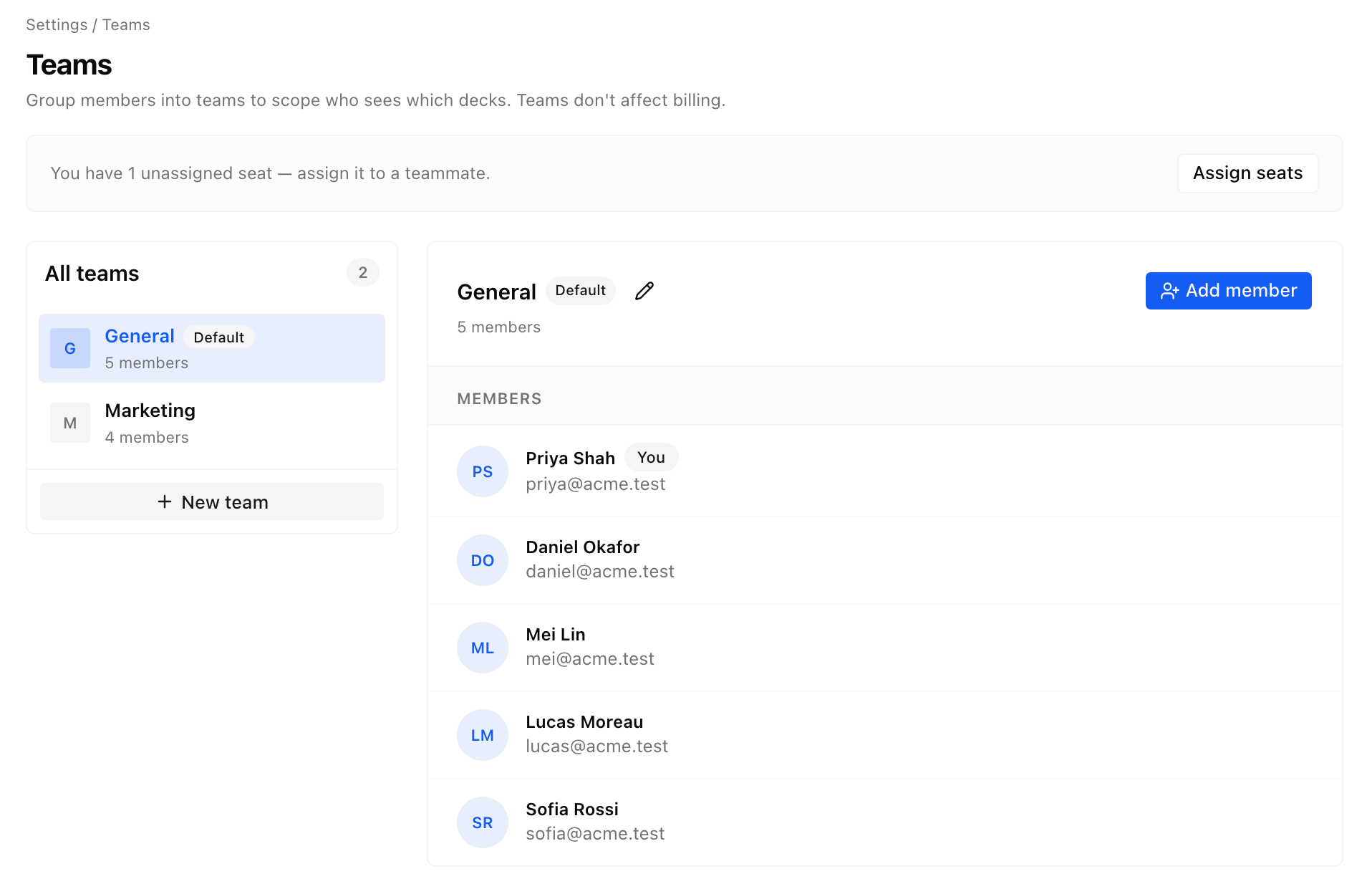
The General team
General is your organization's default team, marked Default in the team list. Everyone who joins the organization is added to General. You can't leave or delete General.
What being on a team gives you
Being on a team decides which team presentations and folders you see. Teams don't have roles of their own: your organization role decides what you can do with them.
Members and Content managers see and edit the presentations and folders of every team they're on. Content managers can also share and move them.
Commenters and Viewers can comment on or view their teams' presentations, and nothing more.
Owners and Admins can manage the presentations of every team. The dashboard sidebar shows only the teams they're on, but they can open any team's presentation from a link, and they see every team on the Teams tab.
Every presentation lives in one place: a team, or its creator's Private space, which only they and the people they share with can see. Inside a team you can organize presentations in folders. To change where a presentation lives, move it to another team, folder or Private. To give specific people access, share it.
Create a team
You need to be the Owner or an Admin, and your organization needs a Team plan. On other plans, the Teams tab offers an upgrade instead.
Open Organization settings and go to Teams.
Click New team.
Enter a team name.
Click Create team.
Add people to a team
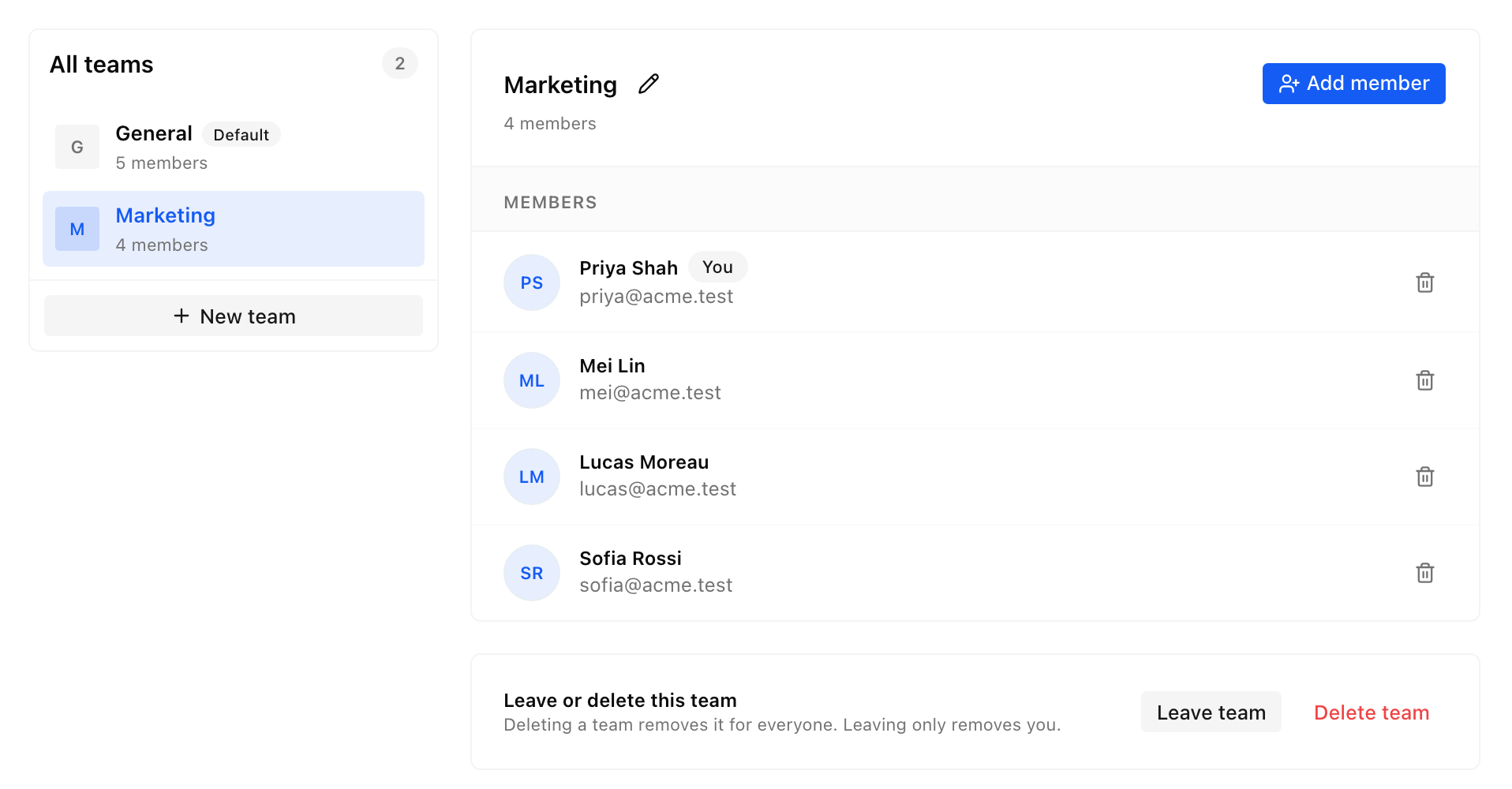
Owners and Admins add people from the team's page.
On the Teams tab, open the team.
Click Add member.
Enter a member's name or email.
If you enter the email of someone outside your organization, we send them an invitation to the organization. They show as External and join the team when they accept. Owners and Admins can join a team they aren't on by opening it and clicking Join team.
Leave a team
Open the team on the Teams tab and click Leave team. You lose access to the team's presentations, and the team stays for everyone else.
Delete a team
Owners and Admins can delete a team. Its members lose access to the team's presentations, and each presentation stays with the person who created it. The team's brand kits, templates and fonts are deleted. You can't undo this.
Open the team on the Teams tab.
Click Delete team.
Confirm with Delete team.
Used SlidesAI as a team before? General is now your default team, Moderators are now Members, and team settings are in Organization settings. Every member keeps the credits they had.