
Seats, credits and billing for your organization
Updated today
Your organization pays for seats, and each person who creates with AI uses one. The Owner buys seats and manages billing in Organization settings > Billing. Owners and Admins assign seats to members. Each seat comes with its own credits.
How seats work
A member's seat decides how many AI credits they get, and Commenters and Viewers don't need one. For the credits on each seat and how many seats each plan allows, see Compare Basic, Pro, Premium and Teams plans.
Seat types: a seat is Free, Pro or Premium. On a Team plan, paid seats are Teams Pro or Teams Premium.
Mixing tiers: after you buy, you can add the other tier on the Billing tab, so an organization can have both Pro and Premium seats. An organization is on either Individual or Team seats, never both.
No seat: members without a seat can't use AI credits until someone assigns them one.
Buy seats
Only the Owner can buy seats. On the Free plan, open Billing and click Upgrade your plan.
Choose the Individual or Team plans.
Under Billing, choose Annually or Monthly.
Choose Pro or Premium, and how many seats you want. You buy one tier at a time, and you can add the other tier later on the Billing tab.
Click Continue to checkout and pay. A secure checkout from our payment partner, Paddle or Dodo Payments, opens. Your organization keeps using the partner it first paid with.
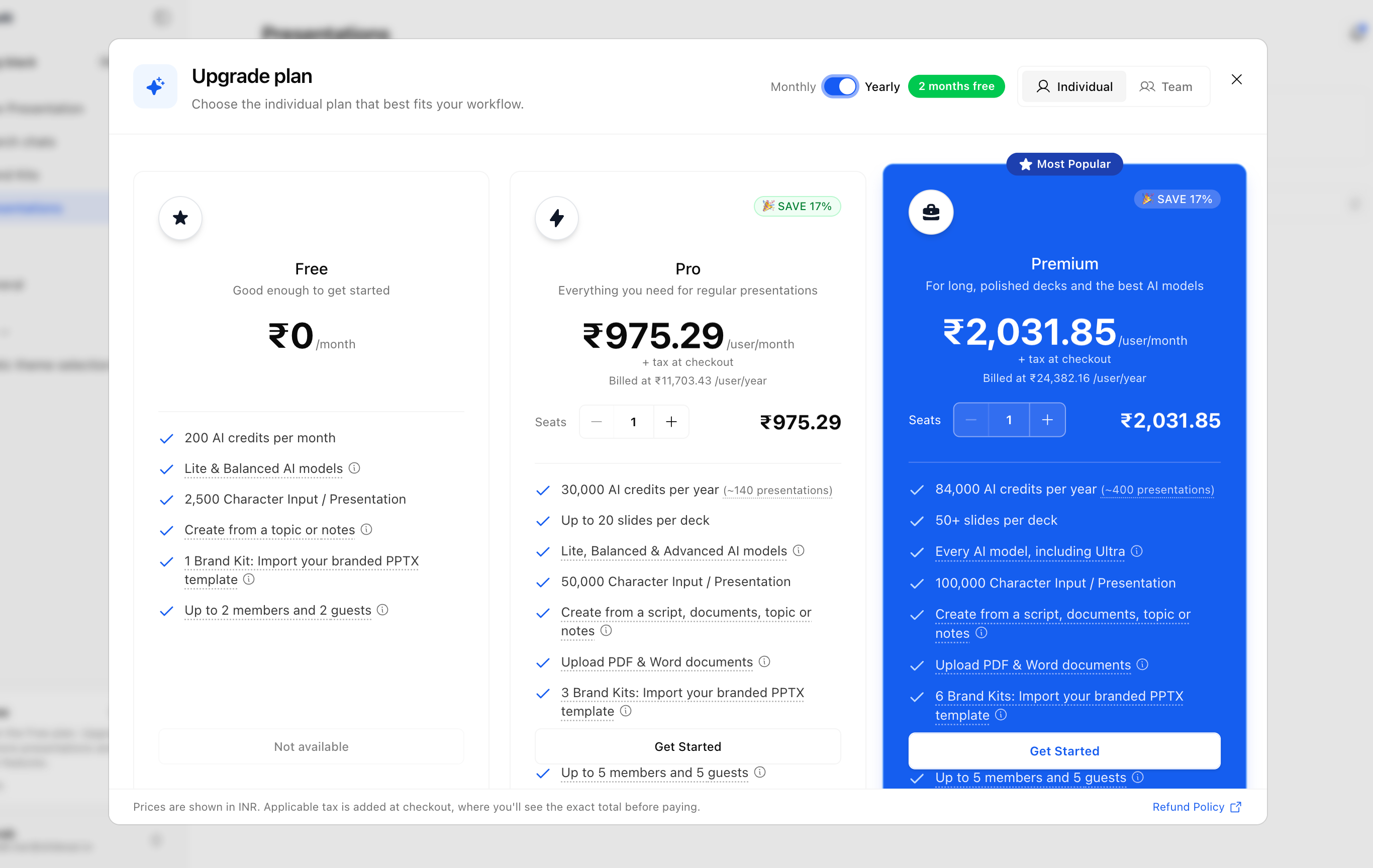
If you're the only person in your organization, we put you on the new seat right away. Otherwise, click Assign seats to give them out.
Assign a seat
Owners and Admins assign seats from the Plan column on the Members tab.
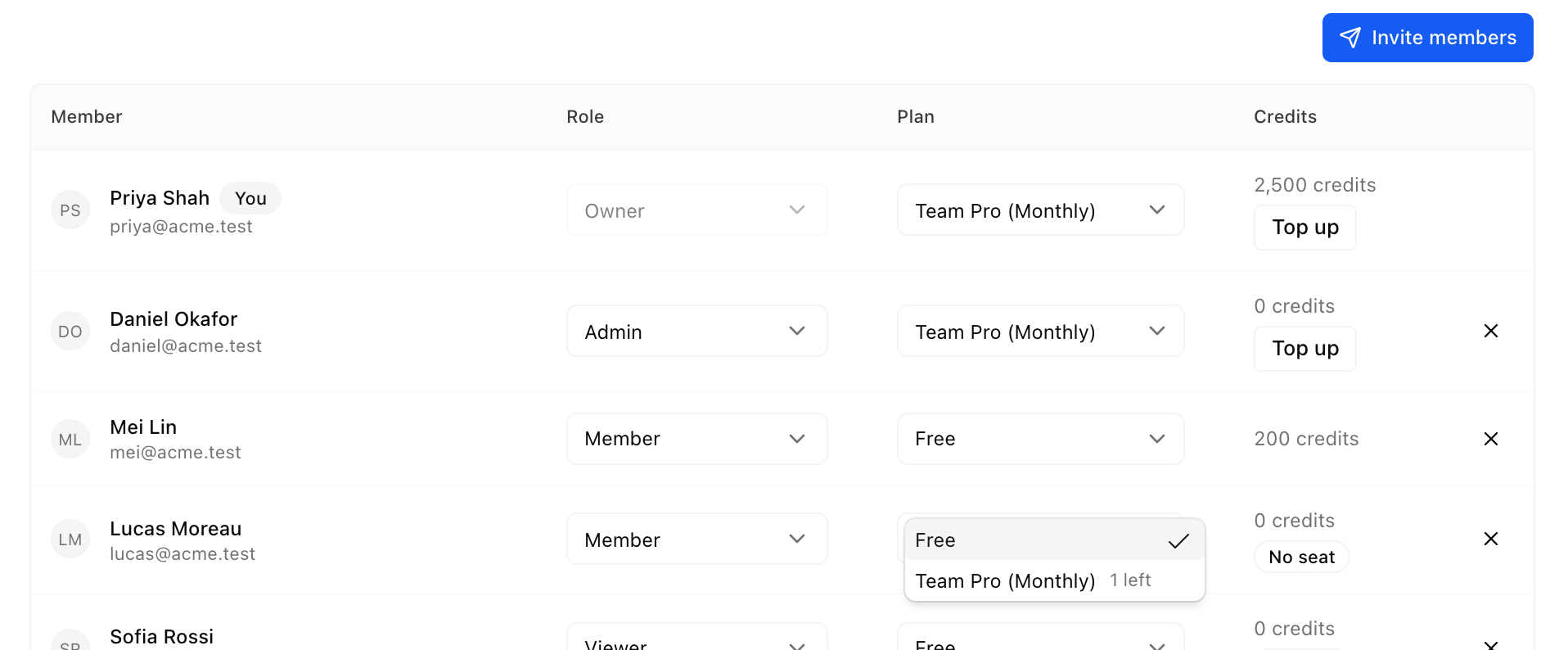
Credits stay with the seat: a seat keeps its credit balance when it moves to another person. Assigning it doesn't add credits.
Commenters and Viewers: giving one of them a paid seat makes them a Member.
Taking a seat back: the person moves to the Free plan right away. The seat stays on your bill until you assign it to someone else or reduce your seat count.
Add or remove seats
Only the Owner can change the seat count. Each seat tier on the Billing tab shows how many of its seats are assigned.
Use the + and - buttons on a seat tier.
Check Due now and Next payment.
Click Confirm.
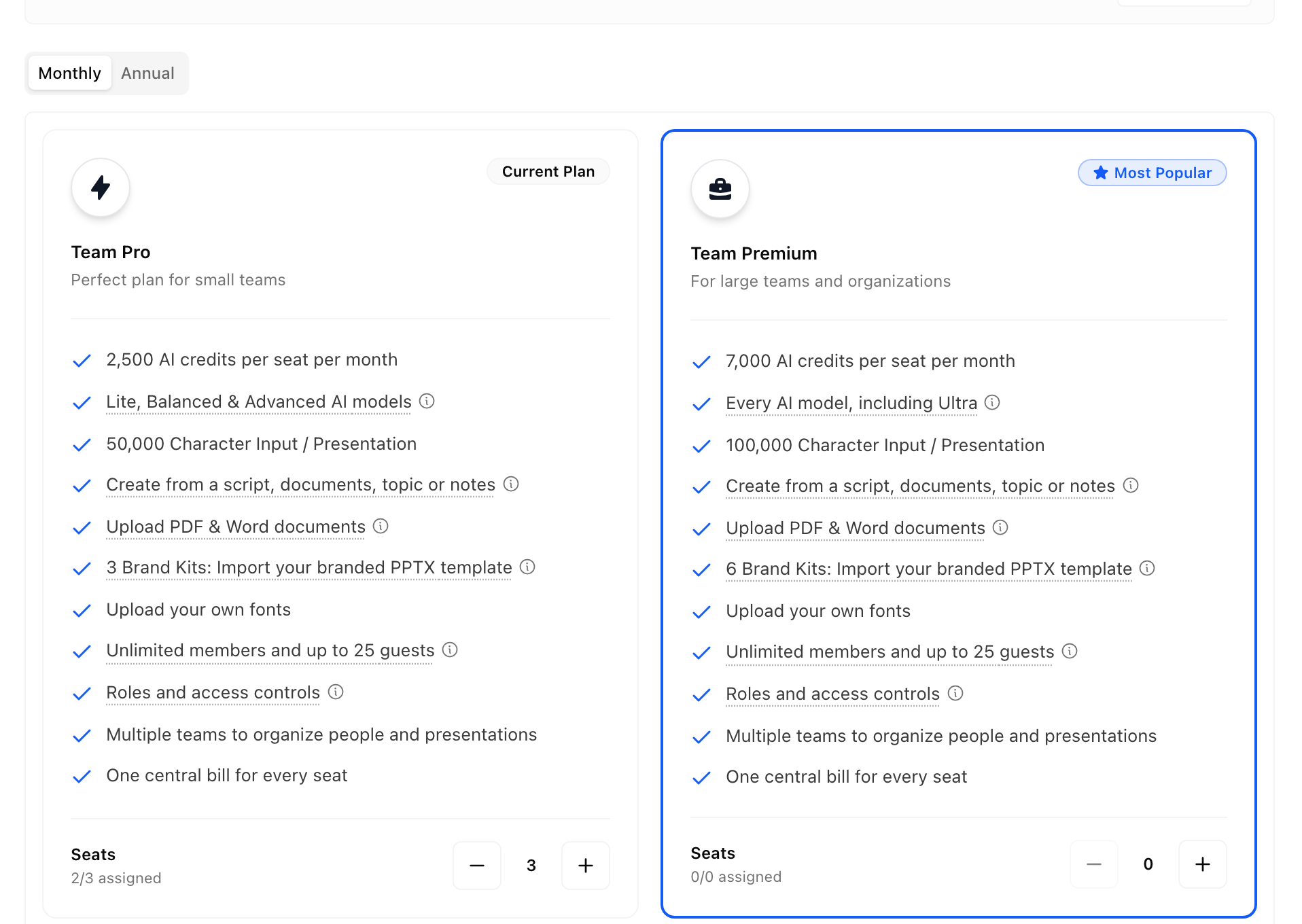
Adding seats: you pay now for the rest of the current billing period, and your renewal date stays the same. New seats get credits for what's left of the current credit month, and never less than half a month's worth.
Removing seats: you can't remove seats that are in use. You'll be prompted to remove the seats in use. To stop paying entirely, cancel the subscription instead of removing every seat.
Credits on removed seats: you may be asked where their unused credits go. Share with remaining seats spreads them across your other seats. Keep in a Free wallet keeps them aside for you to assign to a member.
Individual seat limit: when you need more seats than an Individual plan holds, upgrade to a Team plan.
Monthly and yearly seats together
An organization can have one monthly and one yearly billing cycle at the same time. Each cycle is a separate subscription with its own payment. To add the other cycle, click Add annual seats or Add monthly seats on the Billing tab.
To move from monthly to yearly billing, add annual seats, move members onto them, then cancel the monthly subscription.
Credits and usage
Each seat has its own credits. Members spend their own seat's credits. To see what things cost, read How credits work.
Plan credits: monthly seats get new credits each month, and yearly seats get the whole year's credits at once. Unused plan credits don't roll over.
Top-ups: only the Owner can buy extra credits. Click Top up on a member's row in Members or Usage. Bought credits go to that one seat and never expire.
Asking for more: members who run out need to ask the Owner for a top-up or a bigger seat.
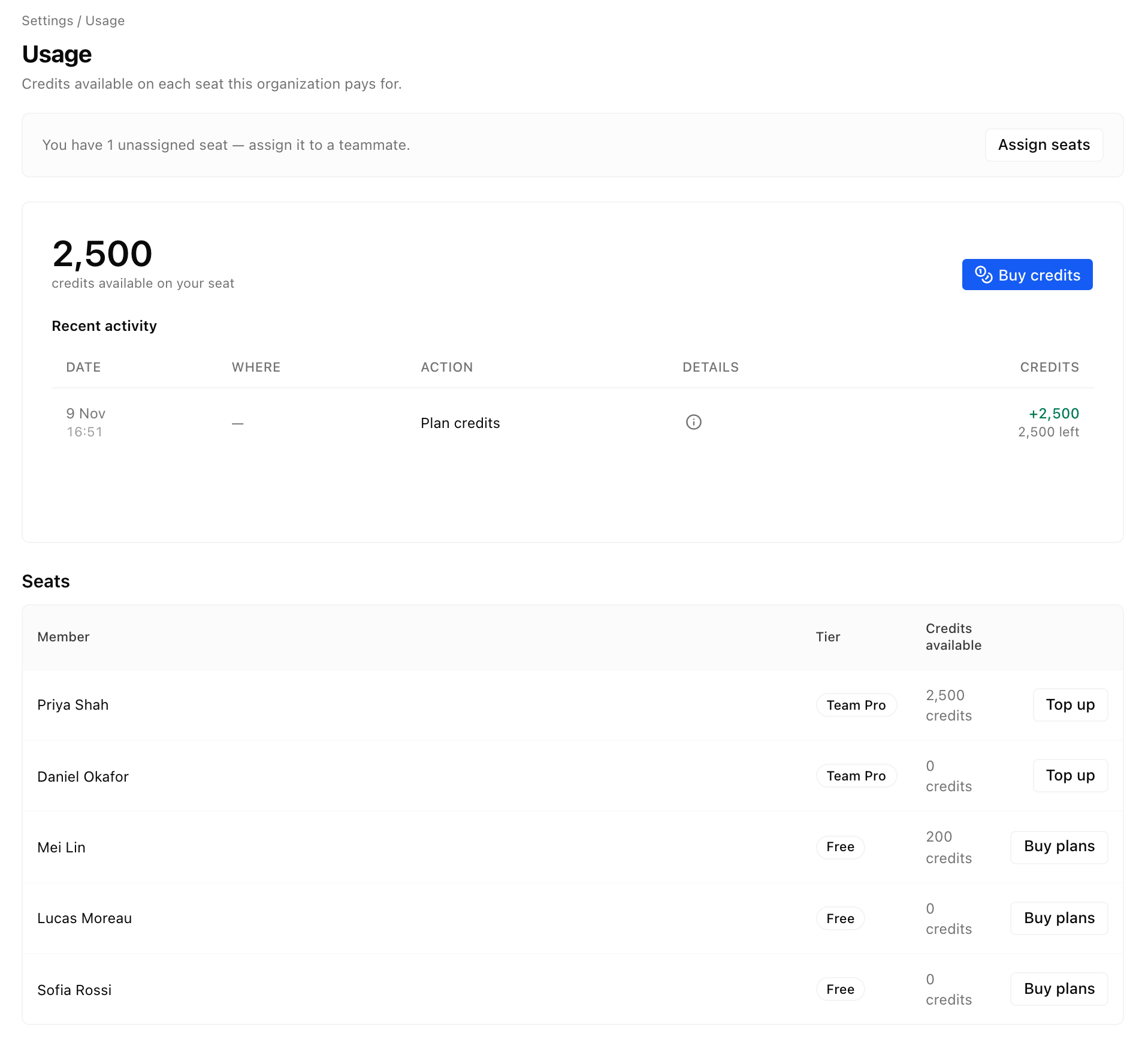
The Usage tab shows the credits and presentations left on your seat, and your recent activity. Owners and Admins also see a table of every seat, with each member's tier, presentations and credits. The sidebar shows your remaining credits too.
Upgrade seats
Only the Owner can upgrade. Members who need more can click Notify Owner where the app offers it.
You can't switch to Team while a subscription is scheduled to cancel. Revoke the cancellation first.
Move seats between Pro and Premium
Move seats between tiers with the + and - buttons on the Billing tab, then choose which seat moves. An upgraded seat keeps its credits and gets the difference for the rest of the cycle.
When you move a seat down to a lower tier, you may be asked what happens to its unused credits: the seat keeps this cycle's credits and the lower allowance starts at renewal, or you share them with your other seats. Credits a member bought always stay with them.
For Paddle users: if you bought your subscription before October 26, your plan is billed through Paddle, and you don't get this choice. Paddle prorates the change and charges or credits you for the difference right away.
Upgrade to Team plans
On the Billing tab, click Explore team plans.
Click Upgrade to Teams.
On Review Team upgrade, check today's prorated charge.
Click Confirm Team upgrade.
A Team plan needs at least 2 seats, so we add a second seat if you only have one.
Pause your plan
A pause stops the seats on that cycle right away. While paused, members on those seats can't create presentations or use AI. Their credits are kept.
On the Billing tab, click Pause on the cycle.
Confirm.
To start again, click Resume on the Billing tab, or Continue plan on the banner.
For Paddle users: if you bought your subscription before October 26, your plan is billed through Paddle, and a pause takes effect at the end of the current billing period instead. Seats keep working until then, and the Billing tab shows the date.
Cancel your plan
The Owner cancels each billing cycle with Cancel on the Billing tab. A cancelled subscription stays active until the end of the period you've paid for. After that, its seats stop working for everyone using them, and any remaining credits move to your organization's other active seats, if it has any.
Until the end date, you can click Revoke cancellation to keep the subscription. For the steps, including how cancelling works if you bought before October 26 and pay through Paddle, see Cancel your subscription.
Payment method and invoices
On the Billing tab, click Open billing portal. You can update your card there and download invoices for every billing cycle. For details, see Manage your organization's subscription and payment method.
What members see
We show banners on the dashboard and in Organization settings when something needs the Owner's attention.
Paused: members on paid seats can't create presentations or use AI until the Owner clicks Continue plan.
More members than paid seats: if more people hold a tier than your subscription pays for, everyone on that tier is blocked. Click Fix now and use Move to Free on some members, or add seats.
Unassigned seats: you're paying for seats nobody is using. Click Assign seats.
In Google Slides and PowerPoint
You can't buy or change a plan inside the Google Slides add-on or the PowerPoint add-in. AI work in an add-on uses your seat in the organization you picked in the add-on's account switcher.
Owner: upgrade buttons open Billing on the web in a new tab, and credit buttons open Usage to buy credits for your seat. On the Free plan, they open our pricing page.
Other members: the add-on asks you to contact your organization's Owner to upgrade or to assign you a paid seat.