
How organizations work in SlidesAI
Updated today
An organization is the workspace where you and your teammates keep presentations, share one plan and pay one bill. You get your own organization when you sign up, and you're its Owner.
Already using SlidesAI? Your plan, credits and presentations are in your organization, so you keep creating as before.
Private and team presentations
Inside an organization, every presentation lives either in your Private space, where only you can see it, or in a team, where everyone on that team can see it. Learn how to use teams in your organization.
Group presentations with folders.
Change where a presentation lives with Move.
Give specific people access by sharing a presentation.
Switch between organizations
The switcher at the top of the dashboard sidebar shows the organization you're working in. Your plan, credits and presentations always follow the organization you pick.
Click the organization name at the top of the dashboard sidebar.
Under Organizations, pick the one you want. Paid organizations show a Pro or Premium badge.
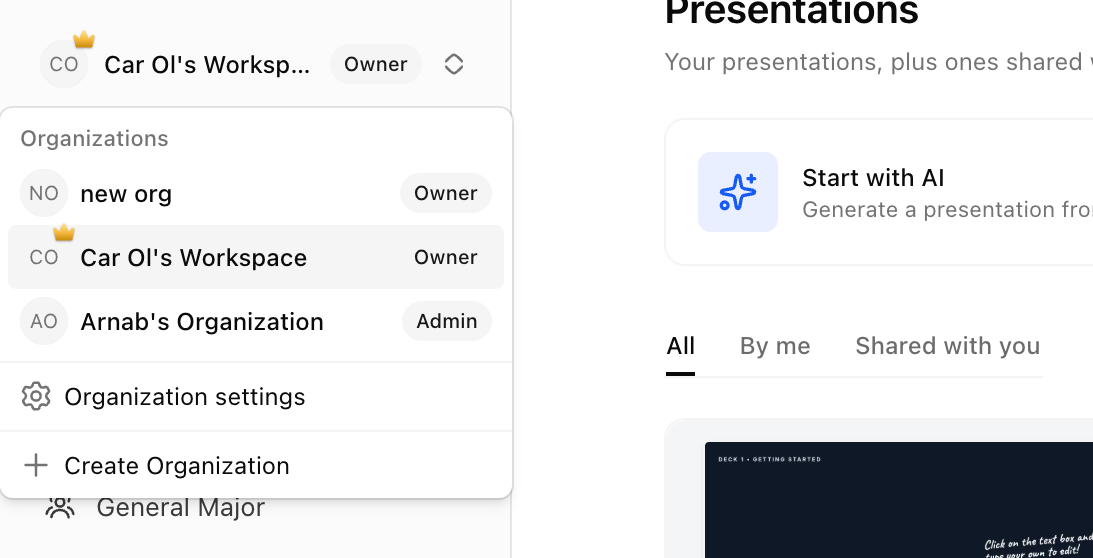
In the Google Slides add-on and the PowerPoint add-in, use the account switcher in the add-on. The organization you pick there is also your active organization on the web.
Organization settings
Open the switcher and click Organization settings. Everyone sees these tabs except Billing, and only some roles can change them.
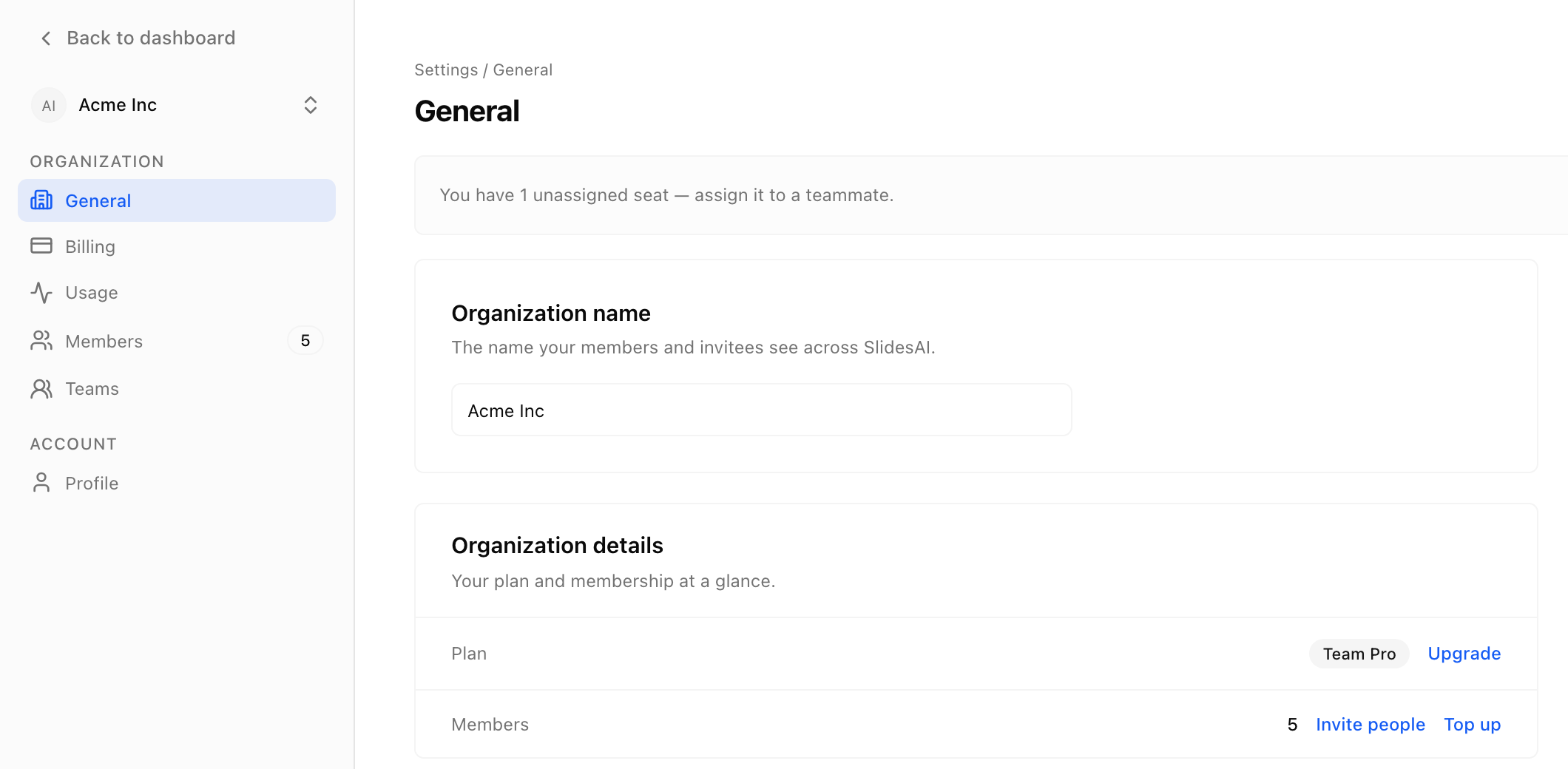
Tab | What it's for | Who can change it |
|---|---|---|
General | The organization's name, and Leave organization | Owner and Admins rename it. Anyone except the Owner can leave. |
Billing | Plan, seats, payment method, invoices, pause and cancel. See Seats, credits and billing. | Only the Owner. Admins can see this tab but can't change anything. Other roles don't see it. |
Usage | Credits and presentations left on your seat, and recent activity. See Check your current plan and usage. | Owner and Admins also see every seat's balance. |
Members | People, roles, seats and pending invitations. See Invite members and manage roles. | Owner and Admins |
Teams | Teams in the organization and who is on them. See Use teams in your organization. | Owner and Admins |
Profile | Your own account | You |
Your organization's plan
Your organization has one plan, and it decides how many members, guests, seats and teams you can have. Compare them in Compare Basic, Pro, Premium and Teams plans. Only the Owner can change the plan, and anyone else can click Notify Owner where the app offers an upgrade.
An organization has one Owner, and ownership can't be transferred to someone else. Deleting an organization isn't available in the app. To delete one, contact our support team.