
Invitations only appear for the invited email address. Ask your teammate to sign in with that exact address and look for the invitation bar on the dashboard. You can also resend the invitation from the Members tab.
Invite members and manage roles in your organization
Updated today
Owners and Admins invite people by email from Organization settings > Members, and give each person a role. The role decides what that person can do across the whole organization. People outside the organization can still work on a presentation you share with them, as guests.
Roles and what they can do
Every member has one organization role. Teams don't have roles of their own: the organization role applies in every team you're on.
Role | What they can do | Uses a seat |
|---|---|---|
Owner | Everything, including the plan, seats, payment and buying credits. Manages every team's presentations. | Yes |
Admin | Invites and removes members, changes roles, assigns seats, creates and deletes teams, renames the organization, and manages every team's presentations. Can see Billing but can't change it. | Yes |
Content manager | Everything a Member can do, plus sharing and moving presentations and folders in the teams they're on. Can't delete a teammate's presentation. | Yes |
Member | Creates and edits presentations, and edits their teams' presentations and folders. Manages only what they created. | Yes |
Commenter | Views and comments. Can't create presentations. | No |
Viewer | Views only. Can't create presentations. | No |
Team plan roles: without a Team plan you can give only the Admin role. The other roles show as locked, with Unlock all roles.
Shares follow the role: a share never gives someone more than their role allows. A Viewer stays view-only even on a presentation shared with their team as an editor, and the Share dialog says why.
Admins: only the Owner can change an Admin's role.
Invite people
You need to be the Owner or an Admin. You can invite up to 50 email addresses at once, and every invitee joins the General team.
Open Organization settings and go to Members. You can also start from Invite people on the General tab.
Click Invite members.
Enter one or more email addresses.
Pick a Role.
Click Send invite.
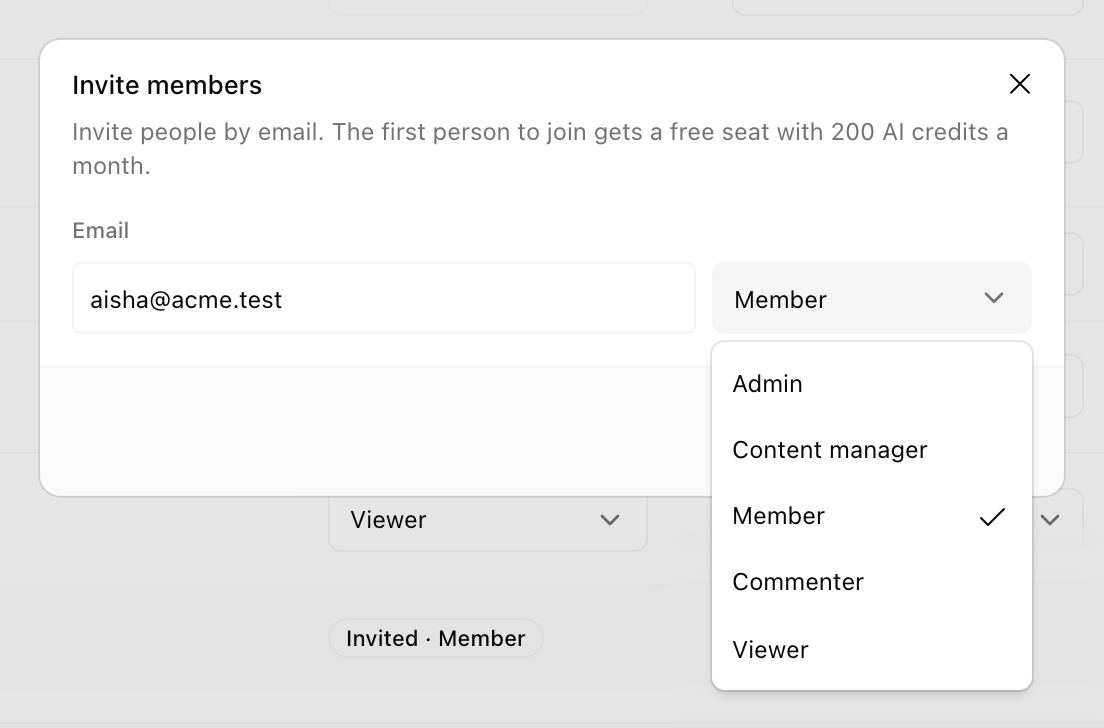
Your plan sets how many members you can have, and the Owner and pending invitations count toward it. See Compare Basic, Pro, Premium and Teams plans. At the limit, cancel a pending invitation or upgrade to a Team plan. We never remove anyone to bring you under a limit.
You don't need a spare paid seat to invite someone. A new member takes a Free seat if your organization has one left. Otherwise they join with no seat and can't use AI credits until an Owner or Admin assigns them a paid seat.
Accept an invitation
We match invitations by email address, so sign in to SlidesAI with the address the invitation was sent to.
Sign in and open the dashboard. A bar says you have an invitation to join the organization.
Click Show to see the organization, your role and the invite date.
Click Accept Invite, or Decline.
Accepting adds you to the organization and its General team, and switches you into it. You keep your own organization too, and you can switch back at any time.
Resend or cancel an invitation
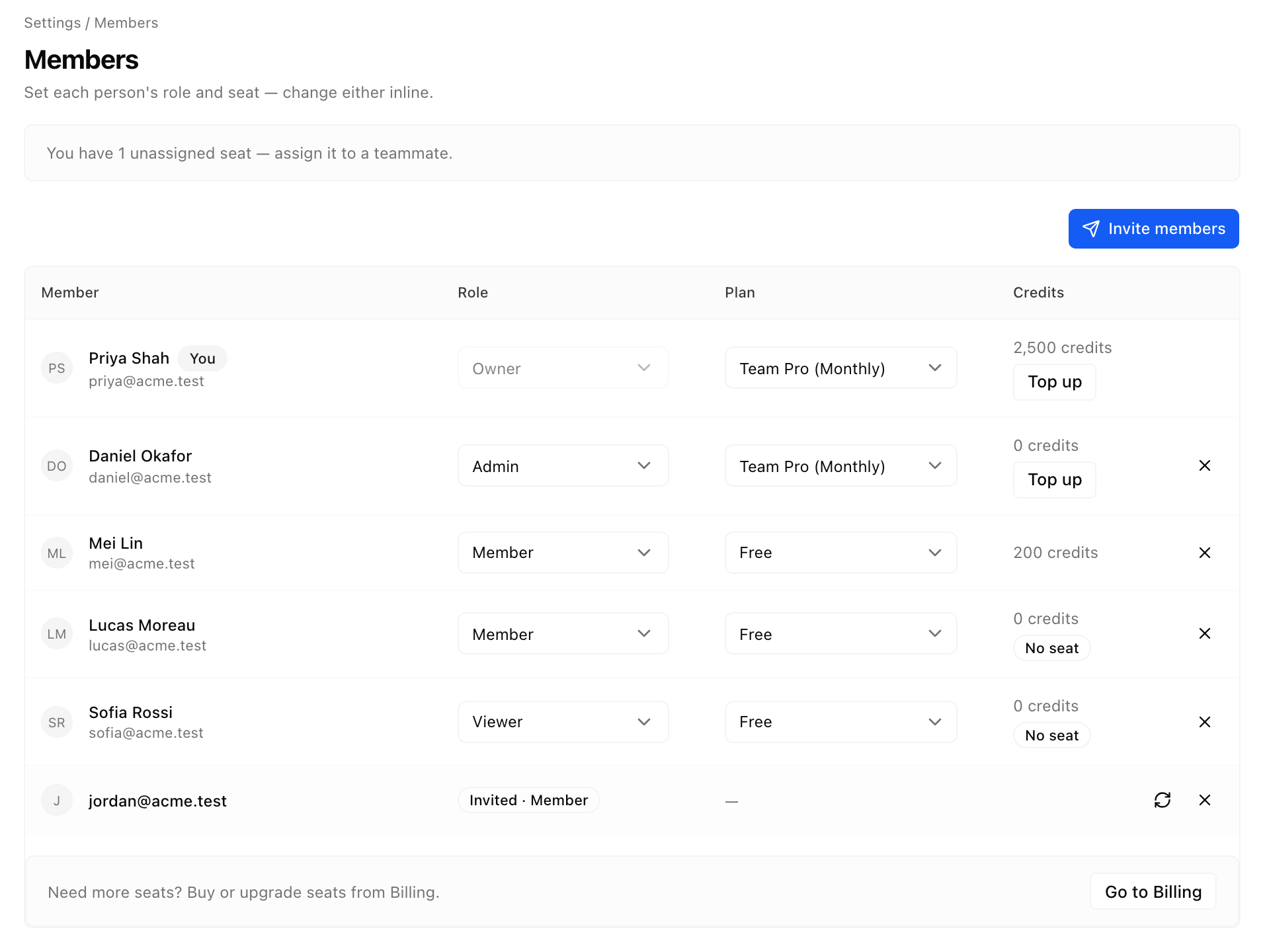
Invitations stay valid until someone accepts, declines or cancels them. Pending invitations appear on the Members tab, marked Invited.
Resend: click the resend icon on the invitation's row.
Cancel: click the X on the invitation's row. This frees the spot it held toward your member limit.
Change someone's role
On the Members tab, pick a new role from the person's role menu.
Paid seat holders: someone on a paid seat can't move to Commenter or Viewer. Take their seat back first. A Free seat doesn't block the change.
Assigning a seat: when you give a paid seat to a Commenter or Viewer, they become a Member.
Guests
A guest is someone outside your organization who can open at least one of your organization's presentations, as a viewer, commenter or editor. We count each guest once, however many presentations they can open, and people who open a public link aren't guests. Your plan sets how many guests you can have; see Compare Basic, Pro, Premium and Teams plans.
Checking your count: the Share dialog shows how many guests your organization has, out of your limit. Hover over the count to see each guest and the presentations they can open.
Over the limit: we don't add a new guest when your organization is full. Remove a guest from all of their presentations to free a spot, or upgrade. On a Team plan, you can invite the person to join your organization instead.
What guests can do: guests can view, comment or edit, depending on the share. They can't regenerate a presentation, and their AI edits use their own organization's credits.
Folders: you can share a folder only with members of your organization.
To add a guest, share a presentation with them.
Remove a member
Owners and Admins can remove members. A removed person loses access to the organization right away and goes back to their own organization.
On the Members tab, click the X at the end of the person's row.
Confirm.
Their seat stays on your plan with its remaining credits, and you keep paying for it. Assign it to someone else, or reduce your seat count in Billing.
Leave an organization
Anyone except the Owner can leave. You lose access right away and go back to your own organization.
Open Organization settings and go to General.
Click Leave organization and confirm.
Each organization has one Owner. Ownership can't be transferred to another member, and the Owner can't leave the organization. Deleting an organization isn't available in the app. To delete one, contact our support team.
Troubleshooting
My teammate says they don't have an invitation
My teammate never got the invite email
Resend the invitation from the Members tab. Your teammate doesn't need the email: they can sign in with the invited address and accept from the bar on the dashboard.
I see "This plan allows up to" a number of members
You've reached your plan's member limit, and pending invitations count toward it. Cancel an invitation you no longer need, or upgrade to a Team plan.
I can't pick Member, Content manager, Commenter or Viewer
These roles need a Team plan. Click Unlock all roles to see Team plans. If you aren't the Owner, ask the Owner to upgrade.
A member can't use AI credits
They don't have a seat, or they're on a Free seat that has used its credits for the month. An Owner or Admin can give them a paid seat from the Members tab.
A member can't create presentations
Commenters and Viewers can't create presentations. An Owner or Admin can change their role to Member. If everyone on paid seats is blocked, the plan may be paused: the Owner can continue it from Billing.
A member can't see a presentation
It's in someone's Private space, or in a team they aren't on. Add them to the team, or share the presentation with them. See Move a presentation to another team, folder or Private.
I can't add someone outside my organization to a presentation
Your organization has reached its guest limit. Remove a guest from all of their presentations, or upgrade. On a Team plan, invite the person to your organization instead.
I see a different plan than I expected
Check the switcher at the top of the dashboard sidebar: you may be working in a different organization. If the organization is right, see Which Gmail account owns your subscription.
Was this helpful?
Was this helpful?